SharePoint HTML list views: build an interactive view
A Microsoft MVP 𝗁𝖾𝗅𝗉𝗂𝗇𝗀 develop careers, scale and 𝗀𝗋𝗈𝗐 businesses 𝖻𝗒 𝖾𝗆𝗉𝗈𝗐𝖾𝗋𝗂𝗇𝗀 everyone 𝗍𝗈 𝖺𝖼𝗁𝗂𝖾𝗏𝖾 𝗆𝗈𝗋𝖾 𝗐𝗂𝗍𝗁 𝖬𝗂𝖼𝗋𝗈𝗌𝗈𝖿𝗍 𝟥𝟨𝟧
SharePoint HTML list views can combine summary cards, tabs, charts and links to item forms in one custom view for list users.
Key insights
- The example combines four summary cards and four tabs in one view of a software renewals list.
- Tab labels can include counts, and clicking a vendor chart bar filters the table to that vendor's contracts.
- HTML views cannot add or edit items in place in the demonstrated experience; buttons open standard forms in a new tab.
- The view can be set as the list's default, making it the first view users see when they open the list.
- The view can only display information available in the list's columns, so the metadata needs to support the intended display.
SharePoint HTML list views can combine summary cards, tabbed data, a clickable chart and form buttons in one custom interface, instead of relying on a single standard table view. This approach is relevant to SharePoint list owners and users who want a tailored way to review list data without leaving the list. Daniel Anderson [MVP] demonstrates the approach with a software renewals register designed for a monthly review between IT and finance.
What it does
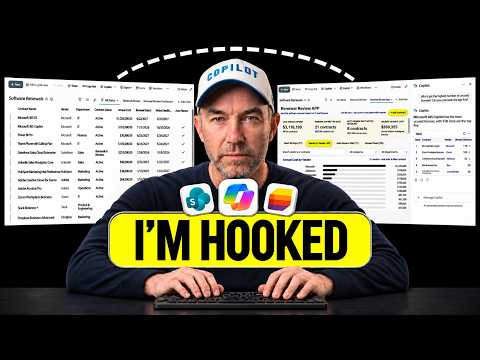
The example turns one list view into a compact review interface. It includes four summary cards, four tabs that present the same underlying data in different ways, a vendor-spend chart that filters the table when a bar is selected, and buttons for adding or editing contracts. The view stays alongside the list data rather than requiring users to navigate to a separate application for the review.
The key idea is to shape the presentation around a specific reader and task. Anderson starts with a plain-English description of the desired view in Copilot in SharePoint, then refines the result through follow-up requests. The example includes pill-shaped tabs, brand colors, counts in tab labels, and colors applied to the summary cards.
This is a custom presentation of the list, not a replacement for its underlying columns or records. The data remains constrained by what the list contains: the demonstration notes that the view can only show information available in its columns. That makes field selection and metadata important before designing the layout.
Who it is for and what you need
The demonstrated scenario is aimed at a head of IT conducting a monthly software-renewal review with finance. The same general pattern may suit other list-based reviews where people need summary figures, categories, and a focused way to inspect records, but the source does not demonstrate other business scenarios.
The example uses Copilot in SharePoint to create and refine the view. The supplied material does not specify a required Microsoft 365 license, tenant configuration, rollout stage, region, or minimum permission level. It also does not establish that the experience is available to every tenant or user, so check your own SharePoint environment before planning around it.
Before building, identify the information the view needs to display and ensure that the list has corresponding columns. The demonstration uses sample software-renewal data and does not give a complete schema or a reusable prompt. It also does not explain how to enable the feature or provide an alternate manual setup process.
How it works
Anderson builds the view through a series of small requests rather than relying on one prompt to produce the final interface. That iterative method also makes it easier to check whether a requested change actually appeared. In the example, one requested chart interaction did not apply on the first attempt, so he repeated the request.
- Open the list and use Copilot in SharePoint to describe the intended HTML view. The example names the view “Renewal Review,” identifies its intended audience and asks for summary cards and tabs.
- Review the initial result, then request visual and content refinements. The demonstrated changes include rounded pill tabs, brand colors, counts in tab labels, and matching colors on the summary cards.
- Ask for the vendor chart to filter the table when a bar is clicked. If the interaction does not work as intended, check the result and restate the desired behavior.
- Add buttons for adding and editing records, bearing in mind that these buttons open the standard SharePoint item form in a new tab rather than editing records inside the HTML view.
- Set the finished view as the list's default if it should be the first view users see. The demonstration uses the option labeled “Set the current view as default,” then returns to the list to check the result.
The chart interaction is useful when someone wants to move from a summary to the matching records without manually filtering the table. The tabs provide several presentations within the same view, while the cards and tab counts give users quick totals. These behaviors are shown in the renewals example; the source does not specify how they are implemented behind the interface.
Limitations and open questions
The clearest limitation is record editing. In the demonstrated experience, users cannot add or edit items directly inside the HTML view. The Add Contract and Edit buttons instead open the standard SharePoint form in a new browser tab. The HTML view therefore acts as a tailored interface for presenting and navigating data, while item changes happen in the separate form.
That distinction matters when deciding whether this view fits a workflow. It can gather useful summaries and filtering in one place, but users who expect a fully in-place editing experience will need to account for the form handoff. The demonstration does not establish whether the limitation has changed since recording, so verify current behavior in your environment.
Other details remain unspecified in the available material, including licensing, feature rollout, administrative controls, accessibility, mobile behavior, and the exact steps for creating the view outside the demonstrated Copilot workflow. The example is a useful pattern to evaluate, not a complete deployment guide. Treat the results as dependent on your list's data and on what your SharePoint environment currently supports.
Sources
- Daniel Anderson [MVP] demonstration of an interactive SharePoint HTML list view
- Daniel Anderson [MVP] on LinkedIn
Frequently asked questions
Can you edit SharePoint list items inside an HTML view?
Not in the experience demonstrated. The Edit button opens the standard SharePoint item form in a new tab.
Can a SharePoint HTML list view filter records from a chart?
In the demonstrated example, clicking a vendor's bar filters the table to that vendor's contracts. The first request did not apply, so the behavior needed a follow-up prompt.
How do you make an HTML view the default SharePoint list view?
The demonstration uses the list option labeled “Set the current view as default.” The source does not provide further details about permissions or configuration requirements.
What license do you need for Copilot-created HTML list views?
The available material does not specify a required license or confirm availability across tenants. Check your SharePoint environment and licensing before relying on the workflow.