- All of Microsoft
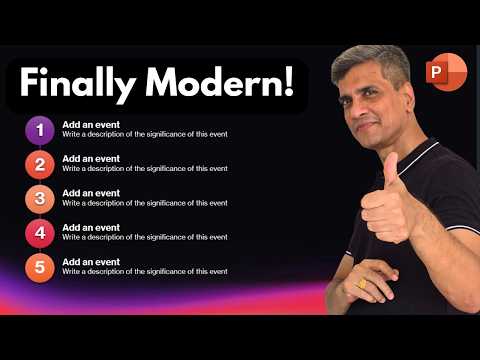
PowerPoint SmartArt: Big Design Boost
PowerPoint SmartArt modernized with new layouts and easy editing in Microsoft Office for presentation pros
Key insights
- SmartArt got a modern refresh with 13 new layouts that include timelines, lists and team slides.
These templates make visuals look current without extra design work. - Microsoft reorganized the gallery with updated categories and added easier editing like multi-image insert and clearer placeholder text.
Finding and editing layouts is now faster and less frustrating. - The main benefit is text-to-visual speed: convert bullets into clean diagrams for reports, training, timelines and org charts.
Users save time and keep slides consistent without building graphics from scratch. - Core workflow stays simple: use Convert to SmartArt from the Home tab or Insert > SmartArt, then pick a layout and style from SmartArt Design.
You can also Convert to Shapes when you need full manual control. - SmartArt now supports more styling and animation control so you can add color, animate items and set the sequence precisely.
These options make diagrams clearer and help guide audience focus. - The update is rolling out now with full availability by July 2026, and broader PowerPoint improvements will reach Windows and Mac soon.
Expect the feature to appear gradually across Office 365 installations.
Overview: What the Video Reveals
The YouTube video from Presentation Process YouTube highlights a quiet but meaningful update to SmartArt inside PowerPoint. The presenters demonstrate that Microsoft has introduced modern layouts, clearer organization, and smoother editing controls, aiming to reduce the friction many users felt when converting text into visuals. Consequently, users who once avoided SmartArt because it felt dated may now find it more attractive for everyday slide creation.
Moreover, the video walks viewers through specific new features and shows practical examples of converting bullet lists into visual diagrams, inserting multiple images, and adjusting animation sequences. The pacing is tutorial-focused and practical, which helps viewers evaluate whether the upgrade will speed their workflow. Therefore, the footage serves both as a demonstration and as a prompt to re-evaluate how teams produce quick diagrams.
New Features and Design Improvements
First, the update adds several new layouts that include timelines, list-based designs, and team-oriented templates, giving presenters more starting points. In addition, the SmartArt gallery now organizes templates more clearly, which makes it easier to find a layout that suits a slide’s structure. The presenters also point out that placeholder text now reads more clearly when nodes remain unedited, reducing guesswork during design.
Second, the upgrade introduces better multi-image support and refined editing controls that allow for faster content swaps and alignment. Consequently, slides that previously required manual shape creation can now be generated in seconds, while still allowing further customization when needed. These refinements reflect a balance between template convenience and the need for designers to retain control.
Workflow: How to Use the Updated SmartArt
The video explains the familiar workflow remains: select text or bullets, choose Convert to SmartArt from the Home tab or insert a graphic from the Insert tab, and then pick a layout. From there, the SmartArt Design options let users change colors, styles, and layout behavior, and the new features speed the process by reducing manual fixes. As a result, teams can quickly turn meeting notes or outlines into shareable visuals without leaving PowerPoint.
Furthermore, the presenters highlight the ability to convert SmartArt into editable shapes when deeper customization is necessary. This dual mode—fast template-driven creation followed by optional shape-level editing—helps bridge the needs of non-designers and those who prefer pixel-level control. Thus, users can start fast and fine-tune later, which improves both speed and precision.
Tradeoffs and Challenges
Despite the positives, the video also implicitly points out tradeoffs that organizations should weigh. For instance, relying on prebuilt layouts accelerates production, yet it can also lead to repetitive visuals across different teams if designers do not apply custom styles. Therefore, teams must balance the immediate time savings against the long-term need for brand distinction and creative variety.
Another challenge concerns animation and sequence control. While the update improves animation handling, complex storytelling sometimes still demands manual adjustment of timing and motion paths. In those cases, users trade ease for control: templates provide structure quickly, but intricate narratives may require extra work. Finally, deployment timing across different platforms remains a consideration, since not all users receive features at once and mixed availability can complicate collaboration.
Availability, Practical Tips, and Next Steps
The video notes that the new layouts are rolling out and should reach full availability by mid-2026, although some users already see the changes. Therefore, teams should verify that their organization’s PowerPoint builds are updated before relying on the new templates for shared projects. If collaborators work with different versions, presenters recommend exporting key visuals as shapes or static images to preserve layout across clients.
Practically speaking, presenters encourage users to experiment: convert existing bullet slides into modern SmartArt, test multi-image layouts for team slides, and try converting graphics to shapes for final polish. By doing so, presenters can assess whether updated SmartArt reduces design bottlenecks without sacrificing brand fidelity. In addition, training a few power users to refine templates can create a middle path that preserves consistency while leveraging the speed gains.
Conclusion: Who Benefits and Why It Matters
In sum, Presentation Process YouTube presents the update as a pragmatic modernization that strengthens PowerPoint’s built-in diagramming capabilities. For business communicators, educators, and trainers, the changes promise faster creation of common slide types like timelines, org charts, and team pages. Consequently, organizations that prioritize clarity and speed will likely welcome the improvements, while design-driven teams can still apply manual refinements when necessary.
Ultimately, the upgrade reduces a frequent source of frustration and invites users to reconsider SmartArt as a viable tool rather than a last resort. As adoption widens, the real test will be whether teams can balance quick templates with consistent design practices to maintain distinctive, effective presentations.
Keywords
PowerPoint SmartArt update, new SmartArt features in PowerPoint, PowerPoint SmartArt 2026, SmartArt tutorial for PowerPoint, PowerPoint design upgrades SmartArt, Office 365 SmartArt improvements, AI-powered SmartArt PowerPoint, SmartArt animation and formatting tips