Excel: 11 Hidden Clickable Tricks
Microsoft expert pro tips: hidden Excel clickable shortcuts for faster reports, Power Query and PivotTables in Office
Key insights
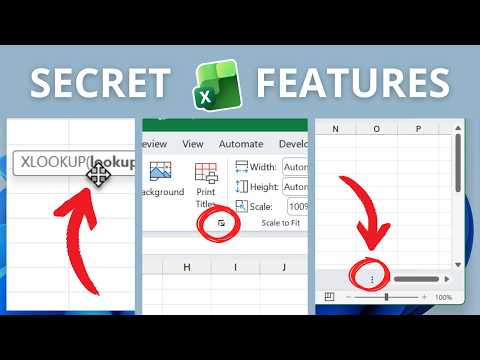
- Ribbon dialog launchers: Small arrows in Ribbon groups open deeper settings like Format Cells or Page Setup.
Double-click a tab to collapse the Ribbon and regain worksheet space. - Quick Access Toolbar: Right-click any command and choose Add to Quick Access Toolbar to make frequent actions one click away.
This saves time for tasks like Paste Special, Freeze Panes, or Refresh All. - AutoFit & double-click resize: Double-click the boundary between column or row headings to auto-adjust size to content.
Select the whole sheet and double-click a boundary to AutoFit all columns at once. - Fill handle options & right-click drag: Use the fill handle or right-click-drag to copy, fill series, or apply formatting choices when you release the mouse.
This gives precise control over sequences, dates, and formatting without extra steps. - Formula bar tools: Use the Function ScreenTip, the fx button, or the Function Arguments window to see argument help and pick functions quickly.
Expand the formula bar or move the ScreenTip to edit long formulas more easily. - Tables, PivotTables & status bar: Click table corners or column headers to select and format columns, and use PivotTable expand/collapse or Classic Layout for faster analysis.
Use the status bar stats and the Navigation Pane to monitor selections and jump between sheets in large workbooks.
In a recent YouTube tutorial, Excel Campus - Jon highlights a set of practical, clickable features in Excel that many users overlook. The video demonstrates 19 points of interaction that can speed routine work, ranging from small ribbon controls to table and PivotTable tricks. Consequently, the tutorial aims to help users move faster without relying on macros or complex coding.
Moreover, the author provides a downloadable workbook and a PDF guide to follow along, which makes it easier to try each tip. The video is organized with timestamps that let viewers jump to specific actions such as hiding the ribbon or expanding the formula bar. Therefore, viewers can learn incrementally and apply changes immediately to their own spreadsheets.
What the Video Covers
First, Jon walks through interface elements that are easy to miss, including small dialog launchers in the Ribbon, temporary ribbon collapse, and the option to add commands to the Quick Access Toolbar. In addition, he shows pointer-based actions like double-clicking column boundaries to AutoFit and right-click dragging to access copy or fill options. These clickable items are presented as time-saving alternatives that reduce repetitive mouse travel and menu hunting.
Second, the video highlights formula-related tools such as the Function Arguments window, Function ScreenTips, and ways to expand the formula bar for better editing. Jon points out that these small controls make formula writing less error-prone and more transparent, which benefits both beginners and experienced users. As a result, viewers can craft and review formulas faster and with fewer mistakes.
Practical Shortcuts for Everyday Tasks
Jon demonstrates several shortcuts that help with formatting and navigation, including restoring scroll bar size, using the navigation pane, and copying status bar statistics. He also explains how to enable and customize the status bar so it shows useful summary stats without opening dialogs. Thus, users can get instant feedback on selected ranges instead of running separate calculations.
Furthermore, the video covers table interactions like applying and clearing table formatting and selecting a full table column with a single click. He also explains how to add frequently used commands to the top toolbar so they remain visible regardless of the active tab. Consequently, common operations such as Freeze Panes or Remove Duplicates become one-click actions rather than multi-step processes.
Formula and Analysis Enhancements
Jon emphasizes formula discovery tools that make complex work easier, such as clicking function names in the AutoComplete list to access help and moving the function tooltip for clarity. He demonstrates opening the Function Arguments dialog to see each argument separately and to reduce guesswork when using unfamiliar functions. Therefore, users gain confidence with advanced formulas because they can quickly verify inputs and outputs.
In addition, the video touches on analytical improvements like expanding the formula bar for multi-line editing and using the navigation pane for quick sheet access. These features are particularly useful when working with large workbooks or when reviewing models made by others. As a result, analysts can review logic more efficiently and reduce time spent tracing errors.
Tables and PivotTables: Small Clicks, Big Impact
Next, Jon dives into table and PivotTable behaviors, showing how to select table columns, clear formatting, and toggle expandable fields in PivotTables. He introduces the classic PivotTable layout option and demonstrates expand/collapse controls that simplify drill-downs. These clickable interactions help maintain consistent formatting while exploring different views of the data.
Moreover, the video explains how small UI changes can accelerate reporting: for example, enabling the classic layout may improve readability for longstanding workbooks, while the pivot expand/collapse options speed detail inspection. However, he notes that switching layouts can affect downstream formatting, so users should test changes on copies before applying them to production files.
Tradeoffs and Real-World Challenges
While clickable shortcuts improve speed, Jon also highlights tradeoffs such as discovery versus simplicity: many of these controls are small and non-obvious, so users must invest time to learn them. Furthermore, differences between Excel versions and platforms can limit consistency, since some options appear only on Windows or in specific releases. Therefore, teams should standardize practices and communicate which features they rely on to avoid confusion.
Another challenge involves balancing accessibility with power: clickable items help mouse users but may not suit keyboard-only workflows. In addition, adding too many custom toolbar commands can clutter the interface and reduce clarity for occasional users. Consequently, Jon recommends focusing on a small set of high-impact controls and sharing a short guide with coworkers to maximize benefits while minimizing disruption.
Overall, Excel Campus - Jon presents a clear, actionable tour of hidden clickable features that can save time and reduce friction in everyday Excel use. By combining simple demonstrations with practical warnings about tradeoffs and compatibility, the video offers useful guidance for anyone who wants to work more efficiently in spreadsheets.

Keywords
Excel hidden features, Excel secret tricks, Excel clickable features, Excel hidden shortcuts, Excel productivity tips, Excel tips and tricks, Excel right-click features, Excel ribbon shortcuts