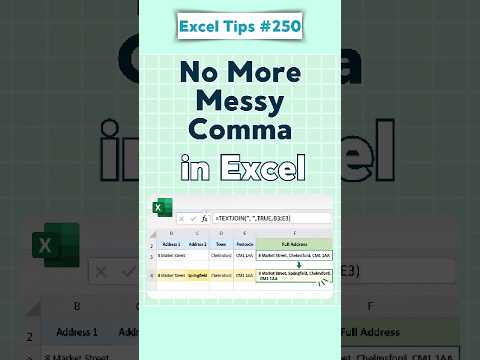
Excel: combine address columns with TEXTJOIN
Use Excel’s TEXTJOIN function to turn separate address fields into one comma-separated or multiline address, while skipping blank cells.
Key insights
- Use =TEXTJOIN(", ",TRUE,A2:E2) to combine address fields in row 2 and skip empty cells.
- Set the delimiter to CHAR(10) for a line break, then enable Wrap Text in the result cell.
- TEXTJOIN accepts a range, so the formula can be shorter than joining each cell with ampersands.
- Check postal-code formatting before joining; numeric values may lose leading zeros.
Excel’s TEXTJOIN function combines separate address columns into one text value, with a delimiter between fields and an option to skip blanks. It can help people preparing address lists, labels, or worksheet summaries avoid manually joining each cell. Alan Murray (Computergaga) is the source of the demonstration behind this address-combining task.
What it does
TEXTJOIN takes a delimiter, an instruction about empty values, and the text or cell references to combine. For a row with street, city, state, postal code, and country in A2:E2, a comma-and-space separator produces one readable address. Setting the empty-cell argument to TRUE skips blank fields, so an omitted state or country does not leave an extra separator in the result.
The syntax is =TEXTJOIN(delimiter, ignore_empty, text1, [text2], ...). The delimiter can be punctuation, a space, or another text value. The function can also join a range rather than requiring each address field to be entered separately.
Who it is for and what you need
This approach is useful for Excel users whose data has address components in separate columns and who need a combined value in another cell. The example assumes the components are arranged across one row, with the address fields in A2:E2. The research material does not specify Excel versions, licensing requirements, or a rollout or preview status.
Before joining, check that the source values display as intended. In particular, a postal code stored as a number can lose a leading zero. TEXTJOIN combines the value it receives; it does not automatically restore a zero or apply a country-specific postal-code format.
How it works
- Select the cell where the combined address should appear.
- Enter =TEXTJOIN(", ",TRUE,A2:E2), adjusting the range to match the address columns in your worksheet.
- Press Enter. Excel joins the non-empty values with a comma and a space.
For an address displayed on separate lines, use =TEXTJOIN(CHAR(10),TRUE,A2:E2) and turn on Wrap Text for the result cell. You can also provide individual cell references and fixed text, such as a country name, rather than joining a continuous range.
Limitations and open questions
TEXTJOIN controls separators and whether empty values are included, but it does not validate address data or decide how a postal code should be formatted. If a code needs a specific display, format it before joining; the research notes give an example using TEXT with a five-digit format, while noting that the appropriate format depends on the country.
The material does not establish version availability or licensing. It contrasts TEXTJOIN with CONCAT and the ampersand operator: those methods can combine text, but separators must be managed manually. No official Microsoft documentation URL was included in the supplied sources, so this article does not link to one.
Sources
Frequently asked questions
How do I combine address columns in Excel?
Use =TEXTJOIN(", ",TRUE,A2:E2), changing the range to match your address columns. The formula inserts commas and spaces and skips blank cells.
How do I put each address field on a new line in Excel?
Use =TEXTJOIN(CHAR(10),TRUE,A2:E2) and enable Wrap Text in the result cell.
Does TEXTJOIN keep leading zeros in postal codes?
Not automatically. The postal code must be stored or formatted correctly before it is joined; the required format depends on the country.
What Excel version or license is required for TEXTJOIN?
The supplied material does not state version availability or licensing requirements.