- All of Microsoft
SharePoint for Project Teams: Quick Wins
Microsoft expert builds SharePoint Online project dashboards with lists, folders to boost delivery and collaboration
Key insights
- SharePoint site: Use a team site connected to Microsoft 365 and Teams as a central project hub for news, calendars, tasks and shared files.
Organize channels or tabs by workstream to keep communication and resources in one place. - Project Management site template: Start with the built-in template to auto-create a home page, project tracker, issue tracker and status report skeleton.
Customize the template to match your process and save setup time across projects. - SharePoint lists: Manage tasks, trackers and metadata with Microsoft Lists for real-time status and filtering instead of scattered spreadsheets.
Integrate lists with Planner, Power Automate and Teams to automate updates and reduce manual reporting. - Project management dashboard: Build a dashboard that shows live progress, filters by project or stage, and highlights stage gates and risks.
A clear dashboard cuts meeting time and gives stakeholders faster visibility into delivery. - SharePoint folders: Organize documents in libraries and folders with version control so teams always find the latest files.
Use libraries as Teams tabs and enforce naming and metadata to improve findability and compliance. - RAID log: Track Risks, Assumptions, Issues and Dependencies plus Lessons Learnt to improve delivery and reduce repeat problems.
Combine RAID tracking with automated alerts and reports to keep teams focused on priorities and outcomes.
Introduction: A Practical SharePoint Walkthrough
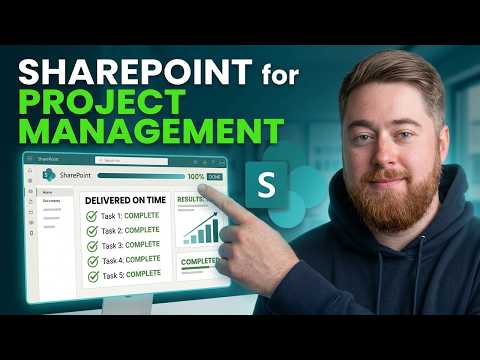
Dougie Wood [MVP] presents a concise YouTube tutorial that demonstrates how to build a working Project Management Dashboard in SharePoint. In the video, he walks viewers through structuring a project site, creating lists for tasks, and organising documents so teams gain visible, real-time progress. Consequently, the walkthrough focuses on practical steps rather than theory, making it approachable for teams that want immediate results. Furthermore, the narrator frames the approach as scalable and adaptable for both simple and more complex project environments.
The video opens with a clear site layout and quickly moves into a live demo of the dashboard and filters, so viewers can see how data flows across lists and pages. Dougie highlights key elements such as project stage gates, task tracking, and a RAID Log, and he closes with a short segment on lessons learned. Therefore, the recording serves as a hands-on playbook for project teams already using Microsoft 365 who want to stop relying on spreadsheets. Moreover, the pace and focus make it useful for staff who need step-by-step visual guidance.
How the Dashboard Is Built
The heart of the demonstration is the combination of SharePoint lists, folders, and web parts to create a central view for projects. Dougie configures lists to act as trackers for tasks and issues and then pins those lists to the site home page so stakeholders can scan progress quickly. Additionally, he uses filters and stage gates to let teams drill into specific projects or phases, offering on-demand clarity about priorities and blockers. As a result, teams can move from manual updates to a repeatable, automated view of project status.
Dougie also explains document organisation using folders and libraries, balancing file structure with metadata to keep documents findable. He shows how linking lists with document libraries keeps task items connected to the right deliverables, which reduces misplaced files and confusion. However, he cautions that simple folder structures may not scale without consistent naming or metadata, so he stresses planning up front. Consequently, the demo makes clear that good structure prevents more work later when teams expand or hand over projects.
Benefits and Tradeoffs of Using SharePoint
Using SharePoint for project work offers clear benefits such as centralized access, version control, and an integrated experience with Teams and other Microsoft 365 tools. Furthermore, when lists and libraries are configured correctly, stakeholders enjoy better visibility and fewer status meetings because the site becomes the single source of truth. At the same time, SharePoint’s flexibility can introduce tradeoffs: the same freedom that allows customisation also creates the risk of inconsistent setups across teams. Therefore, organisations must balance flexibility with governance to keep the platform useful and reliable.
Another tradeoff concerns ease of use versus standardisation; simpler templates help new teams adopt the system faster, while highly customised solutions fit complex portfolios at the cost of maintenance. Dougie’s approach favors a modular template that can scale, and he recommends starting lean and iterating as needs evolve. Consequently, teams can gain traction quickly while preserving the option to add automation and reporting later. Ultimately, that staged approach helps teams control costs and limit disruption during adoption.
Common Challenges and Practical Solutions
One common challenge highlighted is governance: permissions, metadata rules, and naming conventions can easily become inconsistent when many teams build sites independently. To address this, Dougie suggests establishing baseline templates and clear guidance for folders, fields, and permissions so the environment remains navigable and secure. In addition, he recommends lightweight training for users to reduce errors and increase adoption, which in turn improves data quality. Consequently, a small investment in rules and training reduces long-term friction.
Another frequent issue is reporting and cross-project visibility, which can become difficult when each project stores data differently. Dougie shows how consistent list structures and carefully chosen metadata enable roll-up views on a central dashboard, simplifying portfolio reporting. However, organisations must also plan for performance and searchability as the number of items grows, and that may require periodic housekeeping. Therefore, teams should implement retention policies and review site structures periodically to maintain performance.
Practical Takeaways for Teams
For teams ready to adopt SharePoint for project work, Dougie’s video recommends starting with a simple project site template and then adding lists for tasks, issues, and a RAID Log to capture risks, assumptions, issues, and decisions. He encourages teams to prioritise visibility—pin project filters and the dashboard to the home page—so the site supports daily stand-ups and progress reviews. Furthermore, he advises keeping the initial structure lean to encourage use, and then expanding automation and reporting only after teams are comfortable with the basics.
In conclusion, the YouTube tutorial offers a clear, practical route to replacing fragmented spreadsheet trackers with a collaborative, Microsoft 365–native solution. While the approach requires governance and ongoing maintenance, the payoff is faster delivery, fewer errors, and better-aligned teams. Therefore, organisations that balance flexibility with standards and invest in simple training will likely see the best results. Ultimately, Dougie’s demonstration is a useful resource for teams seeking immediate, real-world improvements with SharePoint project management.

Keywords
SharePoint project management, SharePoint for project teams, SharePoint collaboration for teams, SharePoint project templates, Microsoft SharePoint for projects, SharePoint task management, SharePoint team sites, SharePoint project tracking