- All of Microsoft
Copilot Cowork: Schedule Meeting Prep
M365 Adoption Lead | 2X Microsoft MVP |Copilot | SharePoint Online | Microsoft Teams |Microsoft 365| at CloudEdge
Copilot Cowork in Outlook and Teams auto books prep and post meeting focus time to cut context shifts and close actions
Key insights
- Copilot Cowork in the Outlook Calendar: Copilot Cowork acts as a proactive assistant that scans your calendar and suggests or applies changes once you approve them.
It moves beyond suggestions by booking prep and focus blocks automatically to protect your time. - Prep time automation: Ask Copilot Cowork to schedule a prep block before a meeting and it will pull context from emails, files, and past meetings to create a short briefing.
This ensures you arrive aligned and reduces last‑minute scrambling. - Post‑meeting focus time (example: 30 minutes): Cowork can insert a protected block after meetings for action items, follow‑ups, and decisions while details are fresh.
Use this block to capture outcomes and complete quick tasks without context switching. - How to set it up: Open the Copilot or Copilot Cowork pane in your Microsoft 365 apps, tell it to review your calendar, and ask to add prep or focus time for target meetings.
Review its proposals and approve the changes so Copilot applies them to your calendar automatically. - Productivity benefits: Automated prep and focus blocks reduce context‑switching, cut time spent on manual triage, and free up time for deep work.
They also make meetings more effective by ensuring participants prepare and act on decisions quickly. - Best practices: Create recurring rules to auto‑add prep for high‑priority meetings and standardize post‑meeting focus time length (for example, 30 minutes).
Store briefs and outputs in Microsoft 365 so teammates can collaborate and stay aligned.
Video Overview
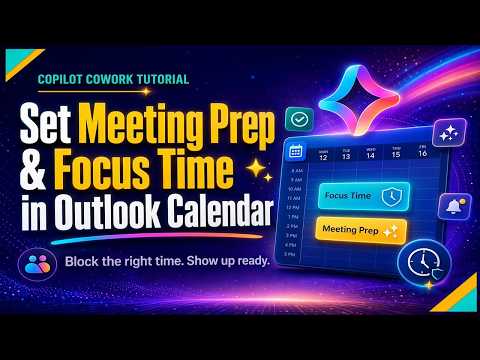
Ami Diamond [MVP], a male Microsoft-focused creator, published a practical YouTube video demonstrating how to use Copilot Cowork to add meeting preparation and post-meeting focus time in the Outlook Calendar. The clip walks viewers through a live setup where Ami shows how to automatically schedule a short prep session before each meeting and a 30-minute focus block after every meeting. Consequently, the video emphasizes reducing last-minute scrambling and preserving decisions while information is fresh. Furthermore, Ami presents this as a repeatable habit rather than a one-off tip, and he frames it as part of his real workflow.
The footage is step-by-step and aimed at users of Microsoft Copilot, Teams, and Outlook who want meetings to be more constructive than draining. Ami explains both the commands and the approvals required when Copilot proposes calendar changes, which helps viewers understand the balance between automation and control. As a result, the tutorial is pragmatic and accessible for knowledge workers looking to protect focus time. Moreover, Ami stresses that these are working settings he uses himself, not abstract theory.
What the Video Shows: Step-by-Step
First, Ami demonstrates how to trigger Copilot Cowork from the Microsoft 365 pane or the Outlook sidebar and ask it to review the calendar for conflicts and prep needs. He then shows how to request a prep block for a specific meeting, after which Copilot pulls context from emails and files to create briefing materials and a scheduled prep event. Next, the video covers setting up an automated 30-minute focus period after meetings for follow-ups and action items so that decisions are recorded while they remain fresh. Finally, Ami explains how to create recurring rules so prep and focus blocks are added automatically for high-priority meetings.
Throughout the walkthrough, Ami highlights the approval step: Copilot proposes changes but requires user confirmation before modifying the calendar. This preserves human oversight while saving time on routine triage tasks. Additionally, he points out how generated briefs and decks are stored in Microsoft 365 for easy sharing and collaboration. Thus, the approach combines automated preparation with team alignment.
Benefits for Productivity
The video makes a clear case that scheduling dedicated prep and post-meeting focus time can reduce context switching and improve meeting outcomes. By automating the insertion of protected blocks, users can consistently arrive prepared and immediately capture decisions, which leads to faster follow-through. Moreover, these protections can free up significant weekly time that would otherwise be lost to fragmented work. In short, Ami frames Copilot Cowork as a way to make meetings serve work rather than interrupt it.
Additionally, the ability to generate briefing documents automatically helps standardize preparation and reduces manual formatting or research time. Team members gain a shared starting point for discussions, which can improve alignment and reduce repetitive explanations. As a result, meetings become more focused and actionable. Consequently, the combination of prep and focus blocks can raise overall meeting ROI for busy teams.
Tradeoffs and Challenges
Despite the advantages, Ami also indirectly points to tradeoffs that organizations and individuals must consider when adopting Copilot Cowork features. For example, too many automated prep or focus blocks can overbook a calendar, leaving little true free time, so users need to tune durations and priorities. In addition, automation relies on accurate context extraction; if Copilot misclassifies a meeting’s importance, it may insert unnecessary blocks or miss critical prep needs. Therefore, human review remains important to correct false positives and refine rules over time.
Privacy and permissions also present challenges, particularly when Copilot accesses emails, files, and meeting notes to generate briefs. Organizations must balance convenience with governance by setting clear data access policies and training users on approval workflows. Furthermore, wider adoption requires cultural change: teams must agree on what counts as "high-priority" and respect protected focus blocks. Ultimately, integrating AI-driven scheduling demands both technical configuration and change management.
Practical Tips and Recommendations
To start, Ami’s approach suggests beginning with a modest setup: add short prep blocks for top-priority meetings and a 15–30 minute post-meeting focus slot, then iterate based on results. Moreover, review Copilot’s proposals regularly to refine custom rules and avoid calendar bloat. For teams, agree on shared definitions and permissions so Copilot’s recommendations align with collective priorities and respect individual workflows.
Finally, maintain oversight by using approvals rather than full automation at first, which lets users gain trust in Copilot’s suggestions without losing control. In addition, monitor outcomes by tracking whether follow-ups and decisions get completed during focus time, and adjust durations accordingly. In conclusion, Ami Diamond’s video offers a practical, reproducible method to make meetings more productive while highlighting the need to balance automation, control, and governance for the best results.
Keywords
Copilot Cowork meeting prep, Outlook Calendar focus time, set meeting prep Outlook, Copilot for Outlook meetings, meeting focus time Copilot, Outlook calendar prep tips, schedule focus time Outlook, Copilot Cowork meeting workflow