- All of Microsoft
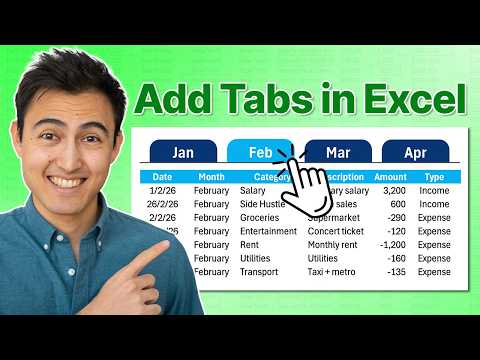
Excel: Create Clickable Tabs in Sheet
Co-Founder at Career Principles | Microsoft MVP
Build clickable Excel tabs with VBA or no code, dynamic filters and named ranges to simplify workbooks and Power BI prep
Key insights
- What it is
Excel lets you build clickable tabs inside a single worksheet so users can jump between views without many separate sheets. The feature appears as a navigable table of contents or inline tab bar in Excel 2026 (Windows, Mac, Web). - How it works
Use Excel’s Navigation (View ribbon) to auto-generate thumbnails and links, or build manual tabs with shapes, named ranges, and the FILTER function to show data dynamically. VBA can add color-changing and macro behavior; hyperlinks provide a no-code alternative. - Key advantages
Clickable in-sheet tabs speed navigation, reduce worksheet clutter, show visual previews for quicker context, and update automatically when sheets change—helpful for dashboards and large workbooks. - Quick setup steps
Enable Navigation from the View ribbon or insert a shape, assign a named range, add a link to “Place in This Document,” and use FILTER or formulas to pull the matching data. Optionally attach a short VBA macro to toggle colors and active states. - VBA vs no-code
Choose VBA for advanced behaviors (color change, custom macros) but remember macro security and sharing limits. Choose hyperlinks and shapes for simpler, more portable solutions that work across Excel platforms. - Best practices
Keep tab labels concise, use clear named ranges, test on Web/Mac/Windows, document any macros, and avoid excessive visuals to maintain performance and accessibility.
Overview: What the Video Demonstrates
In a clear, step-by-step video, Kenji Farré (Kenji Explains) [MVP] shows how to build clickable tabs inside a single Excel sheet so users can navigate different views without dozens of worksheets. He combines simple Excel building blocks—such as shapes, named ranges, and the FILTER function—with an optional VBA approach to make tabs change color and update the displayed data automatically. Importantly, the video also demonstrates a no-code alternative that uses hyperlinks for teams that cannot run macros. Overall, the tutorial aims to simplify workbook design while keeping the interface familiar to people who use tabbed web browsers or app-style navigation.
How the Technique Works in Practice
First, Kenji shows how to create on-sheet buttons using Excel shapes and assign them to named ranges that represent each slice of data—typically months or sections. Then, he uses the FILTER function to draw the rows that match the selected range so that the visible dataset updates when a shape is clicked. To improve the user experience, he wires a small macro to change the shape’s color when selected, giving clear visual feedback about which tab is active. This combination lets a single sheet host multiple, clearly separated views without duplicating data across many worksheets.
The VBA Option: Power and Risks
Using VBA gives more control: macros can toggle colors, handle back-navigation, and create a polished interface that feels responsive and robust. However, VBA requires that recipients enable macros, which raises security prompts and can be blocked in some corporate environments; therefore, distribution must account for permission policies and trust settings. Moreover, macros can increase maintenance needs because changes to worksheet structure or names may break the code, so testing and documentation become more important. Thus, while VBA enhances interaction, it adds friction for sharing and long-term upkeep.
No-Code Alternative: Simplicity and Limits
Kenji also outlines a no-code path that relies on hyperlinks and shapes linked to specific areas of the sheet, which users can adopt when macros are not an option. This approach avoids security prompts and is easier to share across teams and platforms, including Excel on the web, but it lacks dynamic visual state management unless you add extra formulas or conditional formatting workarounds. Consequently, the no-code method trades interactivity and polish for compatibility and lower maintenance. In practice, it suits simple navigation needs, quick demos, or environments where macro use is discouraged.
Tradeoffs and Practical Challenges
Choosing between VBA and no-code involves balancing usability against compatibility: macros deliver richer behavior but demand trust and management, whereas hyperlinks are safer but less flexible. Performance also matters; dynamic FILTER formulas work well on moderate datasets but can slow down large workbooks, so designers must consider data volume and refresh frequency. Additionally, maintaining color states and tab logic requires disciplined naming conventions and careful sheet layout, because small changes can break dashboard behavior. Therefore, teams should plan governance, testing, and documentation before widely deploying on-sheet tabs.
When to Use On-Sheet Tabs
This technique shines for dashboards, monthly reports, and training files where users benefit from a compact, single-sheet experience and where sheet proliferation would otherwise cause confusion. It also helps when creating interactive prototypes or client demos because viewers get a familiar, app-like feel without switching sheets. Conversely, if you need to support heavy data models, many concurrent editors, or strict macro policies, classic multiple sheets or a dedicated dashboard tool may be a better fit. Ultimately, the right choice depends on the audience, distribution method, and data size.
Best Practices and Recommendations
Kenji recommends keeping a centralized raw data table and using named ranges to reduce fragile cell references, which makes the solution easier to maintain. He also suggests documenting any macros and naming schemes inside the workbook, and providing a macro-free fallback so that users who cannot enable macros still get a usable interface. Finally, testing the file across the target Excel clients—Windows, Mac, and web—helps catch compatibility gaps early and prevents surprises when sharing. These simple steps reduce risk and improve the long-term value of a single-sheet tab system.
Conclusion: A Practical Option with Clear Tradeoffs
The video by Kenji Farré (Kenji Explains) [MVP] provides a practical, well-paced walkthrough for teams that want cleaner navigation without multiplying worksheets. While the combined use of shapes, named ranges, and FILTER delivers dynamic views, the decision between VBA and a no-code alternative rests on tradeoffs around security, maintainability, and polish. Consequently, viewers should match the method to their environment, document the setup, and test broadly before rolling it out team-wide. For Excel users seeking tidy navigation and fewer tabs, the techniques shown are both usable and adaptable to many workflow needs.

Keywords
clickable tabs in Excel, Excel clickable tabs tutorial, create clickable tabs Excel, Excel tab buttons, Excel sheet navigation buttons, hyperlink tabs Excel, VBA clickable tabs Excel, interactive tabs in Excel