- All of Microsoft
Teams: Copilot & Forms for Quizzes
Create instant quizzes in Microsoft Teams with Copilot and Microsoft Forms from AI meeting notes for SOP aligned audience evaluation
Key insights
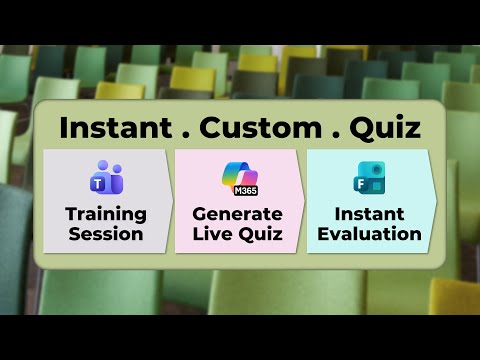
- This summary describes a YouTube video that shows how to run an Instant Quiz during Teams meetings using Copilot inside Forms, with steps for creation, sharing, and follow-up.
- How it works: type a plain-language Copilot prompt or use AI meeting notes to generate a quiz draft that includes title, questions, choices, correct answers, and explanations; then review and refine the draft before sharing.
- Create and share: open Forms, choose “New Quiz” with Copilot, adjust question types and scoring, and post the quiz directly to a Teams meeting or channel for live participation.
- Key features: enable Practice Mode, set timers and one-response limits, use Auto-grading with optional AI explanations, and export responses to Excel for deeper analysis.
- Main benefits: the process delivers clear Time Savings, raises participant engagement with instant feedback, and simplifies result tracking for trainers and educators.
- Access and SOP: you need a Microsoft 365 account with a Copilot license; follow a simple SOP—extract notes, generate quiz, review content, launch in session, collect responses, then analyze and act on results.
Overview
A new YouTube video from Efficiency 365 by Dr Nitin demonstrates how to run an Instant Quiz inside a Microsoft Teams meeting using Copilot and Microsoft Forms. The short walkthrough highlights a step-by-step approach, timestamps key moments, and shows how trainers and meeting hosts can create, share, and evaluate quizzes almost instantly. Consequently, the video aims to help educators, L&D professionals, and team leads add quick knowledge checks to live sessions with minimal friction.
How the Instant Quiz Workflow Works
First, the presenter shows how to turn meeting notes or a simple prompt into quiz questions by using Copilot inside Forms. Then, the process continues with fine-tuning the generated draft, setting timers, and configuring response rules before sharing the form into a Teams meeting or channel. The video pauses at clear timestamps when each stage begins, making it easy to follow the sequence from idea to live quiz.
Moreover, the instructor emphasizes practical entry points: open forms.office.com or use the Teach module inside Teams for educators, select “New Quiz,” and choose the Copilot-driven draft option. He demonstrates prompt phrasing such as asking for a five-question quiz on a topic and then iterating the draft to add explanations or change question types. Finally, the quiz is distributed in-meeting, and responses appear in real time for quick review.
Benefits and Practical Uses
The video underscores clear benefits: time savings, higher engagement, and smoother distribution within Microsoft 365 environments. For example, what used to take hours to author can be generated in seconds, allowing hosts to focus on content quality and follow-up discussion. In addition, integration with Teams means quizzes can be embedded in meeting chats, posted to channels, or started live, which supports both remote and hybrid training scenarios.
Furthermore, the presenter notes that Copilot can suggest clarifications, scoring adjustments, and answer explanations, which helps with faster iteration and better learner feedback. As a result, trainers can use the feature for quick knowledge checks, onboarding quizzes, or event registrations without building external tools. Because responses can sync to Excel, teams can also perform deeper analysis when needed.
Tradeoffs and Challenges
However, the video does not shy away from tradeoffs. Relying on AI to generate questions speeds the process, yet it also raises the risk of inaccuracies, ambiguous phrasing, or irrelevant distractors that require manual review. Therefore, presenters must balance speed against the need for quality control, and they should plan time for editing and testing the quiz before using it in high-stakes assessments.
In addition, the presenter highlights practical constraints such as license requirements, authentication rules, and data governance concerns inside organizational settings. While Copilot features are powerful, they require a Microsoft 365 Copilot license and adherence to tenant policies, so teams must evaluate privacy and compliance implications. Finally, hybrid sessions introduce logistics questions—such as how to include in-person participants reliably—that need standard operating steps and backup plans.
Standard Operating Procedure and Practical Tips
To help viewers adopt the feature, the video outlines a simple SOP: generate questions from meeting notes or a clear prompt, review and refine the draft, set parameters like one response per person and timers, then share via Teams during the session. The presenter also recommends enabling practice mode or adding explanations when the goal is learning rather than assessment. Consequently, this structured approach reduces surprises and improves the participant experience.
Among the tips, the video suggests specific prompt examples, recommends manual proofreading to catch AI mistakes, and advises using QR codes or channel links to include in-person attendees. Moreover, syncing results to Excel or exporting responses for analysis is encouraged for trainers who want to track trends over time. Nonetheless, the creator cautions that automation should not replace human judgment in question design or scoring decisions.
Conclusion
Overall, Efficiency 365 by Dr Nitin offers a balanced and practical demonstration of running an Instant Quiz in Microsoft Teams with Copilot and Forms, showing both the convenience and the limits of the approach. The video serves as a useful starting point for teams who want to pilot quick assessments, while reminding them to weigh speed against accuracy and to follow governance rules. For organizations planning to adopt the feature, the recommended path is to run small pilots, collect feedback, and refine prompts and review practices before scaling.

Keywords
Teams instant quiz, Live quiz in Teams meetings, Copilot quizzes in Teams, Microsoft Forms quizzes, Real-time training assessments Teams, Interactive training quizzes, Polling and quizzes in Teams, Copilot-driven quizzes