- All of Microsoft
Annotate and Edit PDFs Effectively in SharePoint Online
Power Platform Developer
Boost collaboration and efficiency with browser-based PDF annotations on SharePoint and OneDrive.
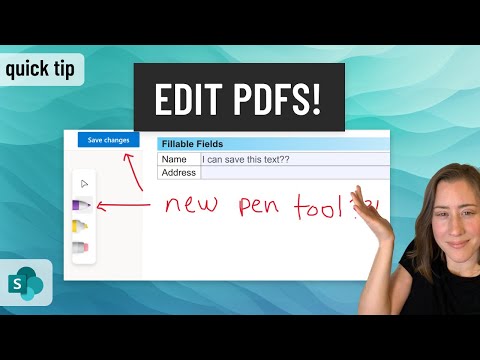
Edit and annotate PDFs in SharePoint Online without needing third-party software like Adobe Acrobat. Now when you access a PDF in SharePoint Online through your browser, you have the capability to annotate directly.
Christine Payton demonstrates in her latest video how to utilize the annotation features within OneDrive and SharePoint Online. This functionality enables users to mark up PDFs easily, allowing for efficient collaboration, which is a big step up from the static nature of traditional PDFs.
With the integration of annotation tools in OneDrive and SharePoint Online, users access a range of marking instruments such as pens and highlighters. Annotating in the browser provides an advantage where annotations can be hidden or shown without altering the original PDF file.
Sharing becomes more dynamic with these new features. Annotated PDFs can be shared, and collaborators have the capacity to see every mark made. This level of collaborative annotation streamlines the work process, making it more effective.
Annotations in SharePoint Online heighten collaborative efforts and improve productivity. All of this is done without leaving your browser, which Christine Payton emphasizes as a modern solution for today's digital workspace. She promises more valuable tips in future content.
- Mark up PDFs directly in the browser
- Use dedicated tools for annotations in SharePoint Online
- Keep the original PDF intact while sharing annotated versions
- Easy viewing of annotations by all collaborators
- Streamline and improve the efficacy of team collaboration
- Stay updated with more productivity tips
The process of adding annotations to PDFs in SharePoint Online and OneDrive signifies a leap in document collaboration. By simplifying the review process and enhancing interactivity, teams can work on documents more dynamically.
Through browser-based annotations in SharePoint Online and OneDrive, static PDFs transform into interactive documents. This not only aids in communication amongst team members but also enriches the document editing workflow.
Christine Payton's video serves as an instructional guide on leveraging these features. By following her clear instructions, users can mark, share, and collaborate on PDFs with ease, fully utilizing SharePoint Online's annotation capabilities.
The educational content provides a thorough understanding of the features, such as utilizing drawing tools, managing visibility of comments, and the importance of sharing to enhance productive collaborations. Essentially, her tutorial assists users in maximizing the collaborative potential of SharePoint Online and OneDrive for annotating PDFs.
Further Insights on PDF Annotation in SharePoint Online
The ability to annotate PDFs within SharePoint Online and OneDrive directly from a web browser is a significant enhancement in fostering collaborative workflows. These tools permit team members to easily note their thoughts and revisions on shared documents. By enabling annotations to be toggled and shared, the process of collaboration is greatly simplified. The video by Christine Payton effectively communicates these points, ensuring users can take full advantage of the latest features. Her tutorial serves as an essential resource for anyone seeking to optimize their use of SharePoint Online and OneDrive for document annotation and cooperation.

Learn about Edit & Annotate PDFs in SharePoint Online
A new addition to SharePoint Online now lets users modify, store, and comment on PDFs directly in the browser without the need for Adobe Acrobat or any additional PDF-editing platforms. No more static-filled, difficult-to-edit PDFs!
In a recent YouTube video, the process for annotating PDFs directly in the browser was illustrated. Using OneDrive and SharePoint, it's easy to mark up PDF files with ease and exchange ideas with others.
Traditionally, PDFs are non-interactive documents but the productivity trick to annotate these using OneNote shared in the video changes everything. The focus, however, was put on commenting on PDF files in the web browser itself.
By selecting the comment button, you gain access to a toolbar which consists of pens and highlighters used to annotate your PDFs. You can toggle the annotations on or off without modifying the original file.
What makes this feature more fascinating is the ability to share the annotated PDF files with other people. Upon opening the annotated document, viewers can see all annotations made by the original user.
Annotating just became more convenient and effective, enhancing collaboration and productivity while using OneDrive and SharePoint Online.
Gone are the days where PDFs are seen as static documents. With OneDrive and SharePoint Online, you can easy mark up such files, share with others and collaborate on the same document for an improved team synergy.
Addition of comments and suggestions to an document in an organized fashion streamlines the review process making it more efficient than ever before. The ability to annotate your shared PDF files has never been this powerful.
Learning to Annotate PDF documents with SharePoint and OneDrive
Central to this document is the process of making and managing annotations on PDF documents through SharePoint and OneDrive. The article deals with activating the annotate button, using a toolbar for mark-ups, turning on and off annotations, and sharing such annotated PDFs with others, thereby making the annotation process efficient and simple. All in all, the text provides a comprehensive guide on how to make annotations on PDF documents within your browser using SharePoint and OneDrive, thereby enhancing productivity and collaboration.
More links on about Edit & Annotate PDFs in SharePoint Online
- Edit Definition & Meaning
- The meaning of EDIT is to prepare (something, such as literary material) for publication or public presentation. How to use edit in a sentence.
- Your free graphic design online editor - EDIT.org
- The online tool that is used by millions of businesses like yours. Editable designs that can be tailored to your organization's needs.
- Edit Hendersonville
- Location. 300 Indian Lake Blvd Suite T140 Hendersonville, TN 37075. (next door to Regal Cinemas). Hours. Sun 12pm-10pm. Mon-Thurs 10am-10pm.
Keywords
Edit Annotate PDFs SharePoint Online, SharePoint PDF Editor, Annotate SharePoint PDF, PDF Annotation SharePoint Online, Edit PDF SharePoint, SharePoint Online PDF Annotation, Online PDF Editor SharePoint, SharePoint PDF Annotate Tools, Edit SharePoint Online PDF, Annotate PDF SharePoint Tools