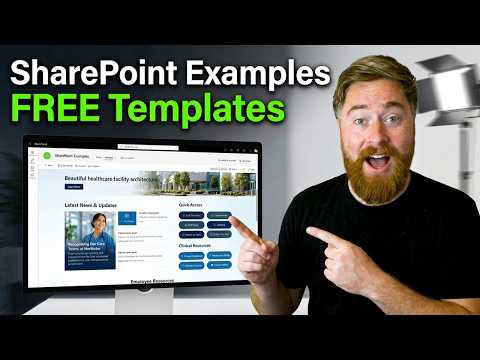
SharePoint templates for intranet sites and pages
SharePoint site and page templates give intranet teams a starting layout for homepages, departments, onboarding and other common needs.
Key insights
- The examples cover general business homepages, department pages, onboarding and healthcare layouts.
- Site templates provide a starting point for a whole site; page templates start an individual page or news post.
- The video description says the examples use native SharePoint intranet features and standard web parts.
- Microsoft's built-in template availability and licensing details are not established by the supplied sources.
SharePoint templates provide starting layouts for intranet sites and pages, so teams can begin with a structure suited to a common business purpose instead of designing every element from scratch. They may be useful to site owners, intranet teams and internal communicators planning homepages, department spaces or employee information. Dougie Wood [MVP] presents ten SharePoint design examples, including business, healthcare and employee-onboarding layouts.
What's new
The examples are design starting points rather than a claim that SharePoint has introduced a new feature. The publisher's description frames them as ways to organize a SharePoint environment, build internal communication hubs and create team-focused dashboards. It says the designs use native SharePoint intranet features and standard web parts, rather than relying on expensive third-party software.
The examples span several needs: a general SharePoint homepage, a hub, learning and development, human resources, financial services, healthcare and employee onboarding. The description also names a premium healthcare example and a premium homepage, so the examples are not all presented as free. The material does not give prices or specify what is included in any free or premium offering.
It helps to distinguish a site template from a page template. A site template is a starting point for an entire site, while a page template provides a layout for an individual page or news post. The research notes describe both Microsoft-provided templates and templates saved by an organization, but the supplied sources do not verify the current Microsoft gallery or the exact templates available in any tenant.
Who it is for and what you need
These layouts are relevant to SharePoint site owners and people responsible for intranet design, employee communications or departmental workspaces. A team setting up onboarding, for example, could use an employee-focused layout as a planning reference; a communications team could consider a homepage or hub structure. The examples can inform site architecture, but the material does not establish that a particular layout is right for every organization.
The description says the designs use native SharePoint features and standard web parts. It does not list prerequisites, required permissions, a SharePoint plan or license, or supported regions. It also does not establish whether a linked template can be imported directly, whether it requires a particular product, or what customization is available. Check the relevant template provider's instructions and your organization's SharePoint policies before using a design.
The supplied material does not identify a preview or rollout stage for a Microsoft feature. It describes design examples and references a site offering templates; it does not confirm broad availability of those external templates or make a claim about the state of Microsoft's template gallery. There is no official Microsoft source URL in the supplied source list to verify licensing or availability.
How it works
Use a template as a starting point for decisions about the purpose of a site, its audience and the information it needs to present. The examples point to several common starting categories, but the description does not provide a verified, step-by-step installation procedure or specific menu paths. Treat the categories below as planning choices, not guaranteed import options.
- Choose the purpose first: a broad business homepage, an internal communication hub, a department site, or a team-focused dashboard.
- Match the layout to its audience and content. The examples include human resources, financial services, healthcare, learning and development, and onboarding.
- Review the structure and standard web parts in the chosen design. The publisher describes the examples as using native SharePoint intranet features.
- Adapt the layout to your organization's needs and content. The available material does not document exact editing steps, branding controls or publishing requirements.
- Before adopting it, confirm whether the template is free or premium and how it is applied. The description distinguishes premium examples but does not explain their terms or installation process.
Microsoft's general template guidance in the research notes describes a separate site-template route through Settings > Apply a site template, and a page-template gallery when creating pages or news posts. Those notes say an applied site template can provide structure and sample content, while pages created from a page template can be edited independently of the original. Because the supplied source list has no Microsoft documentation link, verify these instructions in your environment before relying on them.
Limitations and open questions
The main practical limitation is the gap between seeing a design and knowing how to deploy it. The description lists template categories and says the video reviews configurations, but the supplied transcript is empty. It therefore does not provide a reliable written record of individual setup steps, exact web part configurations, or what a user must click to install each design.
Nor does the material establish the terms behind “free,” the differences between free and premium examples, or whether all named designs remain available. It gives no licence details, tenant requirements, support commitments or customization instructions. Check those points with the provider before using an external template, and confirm that its content and design meet your organization's accessibility, branding and governance needs.
For Microsoft-provided templates, the research notes describe site and page template options, including organization-saved designs, but they do not supply official Microsoft URLs to substantiate current behavior. That leaves open which options are enabled in a given tenant and what permissions are needed. The safest takeaway is to use the examples as design references and verify implementation details in your own SharePoint environment.
Sources
Frequently asked questions
What kinds of SharePoint template examples are included?
The description names business homepages, a hub, learning and development, human resources, financial services, healthcare and employee onboarding layouts.
Are the SharePoint templates free?
The title and description promote free templates, but the examples also include premium healthcare and homepage designs. The supplied material does not explain pricing or terms.
What is the difference between a SharePoint site template and a page template?
A site template is a starting point for an entire site; a page template starts an individual page or news post. The research notes describe both, but no official Microsoft source URL was supplied to verify current behavior.
What license do I need to use these SharePoint templates?
The supplied material does not specify a required SharePoint license, permissions or tenant configuration. Check the template provider and your organization's SharePoint policies.