- All of Microsoft
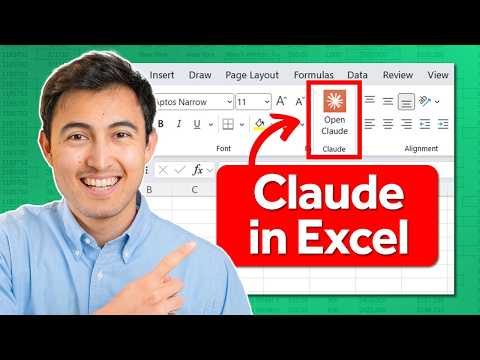
Claude in Excel: Hands-On Review
Co-Founder at Career Principles | Microsoft MVP
Microsoft expert reviews Claude in Excel for data cleaning, formula debugging, financial modeling and Power BI dashboards
Key insights
- Claude in Excel
Kenji Farré tests the Claude add-in as a sidebar chat that reads multi‑sheet workbooks and accepts file drag‑and‑drop.
The tool returns cell‑level citations and makes suggested edits while trying to preserve formulas and avoid overwrites. - Data cleaning
Claude handles common cleanup tasks like removing typos, trimming hidden spaces, and standardizing text across columns.
Kenji shows it can speed repetitive fixes but recommends spot checks after automated changes. - Formula debugging
Kenji uses Claude to diagnose and repair broken formulas, with explanations of root causes and suggested corrections.
The assistant updates formulas while aiming to keep dependencies intact, but users should verify key calculations. - Financial modeling
Claude builds a loan amortization schedule and converts an uploaded annual report PDF into a three‑statement model with a five‑year forecast in the demo.
Results accelerate model setup, yet Kenji stresses validating assumptions and outputs before relying on forecasts. - Data analysis
The video shows Claude summarizing revenue by category and creating pivot‑style aggregations from raw data.
Claude speeds grouping and summation tasks but may need manual tuning for complex categorizations. - Charts & dashboards
Kenji asks Claude to create a basic chart and then a full dashboard layout, demonstrating rapid prototype visuals from the workbook.
The AI generates chart structures quickly, though designers should refine formatting and labels for final presentation.
Overview of the video
In a recent YouTube demonstration, Kenji Farré (Kenji Explains) [MVP] put Claude in Excel through a range of real-world spreadsheet tasks to see how the integration handles practical workflows. He focused on common pain points: data cleaning, formula debugging, basic and advanced financial models, data analysis, and dashboard creation. The video walks viewers through each scenario step by step, while showing the add-in's sidebar chat, drag-and-drop file handling, and the AI’s proposed edits and explanations. Consequently, the clip offers a useful window into how an AI companion can change daily Excel work for finance and analyst teams.
Data cleaning and formula debugging
First, Kenji demonstrates how the tool detects and corrects data imperfections such as typos and hidden spaces. He asks the AI to standardize fields and to point out cells with subtle issues, and the add-in returns suggested fixes along with highlighted cells and rationale. Moreover, he tests broken formulas by asking the assistant to find the root cause and propose repairs; the tool explains dependencies and suggests edits without immediately overwriting values. This process reveals that the assistant can save time on tedious checks, yet it still requires a user to validate suggested changes before applying them.
Kenji also emphasizes the safety features that prevent accidental overwrites and preserve formula links, which help maintain workbook integrity. However, he notes that not every automated fix is perfect, especially when business rules are subtle or custom functions are involved. Therefore, teams should treat the AI as a smart reviewer rather than a fully autonomous editor, and they should keep version control practices in place. In short, the tool reduces manual detective work but does not remove the need for human oversight.
Financial modeling: from loans to corporate forecasts
Next, the video moves to financial tasks, beginning with a loan amortization schedule and progressing to a comprehensive forecast built from a PDF filing. Kenji has the add-in create a straightforward amortization table and then attempts a more ambitious task: upload Apple’s annual report and ask the AI to convert it into a three-statement model with a five-year forecast. The assistant parses the document, extracts figures, and proposes a model structure, which reflects real potential for accelerating initial model construction. Yet, Kenji demonstrates that the AI sometimes needs clarifications on accounting treatments or nonstandard line items, which implies manual refinement remains necessary.
The test underscores tradeoffs between speed and precision: automating a first-pass model saves hours, while final accuracy depends on domain knowledge and assumption setting. Moreover, converting PDFs is inherently error-prone because source formatting and tables can misalign during extraction, so the video shows how Kenji reviews and corrects those points. Consequently, the add-in is most valuable for scaffolding models and running scenario iterations rather than replacing experienced modelers. Teams should therefore combine AI speed with careful validation to produce reliable forecasts.
Data analysis, charts, and dashboards
Kenji then explores analytical tasks by asking the assistant to summarize revenue by category, create basic charts, and build a full dashboard. The AI can generate pivot-style summaries and offer chart suggestions that match the data patterns it identifies, and it can assemble visuals into a single dashboard layout. This capability streamlines routine reporting and lowers the barrier for stakeholders who need a polished summary quickly. Still, Kenji points out that design choices and narrative framing around visuals benefit from human judgment to ensure the message aligns with audience needs.
In practice, the tool accelerates prototype dashboards and helps iterate visualizations fast, while manual tweaks improve clarity and formatting. Additionally, the add-in’s ability to reference multiple sheets and provide cell-level citations aids transparency, as viewers can trace a figure back to its source. Overall, the combination of automated analysis and human-driven storytelling produces the most useful reports. Thus, teams should use the assistant to free time for interpretation rather than to remove that interpretive work.
Tradeoffs and practical challenges
Throughout the video, Kenji highlights several tradeoffs that organizations should weigh before relying heavily on the add-in. On one hand, the assistant speeds up repetitive tasks and provides helpful explanations that reduce the time to insight; on the other hand, it sometimes struggles with ambiguous business logic, complex custom formulas, and imperfectly formatted PDFs. Moreover, subscription requirements and enterprise governance must be considered, because integration with organizational systems requires appropriate controls and data handling policies. As a result, adopting the tool involves balancing productivity gains against verification needs and compliance obligations.
Kenji also draws attention to session limits and context management in longer workflows, which can affect performance on very large or multi-file projects. He demonstrates features like auto-compaction and drag-and-drop, which mitigate some limits, but complex projects still benefit from a staged approach and human checkpointing. Therefore, teams should design workflows that combine the AI’s strengths—speed and pattern recognition—with human strengths—domain expertise and critical judgment. In doing so, they can reduce risk while capturing most of the efficiency upside.
What this means for Excel users
In conclusion, Kenji Farré’s video shows that Claude in Excel can significantly reduce routine burdens for analysts and finance professionals, but it does not eliminate the need for expert review. The add-in excels at initial cleanup, draft modeling, and prototype visualizations, yet complex accounting nuances and PDF extraction errors remain challenges. Consequently, organizations should pilot the tool in low-risk use cases, build validation steps into their workflows, and train users on when to trust the assistant and when to verify manually. Ultimately, the clip presents a pragmatic view: AI can amplify productivity, but responsible use still depends on human oversight.

Keywords
Claude in Excel, Claude Excel integration, Anthropic Claude Excel, Claude AI Excel plugin, Claude Excel performance, Excel AI assistant Claude, Claude for spreadsheets, Claude vs GPT in Excel