- All of Microsoft
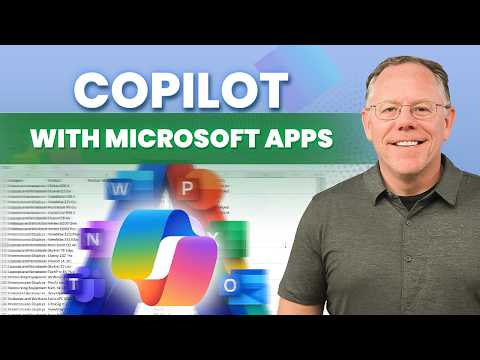
Microsoft Copilot: Individuals Tutorial
Content Creator & former Microsoft Product Manager
Microsoft Copilot tutorial: master Copilot Chat, Agents, prompts and file analysis in Word Excel PowerPoint Outlook
Key insights
- Microsoft Copilot for Individuals: A consumer-focused AI assistant that works on the web, in Windows, and inside Word, Excel, PowerPoint, and Outlook.
It offers chat-driven help, content generation, and task automation across devices for personal and small-business users. - Versions & subscriptions: A basic free tier exists, but the full feature set requires a Microsoft 365 subscription for individuals.
Organization-provided Copilot versions follow separate licensing and controls. - Core features: Use the Copilot Chat for Q&A and ongoing conversations, save chats for later, and ask Copilot to draft text or create images.
Copilot adds citations to help fact-check answers and supports natural voice chat for hands-free use. - In-app integration: Copilot runs embedded inside Office apps and as standalone Copilot apps and Windows taskbar access (keyboard shortcuts and a Copilot key make opening it fast).
It analyzes your Word, Excel, and PowerPoint files in place so you can summarize, edit, or extract insights without switching tools. - Productivity tools & workflows: Build automation with Copilot Agents, organize work using Copilot Pages and Notebooks, and generate drafts, slides, or data analyses quickly.
Use clear prompts and templates to speed common tasks and reduce repetitive work. - Privacy, grounding, and prompt best practices: Copilot can reference your files and web sources while showing citations for verification; adjust memory and privacy settings to control what it remembers.
Write better prompts using the GCSE framework (Goal, Context, Style, Examples): be specific, give context, set tone, and show examples for best results.
Overview of the Video
Kevin Stratvert’s recent YouTube tutorial, presented with host Nick Brazzi, offers a detailed walkthrough of Microsoft Copilot for individual users. The video serves as a complete guide to the features available to people who buy their own Microsoft 365 subscription, and it covers everything from basic chat use to in-app integrations across Word, Excel, PowerPoint, and Outlook. Moreover, the tutorial lays out the difference between the free or basic Copilot experience and the richer capabilities unlocked by a paid subscription.
In addition, the video includes clear timestamps so viewers can jump to sections such as prompts, agents, and file analysis, which enhances practical learning. Consequently, this structure makes the content easier to scan and use as a reference, and it positions the tutorial as both an introduction and a hands-on manual for everyday productivity tasks. Overall, the presentation balances breadth and detail, aiming to support new and intermediate users alike.
Core Features and How They Work
The tutorial explains that Copilot acts as an AI assistant across devices, embedding a chat interface on the web and within dedicated apps, while also appearing inside popular Office applications. For example, Copilot Chat can answer questions, generate drafts, create images on request, and analyze content from documents or emails, and the tool can also retain conversational context for follow-up queries. Furthermore, Stratvert highlights features like voice chat and the ability to continue saved chats later, which makes interactions more natural and persistent.
He also demonstrates integrations such as data analysis in Excel, slide generation in PowerPoint, and summarization in Outlook, thereby showing how Copilot can streamline routine work. In addition, the video introduces organizational features like Copilot Pages and Notebooks, which help users collect and manage results from multiple sessions. As a result, viewers receive practical examples that clarify how the AI pulls context from files and the web to produce grounded answers.
Tradeoffs: Convenience, Cost, and Control
While the video stresses clear productivity gains, it also raises the inherent tradeoffs between convenience and control when relying on AI assistants. On one hand, paid subscriptions deliver richer features and deeper app integration, which can save time and reduce repetitive tasks; on the other hand, those benefits come at a monetary cost and may require users to accept new data-sharing and privacy settings. Therefore, deciding whether to subscribe involves balancing budget, the frequency of use, and an individual’s comfort with cloud-based processing.
Moreover, Stratvert touches on the tension between automation and human oversight, explaining that Copilot’s suggestions speed up work but still need user review for accuracy and tone. He also notes that features like citations and document grounding help mitigate errors, yet they do not eliminate the possibility of misinterpretation or incomplete answers. Consequently, users must weigh speed against the need for verification and be prepared to refine outputs rather than accept them automatically.
Challenges and Limitations
The video does not shy away from limitations: Stratvert points out challenges such as occasional hallucinations, context gaps, and the need for clearer data boundaries when Copilot accesses files. In practice, these issues mean that Copilot can be very helpful for drafts and analysis but still requires careful checking before publishing or sharing critical content. Additionally, some advanced automation—like Copilot Agents—adds complexity that can increase setup time and raise questions about maintenance and oversight.
Security concerns are also discussed, since connecting an AI assistant to personal or work accounts introduces tradeoffs between convenience and data governance. Therefore, users should apply best practices by limiting sensitive inputs, using citations to track sources, and understanding what the assistant remembers across sessions. Ultimately, while the tool is powerful, responsible use depends on user awareness and clear boundaries.
Practical Tips and Final Takeaways
Stratvert’s tutorial offers several practical tips that viewers can apply immediately, such as using the GCSE prompt framework (Goal, Context, Style, Examples) to get better results and saving useful chats for future reference. He also recommends testing voice chat and in-app features, while keeping an eye on citations and revision history to verify claims and track changes. Thus, the video emphasizes iterative use: prompt, evaluate, and refine.
In conclusion, the tutorial delivers a thorough, user-focused view of Microsoft Copilot for individuals, blending demonstrations with advice about tradeoffs and safety. While the technology promises significant productivity gains, viewers should approach it with verification steps and an understanding of costs and privacy implications. For many users, the right balance will combine Copilot’s convenience with ongoing human judgment to ensure reliable and responsible outcomes.

Keywords
Microsoft Copilot tutorial, Copilot for individuals, Microsoft 365 Copilot guide, Copilot setup and tips, Copilot AI personal use, Copilot features walkthrough, Copilot productivity tutorial, How to use Microsoft Copilot