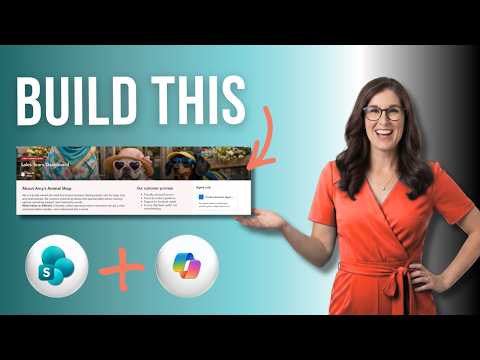
SharePoint: Build Pages with Copilot
MS expert: SharePoint pages with Copilot: create, edit, add web parts, lists, document libraries, publish to Teams
Key insights
- Video summary: The tutorial shows how to build and customize modern SharePoint pages step-by-step, both the classic manual way and with Copilot, so viewers can create pages from scratch regardless of license.
- Core creation steps: Open the target site, choose New > Page or use Publish > + Create > Page, pick a template, set the title and header, add content, then Publish.
- Layout and building blocks: Use flexible sections and drag-and-drop web parts to add text, images, sidebars, lists, or document libraries and rearrange content visually.
- Copilot role: Copilot in SharePoint helps speed authoring by suggesting content and edits; Microsoft includes Copilot guidance in its authoring docs to support AI-assisted page creation.
- Publish and promote: After publishing, use Promote options to add the page to site navigation or highlight it so users can find it faster.
- Practical tips & caveats: Templates speed up work and improve consistency, but entry clicks can vary by entry points (site command bar, application bar, Site Pages) and by tenant configuration; confirm the exact UI in your environment.
Overview of the Video
The YouTube video from Office Skills with Amy titled "How to Create SharePoint Pages: Step by Step (Copilot Included)" walks viewers through a complete page-creation workflow, combining the traditional interface with AI assistance. The presenter explains an 11-step approach that covers both the classic method and a Copilot-enhanced path, so creators can build pages regardless of their license. Accordingly, the tutorial targets a wide audience, from students and project managers to business users who want practical, hands-on guidance. Furthermore, the video includes clear timestamps and examples to help viewers follow along at their own pace.
Classic SharePoint Page Creation
First, the video reviews the standard way to make a page in SharePoint, beginning at the site level and moving through the basic actions: select New > Page, pick a template, and then enter a title and header image. Then, Amy demonstrates how to add or adjust sections and insert common web parts, such as text, images, lists, and document libraries, before publishing the page. In addition, she emphasizes simple editing gestures like deleting unwanted sections and fine-tuning focal points for header images to improve visual appeal. Consequently, viewers get a step-by-step sense of how to assemble a page with readily available web parts and site tools.
The video also points out that SharePoint presents several entry points for page creation, such as the site command bar, the application bar, and the Site Pages area, which may appear differently depending on tenant settings. Therefore, users should expect slight variations in how the interface looks and where controls are located in their environment. Moreover, Amy highlights the usefulness of templates for speeding up design work, but she also shows how to start from scratch when a custom layout is needed. Thus, the classic approach balances predictability with flexibility for different authoring scenarios.
Where Copilot Fits In
Next, the video introduces Copilot as an assistive layer within the SharePoint authoring experience, showing how AI can draft content, suggest structure, and help edit existing components. Amy demonstrates using Copilot to create initial text, rearrange content, and refine phrasing, which can cut down manual typing and speed early drafts. At the same time, she cautions that Copilot-produced text requires human review to ensure accuracy, tone consistency, and alignment with organizational policy. Therefore, Copilot is framed as a helpful collaborator rather than a fully autonomous author.
Furthermore, the presenter explains that Copilot's integration does not currently replace the need for classic actions like adding sections, inserting specific web parts, or handling accessibility checks. In practice, users will typically allow Copilot to generate initial content or ideas, and then manually adjust layouts, images, and navigation settings to suit their audience. Consequently, a hybrid workflow—AI drafting followed by human editing—emerges as the recommended pattern for reliable, polished pages. This blend aims to preserve creative control while benefiting from productivity gains.
Advantages, Tradeoffs, and Challenges
The video clearly lays out practical advantages such as faster page creation through templates, easier editing with drag-and-drop controls, and built-in publishing tools that help content reach users more quickly. Additionally, Amy highlights features that improve discoverability, including promotion options that place pages in navigation or add them to channels like Teams. However, she also discusses tradeoffs: heavy reliance on templates or Copilot can reduce uniqueness and may require extra governance to maintain brand and compliance standards. Therefore, organizations must balance speed against consistency and control to avoid fragmented or misleading content.
Moreover, the tutorial addresses technical and organizational challenges, such as tenant configuration differences, licensing requirements for Copilot features, and the need for author training. For example, Copilot availability varies by Microsoft 365 plan, so some teams may not be able to use the AI-assisted steps immediately. Finally, performance and customization limits can complicate highly tailored designs, which means teams should plan governance, review cycles, and accessibility checks when scaling page creation across many authors.
Practical Recommendations and Conclusion
In closing, Amy recommends a pragmatic workflow: experiment with modern pages and templates to prototype quickly, then use Copilot to draft content and iterate manually to ensure quality and compliance. She also advises establishing simple governance rules, such as template guidelines and an editorial review step, so that pages remain consistent and accessible as they scale across teams. Consequently, organizations can capture the efficiency benefits of AI while preserving editorial standards and trust in published content.
Overall, the video from Office Skills with Amy provides a practical, license-neutral guide to SharePoint page creation that mixes classic authoring techniques with AI-assisted writing. For readers who are new to SharePoint or curious about how Copilot changes the workflow, the tutorial offers clear demonstrations and sensible caveats. Therefore, this resource is a useful starting point for teams aiming to improve Microsoft 365 productivity without sacrificing control or quality.

Keywords
create SharePoint pages tutorial, SharePoint pages step by step, SharePoint Copilot pages, SharePoint Online page design, modern SharePoint page creation, how to make SharePoint page, SharePoint page layout tips, SharePoint pages for beginners