- All of Microsoft
SharePoint: Ditch Manual Configuration
A Microsoft MVP 𝗁𝖾𝗅𝗉𝗂𝗇𝗀 develop careers, scale and 𝗀𝗋𝗈𝗐 businesses 𝖻𝗒 𝖾𝗆𝗉𝗈𝗐𝖾𝗋𝗂𝗇𝗀 everyone 𝗍𝗈 𝖺𝖼𝗁𝗂𝖾𝗏𝖾 𝗆𝗈𝗋𝖾 𝗐𝗂𝗍𝗁 𝖬𝗂𝖼𝗋𝗈𝗌𝗈𝖿𝗍 𝟥𝟨𝟧
AI in SharePoint builds lists by voice, imports Excel, applies pill and conditional formatting with Microsoft Copilot
Key insights
- AI for SharePoint demo: You speak commands and the AI builds lists, adds columns, imports Excel data, and applies formatting in under five minutes.
It shows how voice-driven automation removes most manual setup steps. - Key actions demonstrated: creating a SharePoint list with custom columns, adding a column mid-session, importing Excel with automatic date conversion, applying pill formatting to choice fields, and setting conditional formatting for renewal dates.
These steps illustrate typical admin tasks the AI can complete for you. - When it fails — error handling is essential: the demo highlights how to spot mistakes, correct column types, re-import data, and fall back to manual edits when needed.
Plan brief verification steps after the AI runs to catch problems early. - Describe-and-build vs configure-and-build: the shift means non-technical users can describe needs in plain language and get working lists and views instead of navigating complex configuration screens.
This change broadens who can use SharePoint effectively and speeds delivery. - Benefits: faster information access, simpler onboarding, better integration with Microsoft 365 and Teams, improved mobile collaboration, and lower ongoing admin work.
Teams get results faster when tools match real workflows instead of forcing rigid setups. - Practical rollout tips: verify imported data formats, review permissions and governance, save working templates, train users on voice prompts, and keep manual controls for edge cases.
These steps protect data quality while you scale AI-driven setups.
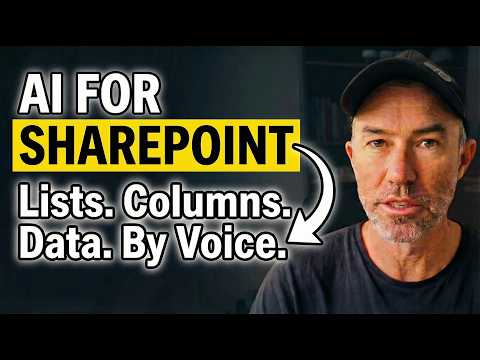
Daniel Anderson [MVP] published a YouTube demo that challenges the old way of building SharePoint sites by showing how AI can create lists, add columns, import Excel data, and apply formatting — all by voice and in under five minutes. The video frames a live five-minute challenge and then walks through practical steps, including how to recover when the automation makes a mistake. As a result, the clip argues that SharePoint is shifting from a manual configure-and-build model to a describe-and-build model, which changes who can use the platform effectively. Consequently, this shift has implications for both end users and IT teams across governance, adoption, and support.
The Demo at a Glance
First, Anderson sets a clear five-minute timer and narrates each action while speaking commands to the new AI features inside SharePoint. He creates a list with custom fields, adds a choice column mid-session, and imports client rows from an Excel sheet, noting that date formats were converted automatically. Next, he applies pill-style formatting to the choice column and sets conditional formatting that highlights rows based on renewal dates. Finally, he demonstrates how to correct errors when the AI misunderstands a field or formatting requirement, which is a crucial part of the workflow.
How Voice-Driven Setup Works
In the video, the process relies on natural language prompts that map to list schemas and formatting rules, so users simply describe what they want rather than clicking through multiple settings screens. The AI interprets those descriptions, creates the columns, and infers data types during the import step, which reduces repetitive work and speeds delivery for simple to medium complexity lists. However, the demo also shows that the tool won’t always guess business rules correctly, so you must verify the schema and sample data after creation. Therefore, the approach works best when teams pair speed with a short validation pass.
Tradeoffs: Speed Versus Control
On one hand, voice-driven automation lowers the barrier for non-technical users and speeds routine setups, which can improve adoption and free admins for strategic tasks. On the other hand, it can reduce granular control over advanced settings like complex permission inheritance, custom flows, or bespoke column types that many organizations rely on. Moreover, automating imports and format suggestions introduces a risk of subtle errors, for instance with date parsing or multi-select choices, so governance policies must adapt to provide review checkpoints. Ultimately, teams must balance the convenience of rapid creation against the need for correctness and compliance.
Challenges and Practical Limits
When the AI gets something wrong — a point the video emphasizes — the recovery path matters; Anderson shows how to edit fields, correct data types, and rerun imports when needed, which underlines the importance of user training and rollback plans. Larger lists, complex relational data, or industry-specific compliance requirements can still demand manual design and testing, so the AI is not a full replacement for experienced admins. Additionally, integration with existing automation like Power Automate or custom connectors may require post-creation adjustments, meaning that advanced workflows will still need expert attention. Consequently, this technology is best used iteratively: prototype fast, then refine with governance checks.
Implications for Teams and Governance
For citizen developers and business users, the describe-and-build model democratizes SharePoint and shortens the path from idea to working list, which can increase experimentation and local productivity. For IT and governance teams, the shift calls for new guardrails: audit logs, approval steps for production lists, template libraries, and documentation that capture business rules the AI might not infer. Meanwhile, training must focus on validation, error correction, and when to escalate to IT, since the tool will not replace the need for thoughtful information architecture. Consequently, organizations should update their policies to embrace speed while preserving security and reliability.
In summary, Daniel Anderson’s demonstration highlights a clear payoff: faster setup and a lower technical barrier for routine SharePoint tasks through AI and voice. However, the video also responsibly shows tradeoffs and failure modes, reminding viewers that governance, validation, and integration remain essential. Therefore, teams should pilot these features on simple projects, build templates for repeatable patterns, and maintain review processes to get the benefits of automation without sacrificing control or compliance.

Keywords
Automate SharePoint configuration, SharePoint automation best practices, Stop manual SharePoint setup, SharePoint provisioning tools, SharePoint deployment automation, PowerShell SharePoint automation, SharePoint configuration templates, SharePoint governance automation