- All of Microsoft
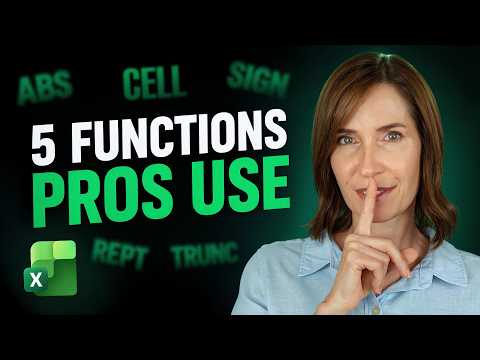
Excel: 5 Boring Functions That Do More
Microsoft Excel expert guide: ABS SIGN REPT TRUNC CELL streamline formulas, clean reports and boost Office productivity
Key insights
- Video focus: This YouTube tutorial highlights five underrated Excel functions—ABS, SIGN, REPT, TRUNC, and CELL—and shows simple examples that solve real spreadsheet problems.
- ABS — absolute value: Use ABS to remove negative signs for calculations like total change or distance, e.g., =ABS(A2-A1). It helps when you only care about magnitude, not direction.
- SIGN — direction test: SIGN returns -1, 0, or 1 to indicate negative, zero, or positive values, which is handy for tracking trend direction or conditional logic, e.g., =SIGN(B1).
- REPT — repeat text for visuals: REPT repeats characters to build simple in-cell bar charts or padding (e.g., =REPT("|",A1)), making quick visual summaries without charts.
- TRUNC — truncate without rounding: TRUNC strips the fractional part without rounding, useful for fixed-decimal displays and comparisons, e.g., =TRUNC(number,2); use when rounding would distort results.
- CELL — cell metadata: CELL returns info like file name, address, row, or column for dynamic labels and debugging, e.g., =CELL("address",A1).
Practical tip: combine these functions (for example ABS with SIGN or REPT with logical tests) to build clearer reports. These functions work in all Excel versions and the video includes a practice file and step-by-step demos to follow along.
Video overview
In a recent YouTube video, Mynda Treacy (MyOnlineTrainingHub) [MVP] revisits five Excel functions that many users consider dull but that prove highly practical in everyday spreadsheets. She frames ABS, SIGN, REPT, TRUNC, and CELL as small tools that solve common problems quickly. The video combines clear examples and step-by-step demonstrations aimed at users of all Excel versions.
Treacy provides a practice workbook so viewers can follow along, and timestamps help learners jump to the demonstrations they need. Furthermore, she stresses that these functions exist across Excel releases, which makes them reliable choices for broad compatibility. Consequently, viewers can apply the techniques without depending on newer subscription-only features.
How each function shines
ABS converts negative numbers to positive values, which helps when you want to measure size without regard to direction. In contrast, SIGN returns the sign of a number and can drive conditional logic, such as identifying gains versus losses. Together they let authors correct misleading percentage changes or build simpler rules for conditional formatting.
REPT repeats text or characters a set number of times, and Treacy shows how it can create visual progress bars or pad labels for cleaner reports. Moreover, the function helps when you need fixed-width displays in dashboards or want to flag records with repeated markers. However, she warns that overuse can make sheets bulky if the repetition spans many rows.
TRUNC removes fractional parts of numbers without rounding, which proves useful when you must display truncated values or strip time from datetime values. Meanwhile, CELL returns cell metadata such as address, file path, or formatting information, and Treacy demonstrates how to make reports self-aware. Together they solve formatting and reporting problems that otherwise require longer formulas or helper columns. Still, they require careful handling because metadata can change when files move or when regional settings differ.
Practical demonstrations and examples
Treacy walks viewers through concrete examples that replace convoluted formulas with shorter, readable ones, and she encourages testing with the provided workbook. For instance, she fixes misleading percentage reports by combining ABS with simple arithmetic so stakeholders see consistent behaviour. She also uses REPT to add visual spacing that improves readability without complex formatting. These examples aim for clarity and maintainability rather than clever one-liners.
Moreover, the video highlights quick tricks, such as using TRUNC to remove time from timestamps and CELL to show workbook names on a title row. Consequently, these small changes make reports more robust when users share files across teams. Treacy stresses that practicing with sample data builds confidence faster than reading formulas alone.
Tradeoffs and challenges
While these legacy functions stay useful, they come with tradeoffs that authors should consider. Simpler formulas like ABS and SIGN improve clarity but sometimes mask intent if not documented, which can confuse later maintainers. Similarly, REPT improves layout but can inflate file size when used across large datasets. Therefore, the video recommends measured use and clear comments when authors rely on repetition for presentation.
Compatibility is another concern because some teams now use modern functions and dynamic arrays that provide more power and efficiency. Consequently, model authors must balance backward compatibility against adopting newer features that simplify work. Treacy advises considering the audience and file lifecycle before replacing classic formulas.
Edge cases also pose a challenge, such as locale differences that affect numeric separators and metadata returned by CELL. Additionally, truncation can remove critical precision if stakeholders expect rounded values rather than simply cut decimals. Hence, testing with realistic data sets remains essential to avoid subtle business errors.
Where these functions fit in modern Excel
In the end, Treacy positions these five functions as practical foundations rather than relics. Although modern features such as dynamic array functions and AI-assisted tools offer new workflows, legacy functions remain lightweight and universally available. For teams that must support older Excel versions or share files broadly, these functions provide predictable behaviour. Moreover, they often integrate well with newer functions when authors design with compatibility in mind.
Readers who want hands-on learning should watch the full video and use the practice workbook that accompanies it to test scenarios. Ultimately, Treacy’s concise demonstrations make a persuasive case: small, "boring" functions can deliver real gains in clarity and reliability when used thoughtfully. Therefore, spreadsheet makers should weigh the tradeoffs and benefits and choose the approach that fits their environment and audience.

Keywords
boring Excel functions, powerful Excel formulas, hidden Excel functions, Excel productivity tips, advanced Excel tips, Excel formula hacks, Excel functions tutorial, Excel functions examples