SharePoint governance: audit sites, sharing and permissions
Use a three-stage SharePoint governance plan to inventory sites, review exposure and permissions, and build a repeatable review process.
Key insights
- Start by inventorying sites, storage use, external access, internal permissions and content that may be surfaced by Copilot.
- The SharePoint admin center's Active sites page lists sites and shows tenant storage use.
- Sharing is controlled by a tenant-level maximum and a separate setting for each SharePoint site.
- The Data access governance reports include sharing-link and Everyone except external users reports.
- Security groups can make access changes easier to manage than adding named users to many sites.
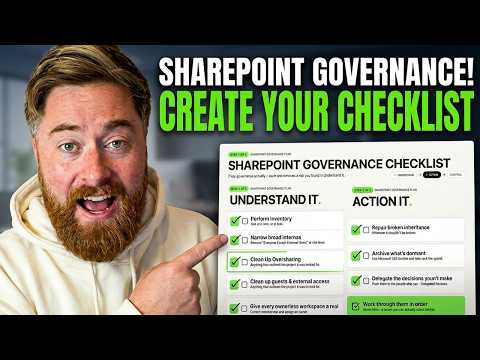
SharePoint governance works best as a recurring process: understand the environment, act on identified risks, and control the environment through repeatable reviews. The approach matters to SharePoint administrators and site owners who need to assess site growth, storage, sharing and permissions before deciding what to change. Dougie Wood [MVP] demonstrates this three-stage approach and several review paths in a YouTube video.
What it does
The first stage is discovery, not immediate cleanup. The checklist starts with basic questions: how many sites exist, whether that number is growing, how much pooled storage the tenant uses, who can access content externally, and whether internal users have more access than their work requires. It also asks administrators to consider dormant content that Copilot could surface and what the environment is costing.
The second stage is action: address risks uncovered during the review. The third is control, which means making governance a repeatable process rather than treating it as a one-time cleanup. The demonstration provides detail on discovery and risk review, but the available transcript does not provide a complete set of procedures for every ongoing control task.
This framing connects site administration to data exposure. A site can have an apparently ordinary permission setting that grants broader access than its owner intended. That matters when users can search or use Copilot to find content they already have permission to access.
Who it is for and what you need
The steps are aimed primarily at people who manage SharePoint sites or Microsoft 365 tenants, with site owners involved in decisions about their content. The material does not specify a required license, tenant plan, region, or rollout stage. It also does not establish that every report or administrative view is available under every configuration.
For the native checks, the demonstration uses the SharePoint admin center. You will need appropriate access to view its site and governance reports, but the source does not state a particular administrator role. Site-level checks, such as reviewing library version settings or site permissions, require access to the relevant site.
The video also demonstrates ShareGate for more detailed reporting on links and permissions. It is a third-party tool, not a prerequisite for the native SharePoint checks. The source does not provide licensing or pricing details, so those should not be assumed.
How it works
- Count sites and assess storage. In the SharePoint admin center, open Sites and then Active sites. The list shows sites, and selecting the sites lets you see a total count. The page also displays tenant storage use and lets you sort sites by storage size.
- Investigate storage outliers. If a site uses unusually high storage, review its document libraries and version settings. Version history can retain multiple copies of a file; discuss the appropriate number of versions with the site owner before reducing it.
- Check sharing limits and actual links. Under the admin center's Policies and Sharing settings, review the maximum sharing level for SharePoint. The options described are Anyone, New and existing guests, Existing guests, and Only people in your organization. The maximum policy still needs to be applied at the individual site level. To inspect reported exposure, go to Reports and Data access governance, then review the Sharing links report.
- Review internal access. At a site, open the settings gear and choose Site permissions to inspect owners, members and visitors. The demonstration recommends security groups where suitable, since moving a person between groups can be easier than removing that person from multiple sites individually.
- Find broad access and exceptions. In Data access governance, inspect the report for sites shared with Everyone except external users. Consider whether each site is intended for the whole organization or should be restricted to a particular team.
The native sharing report can identify sites and counts for certain link categories, including Anyone links, organization links and specific-people links shared externally. In the demonstration, it does not provide item-level details or a way to disable individual links. ShareGate's Workspaces with sharing links report is shown drilling into link details, while its Permissions matrix report shows access across a site's layers and highlights unique permissions.
Limitations and open questions
A report is a starting point for investigation, not proof that every permission is inappropriate. Broad access may be intentional on some sites, so site owners and business context matter before changing access. Likewise, version history can consume storage, but the appropriate version limit depends on the site's needs; the source does not give a universal setting.
Permission inheritance can be broken at libraries, folders or documents, so checking only site-level groups may miss unique access. The demonstration describes the native reporting limits for sharing links and shows third-party reporting as an option for deeper inspection. It does not provide a complete specification of ShareGate capabilities or the steps needed to implement every suggested change.
The transcript also ends before the full control stage is explained. It does not establish a review frequency, site-retirement process, or specific policy for ownership and retention. Organizations should treat those as open governance decisions rather than assume this checklist supplies them.
Sources
Frequently asked questions
Where can I see how many SharePoint sites my tenant has?
In the SharePoint admin center, go to Sites and then Active sites. The demonstration shows selecting the listed sites to see a total count.
How do I check SharePoint external sharing?
Review the SharePoint sharing policy under Policies, then inspect Data access governance reports for sharing links. The maximum tenant setting and the setting applied to an individual site are separate.
Does the material specify a license or admin role for these checks?
No specific license or administrator role is stated. The native checks are shown in the SharePoint admin center, and site-level checks require access to the relevant site.
Can I use native SharePoint reports to remove individual sharing links?
The demonstration says the native Sharing links report identifies flagged sites and link counts but does not let the administrator drill into and disable individual links. It shows ShareGate reports for more detailed inspection and link removal.