- All of Microsoft
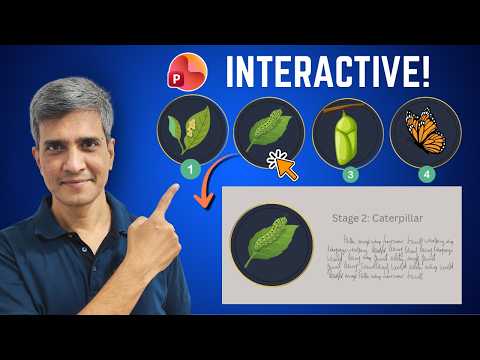
PowerPoint Interactive Process Animation
Microsoft PowerPoint expert: interactive four-stage slides with ChatGPT images, animations and clickable navigation
Key insights
- Interactive animation: Use animations to reveal each process step on click, keeping viewers focused and controlling pacing.
Interactive slides turn static content into guided, clickable experiences that increase engagement. - Entrance, Emphasis, Exit, Motion Paths: These core effect types make objects appear, draw attention, leave, or move along a path.
Combine them to show how one stage leads to the next in a clear sequence. - Triggers: Set an animation to start when a specific shape or object is clicked, or at a media bookmark.
Triggers let the audience explore steps in any order or reveal details on demand. - Animation Pane: Use this panel to order effects, set timing, and manage dependencies for multi-step demos.
Organize animations here to ensure smooth, predictable transitions during the presentation. - PowerPoint for the web Preview: Test animations and interaction in a browser preview before presenting or sharing online.
This web-friendly workflow helps you build and verify interactive slides without the desktop app. - Use cases: Ideal for product walkthroughs, training modules, sales explainers, and process tutorials.
You can reuse the same animated slides for live demos, web publishing, or recorded videos to save time.
Overview of the video
The YouTube tutorial by Presentation Process YouTube demonstrates how to turn a simple four-stage process into an engaging, clickable PowerPoint presentation. In the video, the presenters use the four seasons — Spring, Summer, Autumn, and Winter — as an example to show how a single image can be broken into stages and then expanded into detailed slides. Moreover, the tutorial highlights the use of a ChatGPT-generated image and step-by-step animation techniques so viewers can reproduce the effect in their own work.
Chapters in the video guide viewers through the workflow, starting from downloading the image and separating stages, then creating a process diagram, building detail slides, and finally adding hyperlinks for navigation. Consequently, the structure makes the workflow easy to follow for both beginners and more experienced users who want a compact, practical demonstration. Overall, the video aims to show a repeatable technique that applies to business, training, education, and other contexts.
What the tutorial teaches
The tutorial explains how to create a clear four-stage diagram by separating elements of a composite image and then animating each stage to reveal content progressively. It demonstrates applying entrance effects, motion paths, and timed triggers so each stage appears when the presenter wants it to, making the explanation more orderly and engaging. As a result, viewers learn not only the mechanics of animation but also how to design slides so the audience can explore a process at their own pace.
Additionally, the video shows how to link each stage to a dedicated detail slide, creating a clickable navigation system within the presentation. This technique uses hyperlinks and slide navigation to let viewers jump between the overview and deep dives without leaving Slide Show mode. Therefore, the approach blends animation, interactivity, and structured content to produce a guided yet flexible presentation experience.
Practical workflow and tools
The presenters outline a practical sequence: obtain or generate an image, split it into parts, create an overview slide, build detail slides for each part, and then add animations and hyperlinks for navigation. They recommend working in the Animation Pane to control order and timing, and they show how triggers can start effects when shapes are clicked. This stepwise approach keeps the build process manageable and reduces the risk of broken timing or unintended overlaps.
Importantly, the video references PowerPoint's built-in features, such as entrance and exit effects and motion paths, while also pointing to browser-friendly workflows like the Preview experience for web-based testing. Consequently, creators can validate animations in Slide Show mode and in web previews to ensure consistent behavior. The tutorial focuses on Office 365 tools but the principles work across many recent PowerPoint versions.
Tradeoffs to consider
While interactive animations deliver engagement, they bring tradeoffs in complexity and maintenance that presenters should weigh carefully. For example, adding many triggers and motion paths can increase the file size and make future edits harder, so teams must balance interactivity against long-term maintainability. Likewise, relying on generated images such as a ChatGPT-generated image speeds development, but creators should consider image quality, licensing, and whether the style matches their brand.
Another tradeoff involves platform compatibility: desktop PowerPoint supports advanced triggers more consistently than some web or mobile viewers, so teams must decide whether to prioritize a rich interactive experience or a simpler design that works everywhere. In practice, presenters often choose a hybrid approach—use richer animations for live presentations and prepare a simplified version for shared or web-based distribution.
Challenges and practical tips
There are a few common challenges when building interactive process explanations, including ensuring consistent behavior across platforms and keeping navigation intuitive for viewers. To address these issues, the video suggests thorough testing in Slide Show mode and, where available, web previews, plus clear visual anchors so users know where to click and how to return to the overview. These steps help minimize confusion and reduce the chance that an animation fails at a critical moment.
Finally, the presenters recommend keeping interactions purposeful: add clicks and triggers only where they clarify the sequence or add value, and avoid decorative motion that distracts from the message. By focusing on clarity and testing for compatibility, creators can deliver engaging process demos that improve understanding without adding needless complexity.

Keywords
interactive PowerPoint animation, animated process explanation PowerPoint, engaging PowerPoint animations, interactive presentation slides, PowerPoint process animation tutorial, create interactive PowerPoint slides, animated process flow PowerPoint, PowerPoint animation for training