PowerPoint: record reusable Copilot skills
Consultant at Bright Ideas Agency | Digital Transformation | Microsoft 365 | Modern Workplace
PowerPoint users can record a repeatable slide task as a Copilot skill, then run that skill on another deck.
Key insights
- Record a skill from the Copilot pane: plus button, Choose plugins and skills, Manage plugins and skills, then Custom skills.
- A recorded skill is a SKILL.md file with a name, description and plain-language instructions.
- In the demonstration, a recorded layout adapted to a second deck's theme colors.
- Keep each recording to one kind of change; a combined layout-and-animation recording retained only animation.
- The publisher says Record a Skill is generally available in PowerPoint and requires no admin action to turn on.
PowerPoint’s Record a Skill turns a sequence of slide edits into a reusable Copilot skill, so users can apply a repeatable design task to another deck without writing the instructions themselves. It is aimed at people who often make the same kind of presentation change but do not have a written procedure to follow. Nick DeCourcy (Bright Ideas Agency) demonstrates recording and reusing layout and animation skills in PowerPoint.
What it does
A Copilot skill is a file named SKILL.md containing a name, a description and instructions in plain language. The description helps Copilot decide when a skill applies; users can also select a skill from the menu or call it by name. Recording provides a way to create those instructions by doing the task in PowerPoint rather than drafting them from scratch.
That distinction matters for work that depends on visual judgment. A team may repeatedly turn a table of metrics into a row of cards without having a formal standard that explains each choice. The recording can capture the observed task and turn it into a described pattern that Copilot can attempt on a different slide.
In the example, DeCourcy replaces a table with a rounded panel containing metric cards: icons, prominent figures, labels and change indicators. The generated instructions refer to theme colors rather than the exact colors used in the source deck. When he runs the skill on a deck with a different theme, the cards use colors from that deck instead.
A second recording handles animation. The two examples illustrate a useful boundary: the skill can capture a pattern such as animating the elements in each column together, but the publisher found that combining layout construction and animation in one recording caused the generated skill to retain only the animation.
Who it is for and what you need
The feature is relevant to PowerPoint users who repeat slide edits and want to reuse them across presentations. It may be particularly useful when the process is easier to demonstrate than to describe as a written standard. The recording does not require the user to write the skill instructions before starting.
The demonstration was recorded in PowerPoint for the web with a Microsoft 365 Copilot license. That establishes the setup used in the example, not the complete licensing requirements for every user or tenant. The supplied information does not specify all eligible plans, regions or platform requirements.
DeCourcy says Record a Skill is generally available in PowerPoint and that administrators do not need to turn it on. The supplied material does not provide a detailed rollout schedule by tenant, nor does it establish whether every organization sees the feature at the same time. Microsoft’s PowerPoint documentation links below are the place to check the current product instructions.
This article covers recording a custom skill in PowerPoint, rather than the separate rollout of skills in Copilot Chat mentioned in the demonstration. The material does not establish Copilot Chat’s current availability or requirements.
How it works
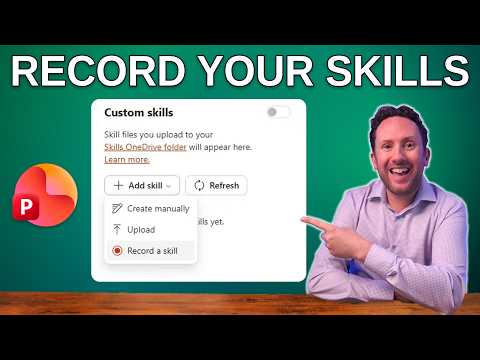
Start from the PowerPoint Copilot pane. The menu path given in the demonstration is specific: open the plus menu, choose Choose plugins and skills, then Manage plugins and skills, and open Custom skills. From the Add menu, choose the option to record a skill.
- Open the Copilot pane and follow the menu path to Custom skills.
- Choose the option to record a skill, then carry out the slide task you want to reuse.
- Stop the recording. Copilot reviews the changes and drafts the skill, including its name, description and instructions.
- Review the draft, then use the skill on another deck, either by selecting it or calling it by name.
For the layout example, the recorded actions included removing a table, drawing a rounded backdrop, adding icons and metric text, and adding a pill for each change. Copilot described a horizontal row of icon-led metric cards and used theme-based color language. The resulting skill could then be run on a different deck with a different visual theme.
For animation, the recording grouped each column’s icon, number and pill and applied a fade entrance on successive clicks. The publisher ran that skill separately on the other deck. These examples show why it helps to plan the recording around one coherent outcome: a layout skill and an animation skill can be run in turn rather than asking one recording to capture both kinds of work.
Limitations and open questions
Recording is not a guarantee that Copilot will infer every intention correctly. The generated file is a draft of the skill, so review its description and instructions before relying on it. In particular, check whether the recorded choices were generalized appropriately, or whether the instructions describe details that should change from one presentation to another.
The publisher reports that a combined recording kept only the animation, and says this happened twice. That is a useful caution, but it is a limited test rather than proof that every combined recording will fail. The practical advice from the demonstration is to record one kind of change at a time and combine focused skills when needed.
The source material does not explain how to edit, share, centrally deploy or remove a recorded skill, or what supporting files it can use. It also does not provide a complete feature matrix or licensing breakdown. Consult Microsoft’s documentation for current instructions, and test a recorded skill on a copy of a presentation before making it part of a team process.
Sources
- Microsoft Support: Record a skill in Copilot in PowerPoint
- Microsoft Support: Use custom skills with Copilot in PowerPoint
- Nick DeCourcy (Bright Ideas Agency): Create Copilot Skills in PowerPoint Without Writing Them
Frequently asked questions
How do I record a Copilot skill in PowerPoint?
In the Copilot pane, choose the plus button, then Choose plugins and skills, Manage plugins and skills, and Custom skills. Select the recording option, perform the task, and stop to have Copilot draft the skill.
Do I need to write a SKILL.md file to record a PowerPoint skill?
No. Recording lets Copilot draft the skill after observing your edits. A skill is a SKILL.md file with a name, description and plain-language instructions.
What license do I need to record a PowerPoint skill?
The demonstration used PowerPoint for the web with a Microsoft 365 Copilot license. The supplied material does not state the full eligibility requirements for all plans or users.
Does an administrator need to enable Record a Skill?
The publisher says there is nothing for administrators to turn on. The supplied material does not specify how availability may vary across tenants or regions.