Word: @Mentions in OneDrive & SharePoint
Microsoft expert guide to OneDrive SharePoint Teams Copilot for secure sync, offline work and business file sharing
Key insights
- OneDrive, SharePoint and Teams form the cloud foundation for Microsoft 365 files.
Store documents in OneDrive or a SharePoint library to enable identity controls, sync, co-authoring and version management. - OneDrive sync keeps files on your PC and in the cloud so you can work offline and sync changes later.
Learn the meaning of the sync icons to know when files are local, syncing, or up to date. - @mentions let you call a colleague’s attention inside a Word comment by typing @ + name.
The mentioned person gets a link to the exact comment, preserving context and speeding review. - Co-authoring enables multiple people to edit a document at once and see live changes.
Version history prevents confusion by letting teams review or restore earlier drafts. - Prefer sharing links with correct permissions over attachments to reduce duplicate copies and control access.
Use comments and resolve threads after tasks finish to keep documents tidy and traceable. - Copilot works with OneDrive files to summarize content, suggest edits, and speed tasks; Microsoft plans more enhancements in 2026 updates.
These AI features aim to make review, search, and action-tracking faster and more contextual.
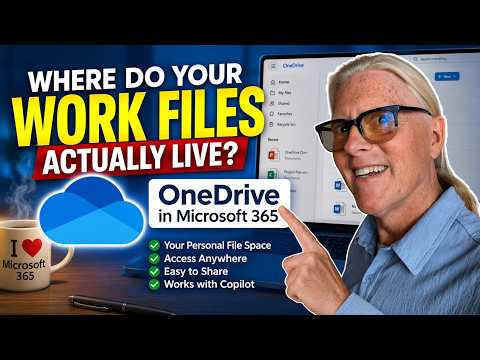
The YouTube video from Microsoft 365 In Practice offers a practical walkthrough that aims to clear up confusion about where work files actually live in modern workplaces. In a concise, hands-on format, the presenter explains how OneDrive functions inside the Microsoft 365 ecosystem and how it connects to SharePoint and Teams. Consequently, the video targets people who still keep documents “somewhere on my laptop” and want to move toward safer, collaborative cloud workflows. Overall, the piece frames OneDrive not as another app to learn but as the foundation for file storage and collaboration.
Overview: Purpose and practical approach
First, the video clarifies what OneDrive is and what it is not, stressing that it provides cloud storage, identity control, sync, and version history rather than replacing document editing tools. Then, it demonstrates the basic steps to save a Word file to the cloud and share it with colleagues so co-authoring and comments stay tied to the file. The presenter uses simple examples and live screens to show how saving to the right location eliminates multiple local copies and reduces version confusion. As a result, viewers can see immediate benefits for small business workflows and distributed teams.
How OneDrive, SharePoint, and Teams work together
The video explains that OneDrive stores personal and team files while SharePoint hosts shared libraries and sites; meanwhile, Teams surfaces those files inside channels and chats. By integrating these services, Microsoft keeps the file as the single source of truth while making it accessible where people already collaborate. Moreover, syncing and identity controls help enforce permissions and avoid accidental data exposure when teams share links rather than attachments. Therefore, the workflow reduces email clutter and maintains context inside the document itself.
Collaborative features: @Mentions, comments, and Copilot
Central to the video is the use of @Mentions in Word comments, which lets authors draw a colleague’s attention to specific text or a requested action. The presenter notes that an @mention sends an email notification with a direct link to the comment, helping recipients find the issue quickly and maintain context. In addition, the video touches on how Copilot can work with files stored in OneDrive to provide intelligent summaries or draft suggestions, but it cautions that organizations should consider data governance before enabling advanced AI features. Hence, the integration balances faster workflows with the need for careful access and privacy controls.
Syncing, offline work, and the meaning of icons
The walkthrough also covers how the OneDrive sync client mirrors cloud files on a user’s computer and how the sync icons signal file status. For instance, a green check means a file is available locally, while a cloud icon indicates online-only access; the video explains these icons step by step so nontechnical users can avoid accidental data loss. It then shows how to work offline and let changes sync when you reconnect, which supports remote work but introduces potential sync conflicts if multiple people edit concurrently. Consequently, the presenter recommends saving to the cloud and using comments and co-authoring so edits merge cleanly and version history remains available.
Tradeoffs and challenges in real deployments
While the video highlights clear advantages, it also discusses tradeoffs that organizations must manage, such as balancing ease of sharing with security controls. In practice, link-based sharing simplifies collaboration but requires careful permission settings to prevent unwanted access, and administrators must weigh convenience against data protection. Additionally, smaller teams may underuse these features because of habit, lack of training, or fear of losing control over documents, so adoption depends on clear guidance and steady change management. Finally, enabling AI features like Copilot adds productivity but raises questions about data residency and compliance that IT leaders must address.
What’s new and practical takeaways
Looking ahead, the video previews improvements arriving in 2026 that further streamline co-authoring, comment filtering, and integration with workplace AI tools. For readers, the practical advice is straightforward: save files to OneDrive or SharePoint, use @mentions for targeted feedback, prefer links over attachments, and learn the sync icons to avoid mistakes. Moreover, the video recommends small businesses treat OneDrive as a default storage layer and combine it with policies and training to boost both productivity and security. Ultimately, the episode serves as a useful, actionable guide for teams ready to move file storage out of scattered local folders and into a managed cloud workflow.
Keywords
OneDrive Word collaboration, SharePoint Word collaboration, @mentions in Word, Word co-authoring OneDrive, Tag colleagues in Word SharePoint, Collaborate on Word files in OneDrive, Use @mentions Office 365 Word, Real-time coauthoring Word SharePoint