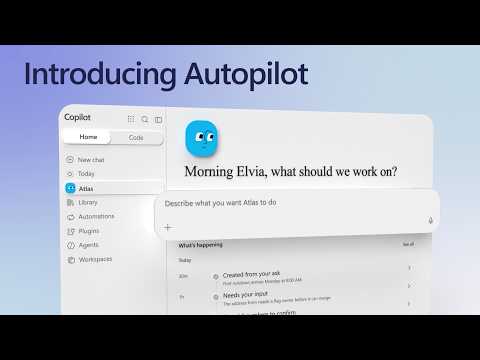
Microsoft Copilot Autopilot: delegate ongoing tasks
Software Development Redmond, Washington
Autopilot lets Microsoft 365 users delegate recurring work and multi-step tasks to a cloud-based agent, with approval and admin controls.
Key insights
- Autopilot runs in the cloud, so it can continue assigned tasks when your laptop is off.
- Create an Autopilot in Microsoft Copilot by naming it, choosing suggested goals and approving its proposed plan.
- Autopilots have their own identity in Agent 365 and access apps and services within tenant permissions and guardrails.
- Admins need usage-based billing enabled and can review adoption, spend, session trends and tool usage.
- Copilot settings let admins control access, cloud or managed-device sessions, and automatic approval of agent actions.
Microsoft Copilot Autopilot lets users delegate ongoing goals and multi-step work to a cloud-based agent that can keep working when their computer is off. It matters to Microsoft 365 users who manage recurring follow-ups and projects, as well as IT admins responsible for access and oversight. Microsoft demonstrates how users set up an agent and how admins configure and monitor Autopilot.
What it does
Autopilot is designed for delegated work rather than a single question-and-answer exchange. A user describes goals or routines in plain language, and the agent can monitor relevant activity, follow up on conversations and continue assigned work in the background. Examples include tracking commitments, watching a launch process and sending a daily status email.
The agent can surface decisions that need a person’s attention, such as a delivery approval or a supplier purchase order with a deadline. It can summarize the issue and present possible actions instead of treating every step as an automatic decision. In a demonstrated expense workflow, Autopilot gathered receipts from an inbox, entered expense details in a web app through a Remote Computer, and requested user input before proceeding with a charge and submitting the report.
Autopilot can also participate in a Teams conversation. A user can @mention it and ask it to prepare a decision document and arrange a meeting; in the demonstrated workflow, it proposed a time, requested permission to book, then shared the meeting invite and document. These examples show a combination of monitoring, preparation and action, with the user involved at decision points.
Who it is for and what you need
For end users, Autopilot is intended for people who want help with recurring tasks, follow-ups and workflows that span multiple steps. Setup does not require coding: users start in Microsoft Copilot and describe the work they want the agent to handle. The agent can use Microsoft 365 apps and services such as Teams, Outlook and OneDrive, along with connected plugins and skills.
For administrators, usage-based billing must be enabled to set up Autopilot. The Microsoft 365 admin center provides an Autopilot page for setup, onboarding and pending access requests. Admins can also view adoption and usage information, including spend and session trends. These administrative controls make rollout and oversight part of the deployment, not just a user-level setup task.
Each Autopilot is created with its own identity in Agent 365 and dedicated cloud compute for assigned tasks. The agent operates within the tenant security boundary and respects permissions and organizational guardrails. Admins can decide who has access and whether sessions run only in the cloud or also on managed devices.
How it works
- In Microsoft Copilot, select Create your Autopilot. Choose its appearance, give it a name and review suggested goals.
- Describe the objectives or routines you want it to handle. Autopilot uses information about work commitments, collaborators and work patterns to propose areas where it can help.
- Review the proposed plan and approve it to start the agent. It can then work in the background and flag tasks or decisions that need your input.
- Refine its responsibilities by adding or changing tasks. In Teams, you can @mention the agent in a thread to ask it to help with work such as drafting a document or arranging a meeting.
For administrators, open the Autopilot page under Copilot in the Microsoft 365 admin center to manage setup and onboarding. Use Copilot settings to control user access, agent session locations and whether agent actions can be automatically approved. Autopilot Insights and Usage provide information about adoption, spend, sessions, tools, active groups and AI models in use.
Limitations and alternatives
Autopilot’s delegated work remains subject to permissions, organizational guardrails and configured approval behavior. The expense example illustrates why users should review actions that carry consequences: the agent paused for input on an expense item and asked before submitting. Admins should decide which users can access the agent and whether automatic approval is appropriate for their environment.
Connected services also depend on available plugins and skills, and the demonstrated user’s plugins had been approved by the IT team. Treat the proposed plan as a point to review before enabling ongoing work, and check which tools the agent can use. Autopilot is presented as a way to delegate recurring responsibilities; users can continue to change its goals rather than treating its initial setup as a fixed configuration.
Sources
Frequently asked questions
How do you create an Autopilot in Microsoft Copilot?
Select Create your Autopilot, choose its appearance, give it a name and select or describe goals. Review the proposed plan and approve it to start.
Does Autopilot keep working when my computer is off?
Yes. Autopilot runs in the cloud and has dedicated compute for assigned tasks, so it can continue working when your laptop is powered off.
What do admins need to set up Autopilot?
Usage-based billing must be enabled. Admins manage setup and access under Copilot in the Microsoft 365 admin center.
What controls do admins have for Autopilot?
Admins can control who has access, whether agent sessions run in the cloud only or also on managed devices, and whether agent actions can be automatically approved.