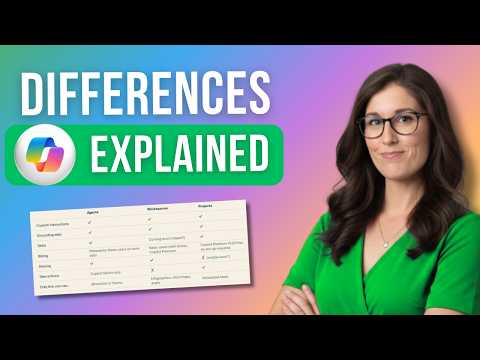
Microsoft Copilot: choose Workspaces, Projects or Agents
Use Workspaces for evolving shared work, Projects for Cowork tasks, and Agents to give people a reusable source of focused knowledge.
Key insights
- Workspaces can hold shared instructions, reference content and pages for ongoing work.
- Projects are personal and use Cowork to complete multi-step tasks with permissions.
- Agents package instructions and knowledge for reuse, sharing and use in chats.
- Projects require a Copilot Premium license and pay-as-you-go billing for the user.
- Users accessing work-grounded Agents need Copilot Premium or pay-as-you-go billing.
Microsoft Copilot Workspaces, Projects and Agents organize context in different ways: Workspaces support evolving work, Projects let Cowork carry out tasks, and Agents provide focused assistance. The distinction matters to Microsoft 365 users deciding whether they need a shared space, an individual task workflow or a reusable assistant for a team. Office Skills with Amy demonstrates how the three options are configured and used, including examples involving reference content, instructions and Teams.
What it does
All three options can use instructions and grounding information, but they are not interchangeable. A Workspace combines context and instructions for continuing work, such as a product launch or research effort. Its content grounds a Copilot chat, while its pages and generated items can help the work develop over time.
A Project is personal in the demonstrated experience and is powered by Copilot Cowork. Unlike a chat that needs the user to direct each step, Cowork can perform a multi-step task and continue when it has the necessary permissions. An Agent is a configured assistant built around a purpose, instructions and knowledge sources; people can invoke it to get consistent, specialized help.
A quick decision rule is to use a Workspace when a group needs shared context, a Project when you want Cowork to handle a task in your personal work area, and an Agent when people need to reuse a defined assistant. For example, the demonstration configures a sales Agent to explain products, guide users through a sales process and help draft contracts using a template.
Who it is for and what you need
Workspaces suit people working on ongoing efforts where instructions should apply to everyone using the space. The demonstration adds members and shared instructions, and shows content from files, meetings, email, SharePoint and Teams chats as possible grounding sources. It also notes that the available options can differ for users with a basic Copilot license compared with a Copilot Premium license.
Projects are for an individual in the demonstrated setup; they cannot be shared there. The presenter says Projects require a Copilot Premium license and pay-as-you-go billing enabled for that user. Cowork permissions also shape whether a task proceeds without input or pauses to request approval.
Agents are useful when an organization wants to make a focused assistant available to other people. For an Agent grounded on work data, the demonstration says users need Copilot Premium to engage with it, or pay-as-you-go billing if they do not have that license. People without the license may still see an Agent’s output in a Teams conversation, but cannot engage with the Agent unless pay-as-you-go billing is set up.
How it works
In a Workspace, add relevant context and set instructions that make sense for all members. The example specifies response format, tone, focus, brand colors and language, then tests the instruction by asking Copilot to compare products and checking that it returns a table. Workspaces can also contain Copilot Pages, documents, reports, mind maps, infographics and audio overviews.
- Create or open a Workspace from the Microsoft homepage’s Workspaces area.
- Add work content, uploaded files, public web links or OneDrive files. Depending on available options, work content can include meetings with recaps, emails, SharePoint sites and Teams conversations.
- Choose targeted reference files where possible. The demonstration cautions that a broadly selected SharePoint site may contain more content than the chat can reference effectively; it describes a limit of up to 300 files at the time of recording.
- Set shared instructions, save them and test the chat response before relying on them.
In a Project, add context such as a SharePoint site, files, meetings, emails or Teams conversations, then configure instructions. Cowork can run a scheduled task, create a report and post it to a Teams channel when granted the relevant permissions. The example distinguishes actions allowed automatically from actions that require the user’s approval.
For an Agent, configure its purpose and instructions, add knowledge sources and suggested prompts, then create and share it. Users can call it from Copilot Chat by typing @ and selecting the Agent, or mention it in a Teams conversation where it has been added.
Limitations and alternatives
Sharing is a key dividing line: the demonstrated Projects are personal, while Workspaces can include members and Agents can be shared. Choose a Workspace rather than a Project when other people need to use the same evolving context. Choose an Agent when the aim is to standardize answers or guide people through a repeatable process.
Grounding choices also matter. The Workspace example warns that selecting a whole SharePoint site can leave Copilot to choose the most relevant files, and gives a limit of up to 300 files for that chat at the time of recording. Specific files can make the intended context clearer. For a full SharePoint site as Agent grounding, the presenter identifies Agents as the better fit.
Finally, consider the permission and billing setup before automating actions. A Cowork task that posts to a Teams channel can run without review only when the user has allowed that action; otherwise, it may need input. Check the available content options and users’ licensing or pay-as-you-go setup before rolling out a shared workflow.
Sources
Frequently asked questions
What is the difference between Copilot Workspaces, Projects and Agents?
Workspaces hold shared context for ongoing work, Projects use Cowork for personal multi-step tasks, and Agents provide reusable, focused assistance.
What licensing does Copilot Projects require?
The demonstrated setup requires a Copilot Premium license and pay-as-you-go billing enabled for the user.
Can I share a Copilot Project?
Projects are personal and cannot be shared in the demonstrated experience. Use a Workspace when a team needs shared context.
Can users access a work-grounded Copilot Agent without Copilot Premium?
They need Copilot Premium or pay-as-you-go billing to engage with the Agent. Without that setup, they may see its output in Teams but cannot engage with it.