- All of Microsoft
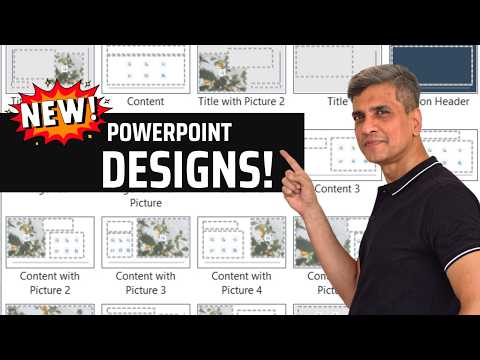
PowerPoints Bold New Design Themes
Microsoft expert unveils PowerPoint design themes and hidden layouts in Microsoft three sixty five to refresh fonts
Key insights
- New PowerPoint themes: The Presentation Process video shows a refreshed theme gallery for Microsoft 365 PowerPoint with 13 new built-in themes that update the main Design ribbon.
These themes appear on Windows and Mac and give modern style choices with a few clicks. - What a theme controls: A theme sets coordinated colors, fonts, backgrounds, and effects across all slides.
You can change themes from the Design tab or start a new deck with a chosen theme. - Hidden layout options: The video highlights new and sometimes easy-to-miss layout choices tucked inside theme galleries.
Some layouts target specific users like teachers and editorial presenters for faster, fit-for-purpose slide designs. - Variants and font changes: New theme variants and updated font size options let you quickly switch tone and scale across a deck.
Changing a theme updates fonts and layout variants without breaking existing slides. - How to apply and preserve themes: Pick themes on the Design tab, set a theme as the Default Theme, or start from File > New to use a theme for new decks.
Older themes were removed from the main gallery but remain searchable via Backstage, and existing presentations stay intact. - Practical benefits and recommendation: The update speeds design decisions, improves slide consistency, and adds variety for business, education, and creative talks.
Try themes on a copy of your deck, test variants and fonts, and set a preferred theme as default if it fits your work.
Video Overview
The YouTube video by Presentation Process YouTube walks viewers through the recent refresh of PowerPoint design themes available to Microsoft 365 users. The presenters highlight several changes that are easy to miss but can transform a deck with only a few clicks. They also provide time-stamped chapters so viewers can jump to topics like hidden layouts, teacher-focused templates, and font size options.
Furthermore, the video emphasizes that the underlying theme system remains the same: themes still control colors, fonts, backgrounds, and effects. Consequently, users can switch themes, edit them, and save custom versions as before. This continuity matters because it minimizes disruption for regular users while adding fresh visual choices.
Hidden Layouts and New Themes
First, the presenters point out a set of hidden layouts tucked into the Design ribbon that many users will miss at a glance. These layouts add ready-made structures for specific roles, such as teachers and editorial teams, and they change how content aligns and reads on each slide. As a result, users get more tailored starting points that can speed up the design process.
In addition, Microsoft added 13 new built-in themes to the gallery on Windows and Mac, which range from minimalist and professional to more expressive and playful styles. However, older themes were removed from the main gallery and made searchable through Backstage, so legacy decks remain accessible. This choice balances a modern look with backward compatibility, though it may require a short adjustment period for long-time users.
Fonts, Variants, and Visual Impact
The video also explores new font size options and theme variants that change color and typographic scales across a deck. These variants make it easier to tweak the tone of a presentation without rebuilding slides, and they affect headings, body text, and spacing in consistent ways. Therefore, presenters can try several looks quickly and pick the one that best fits the audience and setting.
On the other hand, changing themes or variants can produce unexpected layout shifts in complex slides that use tightly positioned elements or custom formatting. Consequently, the presenters remind viewers to review slides carefully after switching themes and to make small adjustments when needed. This tradeoff between quick visual refresh and the need for manual fine-tuning is a practical challenge for busy users.
Tradeoffs and Practical Challenges
While the new themes speed design decisions and increase variety, they also introduce tradeoffs that teams should consider. For example, adopting a new built-in theme can enhance consistency and polish, but it may force teams to recheck charts, tables, and imported graphics for contrast and legibility. Therefore, design updates require a balance between visual refresh and the time spent validating content.
Moreover, moving older themes out of the main gallery preserves them but makes them less visible to casual users. This decision reduces clutter for newcomers, but it can frustrate those who prefer legacy looks or rely on a corporate standard. As a result, organizations may need to provide internal guidance or default themes to maintain brand consistency while benefiting from Microsoft’s updates.
Recommendations for Users
Practically speaking, the video recommends exploring the new themes in a copy of your presentation so you can compare looks without changing the original deck. Additionally, try the hidden layouts and theme variants to find versions that fit teaching, editorial, or corporate needs, and then lock in any essential adjustments. This approach speeds experimentation while limiting unexpected layout changes.
Finally, teams should weigh the benefit of a modernized theme gallery against the cost of reviewing and testing existing slides. If you manage templates for a group, consider setting a vetted default theme and documenting any necessary tweaks for charts and complex layouts. In this way, organizations can adopt fresh designs confidently and preserve clear, accessible presentations.
Conclusion
The Presentation Process YouTube video offers a clear and practical guide to Microsoft’s refreshed PowerPoint themes, hidden layouts, and variant controls. It shows how these features can help users produce more polished slides quickly while also highlighting the need to check complex content after a theme change. Overall, the update gives users more design choices, but sensible testing and governance remain important to avoid surprises.
Keywords
new PowerPoint design themes, PowerPoint themes 2026, modern PowerPoint templates, best PowerPoint themes, PowerPoint theme gallery, how to use PowerPoint themes, PowerPoint template trends, Microsoft PowerPoint design update