- All of Microsoft
- Windows
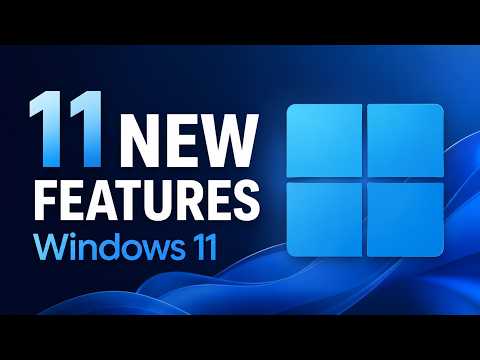
Windows 11: 11 Must-Know 2026 Features
Principal Group Product Manager - Microsoft Education
Windows Eleven updates streamline Taskbar, Start menu and Windows Search via Windows Insider for faster productivity
Key insights
-
July 2026 quality update (26H1) — a focused release from the K2 effort that prioritizes user control, reliability, accessibility, and gaming improvements.
Rolls out incremental changes that address long-standing customer requests and works across new and existing Windows 11 devices. -
Taskbar changes — you can now move the taskbar to the left, right, or top and shrink its size for a compact layout.
Vertical taskbars support labels so the bar can behave more like a sidebar on ultrawide displays. -
Indefinite update pauses — users gain full control to pause Windows Updates indefinitely rather than being limited to a 35-day window.
This reduces forced restarts and lets organizations or individuals schedule installs on their terms. -
Point-in-time Restore — a modernized System Restore UI that lets users roll back to a stable state quickly.
The new Quick Machine Recovery feature runs a single recovery check by default and avoids repetitive loops. -
Accessibility and input improvements — features like Screen tint, refined Magnifier controls, and voice isolation improve usability for people with visual or hearing needs.
Touchpad updates add edge-scrolling and continuous scrolling for smoother navigation on laptops. -
Gaming, Widgets, and Search improvements — Xbox Mode optimizes performance by limiting background tasks; Quieter Widgets stop opening on hover and reduce notifications.
Search improvements prioritize local results, reduce visual clutter, make app search more forgiving, and remove promotional web content by default.
Overview
In a recent you_tube_video, Microsoft product expert Mike Tholfsen walks viewers through what he calls “11 New Features in Windows 11 for 2026,” offering a hands-on tour of changes arriving via Insider builds and the July 2026 quality update. The video focuses on practical improvements to the Taskbar, Start menu, Search, and recovery tools that respond to long-standing user requests. Importantly, Tholfsen frames these updates as part of ongoing quality work rather than headline-making AI features, and he notes that many improvements are already rolling out to Windows Insiders. Consequently, the presentation combines demonstrations with guidance on where Microsoft seems to be heading for general release.
Taskbar and Start Menu Changes
Tholfsen demonstrates a more flexible Taskbar that users can now move to the left, right, or top of the screen, and he shows how buttons can be made smaller to suit ultrawide monitors and compact setups. Moreover, the Start menu gains options to shrink its layout, hide Pinned, Recommended, and All sections, and to turn off the profile photo and display name for a cleaner look. These adjustments give people stronger control over desktop real estate and reduce visual clutter during focused work. As a result, users who have relied on third-party tools to reposition the taskbar may find the native options meet their needs.
Search and Widgets Improvements
Search gets several usability tweaks that Tholfsen highlights, including reduced visual clutter, improved spacing, and a more forgiving app-finding experience that tolerates imprecise queries. He also points out that promotional content has been removed from the web preview, while local results are prioritized over web and store suggestions, and administrators can opt to turn off web searches entirely. Widgets now behave less intrusively: they open to the dashboard by default, do not activate on hover, and minimize notification noise. Consequently, everyday searches and glanceable information feel faster and less distracting, which could help users stay productive.
System Control and Recovery
One of the most notable additions covered in the video is the ability to pause updates indefinitely, a departure from the previous 35-day limit; Tholfsen shows how this option gives users more predictable control over when updates install. Paired with that, the new Point-in-time Restore offers a refreshed, modernized restore UI that simplifies rolling back to a known-good state, and an auto-enabled quick recovery check aims to reduce boot-loop headaches. Together, these features shift power toward users and IT teams who value stability and planned change windows. However, administrators will need to weigh the benefits of pause controls against the risk of deferring important security updates for too long.
Accessibility and Gaming Features
The video also covers accessibility improvements like the Screen tint overlay designed to reduce eye strain, enhanced Magnifier controls, and better voice isolation for Voice Access, which should assist users with visual or auditory needs. On the gaming side, Tholfsen highlights a new Xbox Mode that reduces background activity, runs titles full screen, and prioritizes system resources for a console-like experience on PC. Simultaneously, Widgets have been refined to avoid disrupting play or work, making the desktop quieter by default. These changes show Microsoft balancing assistive technology and performance optimizations to serve diverse user scenarios.
Tradeoffs and Challenges
Despite the clear usability gains, the video also implies several tradeoffs that merit attention: indefinite update pauses raise security and fragmentation concerns because different users and organizations may run widely varying patch levels. Additionally, making the taskbar and Start menu more configurable improves personalization but can introduce inconsistencies across devices and documentation, which complicates support for help desks and training teams. Driver and hardware compatibility remain a challenge when new recovery and display features enter broad use, and Microsoft must balance rolling out conveniences with maintaining a stable ecosystem. Therefore, while these changes promise more control and fewer interruptions, organizations should plan update policies and testing to manage the associated risks.
What to Expect Next
Finally, Tholfsen stresses that many of these items are appearing first in Insider builds, which means timing for general release may vary and features could evolve before they ship broadly. For end users and IT pros, the immediate takeaway is that Microsoft is prioritizing practical quality improvements and user control in the 2026 cycle, and that hands-on testing in preview channels will reveal real-world behavior. Consequently, teams should evaluate these features in their environments and prepare guidance for employees who may adopt new layouts or pause policies. Overall, the video offers a clear, user-focused look at what might become the default Windows 11 experience.
Keywords
Windows 11 new features 2026, Windows 11 update 2026, Windows 11 features list 2026, What's new in Windows 11 2026, Windows 11 security features 2026, Windows 11 performance improvements 2026, Windows 11 productivity features 2026, Windows 11 review 2026