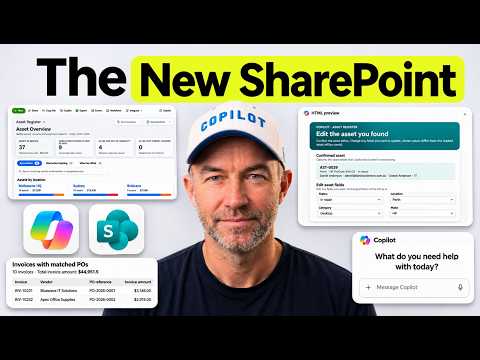
SharePoint asset register with Copilot and HTML views
A Microsoft MVP 𝗁𝖾𝗅𝗉𝗂𝗇𝗀 develop careers, scale and 𝗀𝗋𝗈𝗐 businesses 𝖻𝗒 𝖾𝗆𝗉𝗈𝗐𝖾𝗋𝗂𝗇𝗀 everyone 𝗍𝗈 𝖺𝖼𝗁𝗂𝖾𝗏𝖾 𝗆𝗈𝗋𝖾 𝗐𝗂𝗍𝗁 𝖬𝗂𝖼𝗋𝗈𝗌𝗈𝖿𝗍 𝟥𝟨𝟧
Use Copilot in SharePoint to create an asset list, add a tabbed HTML view, and build an interactive edit flow.
Key insights
- The demo starts with a Markdown build plan stored in a SharePoint document library.
- Copilot creates a list and an HTML view with summary cards, tabs, search, and filters.
- The view can link to a separate modern form for adding assets.
- A chat-first skill can load an interactive form to edit an asset identified by its tag.
- The demonstrated register uses sample data, and its HTML view is set as the list's default.
Copilot in SharePoint can help turn a written plan into an asset register, then add a tabbed HTML view and a chat-based route for editing records. This approach is aimed at SharePoint site owners, makers, and teams that need a more approachable interface for an asset list. Daniel Anderson [MVP] demonstrates the build and refinement process in a YouTube video.
What it does
The register begins with a Markdown file that describes the intended solution. Copilot in SharePoint reviews that plan and creates a list, including columns and sample items. The list remains the underlying place for asset records; the HTML view changes how people browse and interact with those records.
In the demonstration, the custom view adds summary cards and tabs for asset information, including location, warranties nearing expiration, and who has which assets. It also includes search and filtering, links for adding and editing records, and a copy button beside each asset tag. The view is set as the default so people opening the list land on the more visual interface rather than the standard rows.
A second part of the workflow uses Copilot Chat to find an asset before opening an interactive form. The form template is saved as a skill, and an approval step gives a person the opportunity to review the proposed update before it is applied. This is a prototype-style example, not evidence that every generated list or workflow will be ready to deploy without review.
Who it is for and what you need
This method is relevant to teams already using a SharePoint list to track equipment or other assets, and to the site owners or makers who can create and adjust that list. The demonstrated starting point is a Markdown build plan in a SharePoint document library, plus a list that Copilot can build from that plan.
The build also uses Copilot in SharePoint to create and revise an HTML view. For the add-record path, the demonstration creates a modern form and points the view's Add Asset button to its link. For conversational editing, it uses Copilot Chat, a saved skill, a form template in Site Assets, and an approval step. These are the elements shown in the example; the workflow should be checked in the environment where it will be used.
The register and records in the demonstration are sample data. That makes the example useful for understanding the mechanics, but an organization should adapt the fields, labels, views, and approval behavior to its own asset process before relying on it for operational records.
How it works
- Write a Markdown build plan that describes the asset register, then store it in a SharePoint document library.
- Open Copilot in SharePoint and ask it to review the plan and build the list. Check the resulting columns and records; the example includes an Assigned to field that is completed after the initial build.
- Ask Copilot to create an HTML list view. The demonstrated view has summary cards and tabs, including location, expiring warranties, and assignment information, along with search and filtering.
- Test the view's links. In the example, the initial Add Asset and Edit links pointed to incorrect locations. A follow-up prompt asked Copilot to correct them so Edit opens the item in edit mode and Add Asset opens a new form.
- If the standard list form is not the desired add experience, create a modern form and ask Copilot to use its link for the Add Asset button. The demonstration also refines the view's pill-style buttons and tab count readability.
- For conversational updates, use Copilot Chat to identify an asset by its tag, then invoke the saved skill to load an interactive form. Review the proposed changes and approve the update through the human-in-the-loop step.
- Set the finished HTML view as the default list view if it is the preferred starting experience for users.
These steps involve iteration rather than a single prompt producing a finished app. The example fixes URL paths and a display issue with purchase-cost figures, then adjusts the button styling and form link. Test each control after changes, including both adding a record and opening an existing record for editing.
Limitations and alternatives
The initial generated result needed corrections: links were wrong, tab counts were difficult to read, and purchase-cost figures did not appear as expected until the view was corrected. That makes testing a practical part of the build, especially before making the custom view the default for other users.
The conversational editing flow also required a change in approach. The first attempt did not let the user pick an item in the form, so the workflow became chat first and form second: Copilot Chat finds the item, then the skill loads a form populated from a template. The approval step provides a review point before the demonstrated update is applied.
The HTML view is an alternative presentation to rows of list data, not a replacement for checking the underlying records. The sample list is not a ready-made production register. Validate the data structure and links, and check that the approval and edit sequence matches the process your team expects before making it the normal user experience.
Sources
Frequently asked questions
Can Copilot in SharePoint create an asset register from a plan?
In the demonstration, a Markdown build plan in a SharePoint document library is given to Copilot in SharePoint, which creates the list structure and sample items.
Can a SharePoint asset register have a tabbed view?
The example uses Copilot to create an HTML list view with summary cards, tabs, search, and filters. The view can also be set as the list's default.
How does the demonstrated interactive asset edit flow work?
Copilot Chat first finds the asset by its tag. A saved skill then loads an interactive form, and a human approval step precedes the update.
Can the Add Asset button open a separate form?
Yes. The demonstrated view's Add Asset button is configured to open a modern form using its link.