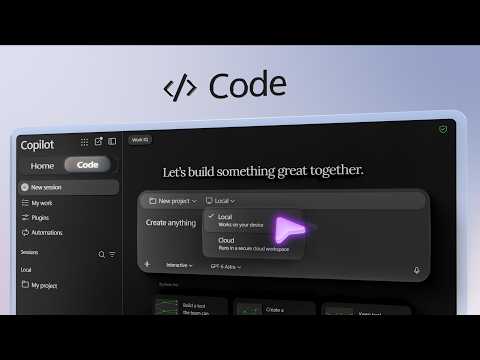
Copilot Code: Build and share apps from prompts
Software Development Redmond, Washington
Copilot Code turns plain-language app requirements into interactive projects that business teams can refine and share.
Key insights
- Copilot Code requires a Copilot license and usage-based billing enabled in the Microsoft 365 environment.
- A project can run in the cloud or locally on a managed device; cloud projects stay within the company tenant boundary.
- Work IQ can ground a prompt in an Excel workbook stored in SharePoint.
- Admins can review published apps, connected services, health and usage in the Microsoft 365 admin center.
- Admins can block an app across the organization while leaving its data intact and auditable.
Copilot Code turns a plain-language description into an interactive app that users can preview, refine and publish. It is aimed at business analysts and team leads building internal tools, as well as developers who want to inspect generated code and admins responsible for governance. Microsoft demonstrates the workflow with a dashboard built from Excel data stored in SharePoint.
What's new
Copilot Code gives users a prompt-driven way to start an app project in the Copilot desktop app. Rather than beginning with code, a user describes the problem, the intended interface and the business logic, then reviews the generated result in a preview. The user can continue with follow-up prompts to adjust the app without starting over.
The example creates a global market dashboard. Its prompt identifies a workbook and worksheet, explains the business question, describes the layout and revenue-based color rules, and specifies how budget and capacity estimates should work. A what-if slider lets users model how marketing investment affects a region and the dashboard’s top-line figures, map colors and revenue-uplift rankings.
Copilot Code also exposes the files behind the app so a developer can inspect or edit the generated code. That option matters when a team wants technical review alongside the conversational workflow. The app is not just a static mockup: in the example, changing a slider updates the displayed analysis.
Who it is for and what you need
The workflow suits business analysts and team leads who need an internal dashboard or similar tool, and developers who want to review the implementation. Microsoft 365 admins have a separate role: they can govern the integrations available to builders and monitor published apps. A user does not need to know how to code to describe and refine an app, though code inspection is available.
Copilot Code requires a Copilot license and usage-based billing enabled in the Microsoft 365 environment. The experience is offered as a Frontier preview. The project setup shown in the demonstration provides a choice between a cloud project and a local project, and a choice of model; the presenter leaves model selection on Auto.
Cloud projects reside within the organization’s Microsoft tenant boundary and respect its access and security controls. Local projects run on a managed device in an isolated, protected boundary on the local drive, under the organization’s Copilot Code policies. The example’s data comes from an Excel workbook in SharePoint, accessed through Work IQ.
How it works
- Open Copilot in the desktop app and select Copilot Code. Start a new project, choose cloud or local, and select a model. Auto routes the task to a suitable model.
- Write a prompt that identifies the app’s purpose, data source, audience, interface and relevant business rules. In the demonstrated dashboard, the prompt points to a SharePoint workbook and describes layout, revenue thresholds and calculation logic.
- Submit the prompt and wait for Copilot Code to build the app. The preview provides a way to review the layout and the generated data model before continuing.
- Test the result and request targeted changes in follow-up prompts. The app can be refined in conversation; users who want to examine implementation details can open Files to inspect the code.
- When the app is ready, select Publish and share it with a link. Sharing uses Copilot Managed Runtime, which provides compute and dedicated storage using a Git repository.
For the example, the dashboard brings the portfolio into one view and lets users test different investment levels. That workflow illustrates why the prompt should include business logic, not just a request for a visual layout: the model needs instructions for how the what-if values should affect the results.
Limitations and alternatives
Generated results still need review against the organization’s data and intended use. The demonstrated workflow includes a preview, follow-up refinement and access to the generated code, which gives teams ways to inspect the result before publishing. A developer can review or directly edit code, while a non-coder can keep refining through prompts.
Cloud and local projects have different boundaries: cloud projects sit within the tenant, while local projects are isolated on a managed device and governed by Copilot Code policies. Admins can control which plugins, connectors and GitHub integrations are allowed. This makes the available connections and the organization’s policies relevant when deciding what the app can use.
Admins can view a shared inventory of published apps in the Microsoft 365 admin center, including usage, operational health, performance metrics, alerts and connected services. If an app fails policy requirements, they can block or delete it. Blocking disables the app across the organization while keeping its underlying data intact and auditable; it can later be unblocked.
Before sharing an app, teams should check that its data model and calculations match the business rules they intend to use, and that the selected project type fits their organization’s controls. The preview and code files offer review points, while admin inventory and controls provide oversight after publication.
Sources
Frequently asked questions
What do I need to use Copilot Code?
Copilot Code requires a Copilot license and usage-based billing enabled in the Microsoft 365 environment.
Can Copilot Code use SharePoint data?
The demonstrated workflow uses Work IQ to ground a prompt in an Excel workbook stored in SharePoint.
Can an admin block a Copilot Code app?
Yes. Admins can block an app across the organization or delete it. Blocking leaves the app’s underlying data intact and auditable, and the app can later be unblocked.
Can a Copilot Code project run locally instead of in the cloud?
Yes. Project setup offers cloud and local options. Local projects run on a managed device within an isolated, protected local boundary governed by Copilot Code policies.