- All of Microsoft
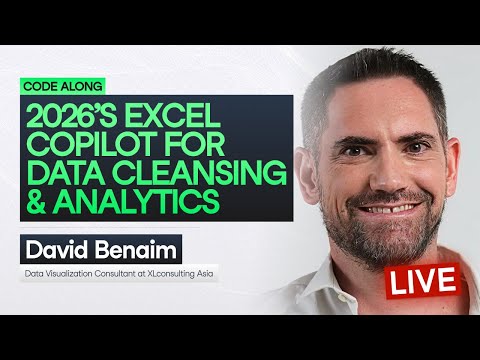
Excel Copilot: Data Cleansing & Insights
Microsoft Excel Copilot for data cleansing and analytics: revamp workflows, use AI best practices, keep human judgment
Key insights
- Excel Copilot: AI assistant inside Excel that uses plain-language prompts to clean, transform, and analyze tables.
It speeds common tasks without deep formula knowledge and turns messy sheets into usable insights. - Agent Mode: a 2026 upgrade that performs multi-step workflows by inspecting the workbook, planning actions, cleaning data, and creating summaries or charts.
It presents proposed changes for user review before finalizing them. - Edit with Copilot: a focused cleaning experience for real data problems like capitalization, spelling variants, abbreviations, zero vs. letter O, and US date formats.
This shifts Copilot from analysis-only help to practical data preparation. - Data cleansing & normalization: handles missing values, duplicates, and standardizes formats and data types to prepare tables for reporting and visualization.
Use Copilot to reduce manual, repetitive cleanup steps. - Access & requirements: some Agent features appear for Microsoft 365 users without a separate Copilot license, while advanced tools may need a paid add-on.
Best results require files saved to OneDrive or SharePoint, AutoSave on, and data organized as tables. - Best practices: structure data in clean tables, enable AutoSave, select the table, open Copilot, and ask clear, stepwise prompts.
Always review AI suggestions and combine human judgment with Copilot outputs for reliable results.
In a recent YouTube video, David Benaim, Data Consultant at Xlconsulting Asia, walks viewers through practical uses of Copilot in Excel for data cleansing and analytics in 2026. He demonstrates how AI inside spreadsheets can reduce repetitive work and speed up analysis while emphasizing the need for human review. Consequently, the video frames Copilot as a tool to combine machine-generated suggestions with domain knowledge rather than replace expert judgment. As a result, the presentation is useful for teams that handle messy, real‑world data and need faster turnaround.
What the Video Demonstrates
Benaim opens by showing common spreadsheet problems and how Copilot proposes fixes using plain language prompts. He handles capitalization inconsistencies, spelling variants, duplicate rows, and date-format issues, and then walks through creating charts and summary insights. Therefore, viewers get a sense of how a typical workflow moves from cleaning to visualizing without leaving Excel. This sequence makes the tool feel immediately applicable to everyday reporting tasks.
Next, the video highlights multi-step, agent-like workflows where Copilot inspects the workbook and plans a set of actions. Benaim tests the assistant on tasks such as standardizing abbreviations and converting zeros confused with the letter O, and he reviews the suggestions before applying them. Thus, the demonstration underscores the necessity of a review step, because automated changes can have unintended consequences. At the same time, the speed gains are clear when repetitive transforms are applied to large tables.
What’s New in 2026
According to Benaim’s walkthrough, the biggest shift is toward an agentic experience he refers to as Agent Mode, which can sequence multiple cleaning operations. This mode inspects context, proposes an action plan, executes transforms, and then summarizes results for review. Consequently, Copilot moves beyond one-off prompts to handling richer workflows that better mirror how analysts actually work. Furthermore, the video notes that an Edit with Copilot experience focuses specifically on common cleansing nuisances, making it easier for non‑technical users to prepare data.
Importantly, Benaim also discusses availability and licensing differences, noting that some features are now available to broader Microsoft 365 customers while advanced functions may require an add-on. Therefore, organizations must check current licensing and feature access before relying on specific capabilities. Because Microsoft’s rollout changes quickly, the presenter recommends validating feature visibility in your tenant. This helps avoid surprises when planning adoption.
How Copilot Works in Practice
Practically, the video stresses that Copilot performs best when workbooks follow a few core requirements: files saved to OneDrive or SharePoint, AutoSave enabled, and data organized as structured tables. Benaim demonstrates opening Copilot from the Home tab, selecting a table, and issuing plain-language requests to clean or summarize the data. As a result, the interaction feels conversational, but it depends on tidy input to avoid misinterpretation. Consequently, preparing workbooks remains a small but important upfront investment.
In addition, the presenter points out that Copilot integrates native charting and pivot-style summaries so users can move quickly from clean data to insight. He also shows how to inspect the suggested formulas and step through changes, which supports traceability and editing. Thus, teams can maintain control while benefiting from automation. This blend of speed and oversight is central to the tool’s practical value.
Tradeoffs and Challenges
Despite the clear benefits, Benaim repeatedly highlights tradeoffs between speed and control, and between automation and accuracy. While Copilot can automate tedious transformations, it can also introduce subtle errors if prompts are imprecise or contextual assumptions are wrong. Therefore, organizations must balance time savings against the risk of incorrect changes by instituting validation checkpoints and human review. In addition, there is a cost consideration because advanced capabilities may require paid licensing, so teams should weigh productivity gains against subscription fees.
Moreover, the video addresses governance and explainability challenges when AI suggests complex steps. Benaim recommends keeping an audit trail of changes and documenting the logic behind prompts so that colleagues can understand edits later. Consequently, trust in automated outcomes grows when teams combine clear records with sample-based validation. Finally, privacy and compliance become relevant when workbooks contain sensitive data and cloud-based processing is required.
Practical Advice and Conclusion
Benaim closes by offering pragmatic advice: start with small, repeatable tasks, validate automated changes on a sample of rows, and build standard prompt templates for common cleaning jobs. He also encourages training staff on when to accept suggested edits and when to intervene, noting that a few well‑designed templates can save a lot of time across teams. Therefore, gradual adoption with clear governance proves more sustainable than a rush to automate everything. Over time, organizations can expand Copilot use while preserving control and accuracy.
In sum, the YouTube video presents Excel Copilot in 2026 as a practical assistant for cleaning and analyzing data, with meaningful workflow advances such as Agent Mode and Edit with Copilot. While the potential for speed and efficiency is substantial, Benaim emphasizes careful review, governance, and licensing checks as essential complements. Consequently, teams that adopt these practices can realize the benefits of AI-assisted spreadsheets while managing the inherent tradeoffs and risks.

Keywords
Excel Copilot 2026, Microsoft Excel Copilot data cleansing, Excel AI data cleaning, Excel Copilot analytics, Copilot for Excel data prep, Excel Copilot tutorial 2026, AI-powered Excel analytics, Excel Copilot best practices