Pro User
Timespan
explore our new search
Excel
Sep 10, 2026 12:33 PM
Excel Conditional Formatting Secret
by HubSite 365 about Excel Off The Grid
Excel Off The Grid will show you how to work smarter, not harder with Microsoft Excel.
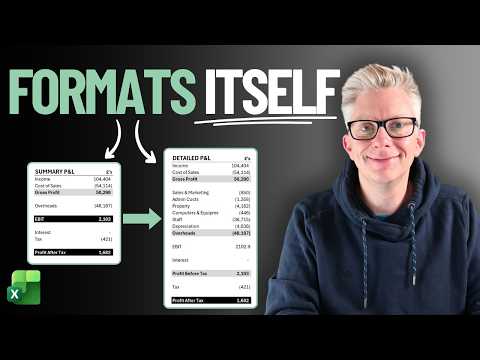
Microsoft Excel expert reveals dynamic conditional formatting by report hierarchy for P&L and balance sheet reporting
Key insights
- Conditional formatting can change how cells look automatically when rules are met; the blog highlights using formula-based conditional formatting to make rules far more dynamic than built-in options.
- Use this method to keep visuals in sync as data changes, making it easier to spot patterns and trends and to emphasize exceptions in reports and dashboards.
- Basic steps: select the range, open Home > Conditional Formatting, choose New Rule, pick Use a formula to determine which cells to format, then set styles in the Format dialog.
- The real power comes from relative references inside formulas (for example =A1="Yes" or =A2>TODAY()), which let one rule scale correctly across many rows and columns.
- Apply this to fixed-format reports (like Profit & Loss or balance sheets) so formatting adapts by hierarchy and reports stay readable without manual edits.
- Keep rules simple, test formulas on a small range, and note that the same formula-driven ideas work across Excel on desktop, Mac, the web, and in Power BI visuals.

Keywords
advanced conditional formatting technique, lesser-known conditional formatting method, hidden conditional formatting tricks, conditional formatting formula tricks, Excel conditional formatting secret, Google Sheets conditional formatting method, dynamic conditional formatting rules, conditional formatting best practices