- All of Microsoft
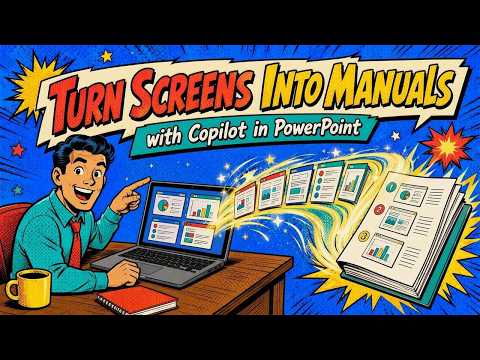
Copilot in PowerPoint: Make User Guides
M365 Adoption Lead | 2X Microsoft MVP |Copilot | SharePoint Online | Microsoft Teams |Microsoft 365| at CloudEdge
Create visual user manuals from screenshots with PowerPoint Copilot for Microsoft cloud productivity and faster training
Key insights
- This YouTube demo shows how Copilot in PowerPoint can turn a screenshot into a clear visual manual.
It uses numbered markers and short descriptions to make screens easy to understand. - Practical workflow: capture screenshots, insert them into slides, then ask Copilot to draft or rewrite step-by-step text.
This keeps the process fast and repeatable for multiple screens. - Core capability: Copilot can create a presentation from a file, refine slides, generate images, and add speaker notes.
The output stays editable so teams can review and finalize content quickly. - Current limitation: no native automatic extraction from video or meeting recordings into a full manual.
Screenshots usually need to be captured and arranged manually before Copilot adds instructional text. - Main benefits: speaker notes and brand kits speed up training creation while keeping slides on-brand and consistent.
Drafts are faster to produce and easier for human editors to polish. - Best uses: user training, application walkthroughs, internal documentation, and help-desk guides all gain from this method.
It works well for thumbnails, presentation assets, and step-by-step learning material.
Overview of the Video
Ami Diamond [MVP], a long-time Microsoft 365 and Copilot content creator, published a YouTube video that demonstrates a practical way to turn screen captures into step-by-step guides using Copilot in PowerPoint. In the video, he shows how he supplied a screenshot to Copilot and asked it to recreate the image with numbered markers and explanatory text placed around the slide. The result, he explains, is a clean, professional-looking visual manual that speeds up documentation work and improves clarity for end users. Because Ami is an experienced instructor, his presentation focuses on real-world workflows and repeatable steps for teams and trainers.
How the Technique Works
First, Ami captures the relevant screenshots from an application or a recording, then he inserts these images into individual slides and prompts Copilot to add numbered markers and short descriptions for each important element. Next, he asks Copilot to place explanatory text on the sides of the slide and to generate speaker notes, which together create a polished user guide ready for training or distribution. While the demo looks largely automated, Ami emphasizes that Copilot drafts the layout and content, and that a human must still review and adjust the results for accuracy and style. In short, Copilot accelerates the drafting process but does not fully replace manual review and finalization.
What Capabilities Are Available Today
As the video and Microsoft documentation clarify, Copilot in PowerPoint can create slides from a prompt or a file, add speaker notes, generate images, and help keep content on-brand with templates and brand kits. However, Microsoft does not yet provide a single button that automatically extracts frames from a video and converts them into a full manual without manual input; screenshots usually need to be captured and placed into slides by the user. Despite this limitation, Copilot's ability to draft text, suggest structure, and apply on-brand visuals shortens the time it takes to build a first draft of a manual or training deck.
Benefits and Practical Uses
Ami highlights practical uses that make this approach attractive for teams: creating Microsoft 365 training materials, building application walkthroughs, preparing user adoption guides, and producing internal help desk documentation. Moreover, the technique works for assets like video thumbnails and presentation materials, since Copilot can enhance screenshots with clear labels and supporting copy. Because the output remains editable, organizations can preserve brand voice and technical accuracy by having subject matter experts refine Copilot’s draft. Consequently, teams gain speed while retaining final control of their instructional content.
Tradeoffs and Challenges
Despite the clear advantages, the workflow carries tradeoffs that Ami discusses in the video and that teams should weigh carefully. First, automation can introduce inaccuracies if Copilot misidentifies an icon or misstates a function, so reviewers must check every label and step; relying too heavily on AI output without verification risks spreading errors. Second, layout and visual precision often require manual tweaking after Copilot generates a draft, so the time saved on writing may be partly reallocated to design cleanup. Third, access to advanced features depends on having the right Microsoft 365 Copilot license, which may limit adoption for some organizations.
Balancing Speed and Quality
Ami makes a persuasive case for balancing speed with editorial control: he suggests using Copilot to produce the first pass quickly, and then spending time to refine language, alignment, and accessibility details. This balance reduces the friction of creating documentation but preserves the human judgment needed for clarity and compliance. In effect, teams can scale documentation work while maintaining high standards, provided they put clear review steps into their production process. Therefore, successful adoption hinges on a disciplined workflow rather than on unchecked automation.
Tips and Best Practices
To get the best results, Ami recommends capturing high-resolution screenshots, using concise prompts that describe what you want Copilot to label, and supplying a short style guide or brand kit when possible. He also advises adding speaker notes and alt text for accessibility, and keeping a final human review step in the process to correct any factual or phrasing mistakes. When an existing Word document or SOP is available, starting with that file often produces a better initial draft because Copilot can convert structured content into slides more reliably. Overall, careful inputs and quality checks greatly improve the value of the generated manuals.
Conclusion
Ami Diamond’s YouTube demonstration offers a pragmatic look at how Copilot in PowerPoint can transform static screenshots into usable, on-brand manuals and training aids. While the tool speeds up content creation and supports many useful scenarios, it also requires manual capture of images, license access for Copilot features, and careful human review to ensure accuracy. In the end, the approach promises real time savings for documentation teams, provided they balance automation with editorial oversight and clear production practices. Readers interested in improving their training and support materials may find this workflow a useful starting point for experimentation.

Keywords
PowerPoint Copilot, Copilot PowerPoint tutorial, turn screenshots into manuals, create manuals from screen captures, convert screens to manuals, AI-generated manuals PowerPoint, automate manual creation PowerPoint, Copilot for documentation