- All of Microsoft
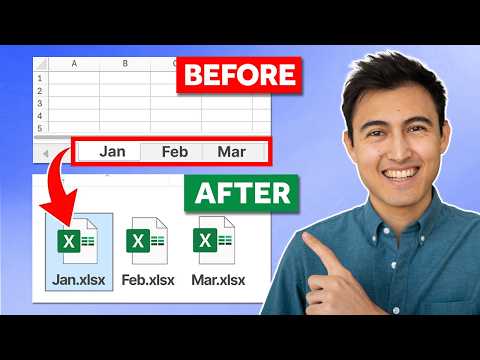
Excel: Auto-Split Sheets into Files
Co-Founder at Career Principles | Microsoft MVP
Automate Microsoft Excel with VBA to split worksheets into files, export CSV PDF, and add QAT buttons
Key insights
- Split Excel worksheets
Video demonstrates how to automatically extract each worksheet in a workbook and save it as its own file. It covers both cloud and desktop workflows so you can choose the best fit for your environment. - Power Automate
Use a cloud flow that triggers when a file lands in SharePoint or OneDrive and add an extract action to create one file per sheet. This method runs in the cloud, avoids macro settings, and scales well for many sheets. - Encodian Flowr
The tutorial highlights the Encodian “Excel – Extract Worksheets” action as a simple way to split sheets inside Power Automate flows. Configure output folders and naming rules to control where and how each file is saved. - VBA macro
For desktop users, the video shows how to enable the Developer tab, paste a macro that loops through worksheets, and save each sheet as a new workbook. It also shows how to add a Quick Access Toolbar button or a custom ribbon button to run the macro easily. - Export formats
You can adapt the code or flow to export sheets as Excel workbooks, CSV, PDF, or TXT files and set dynamic filenames or filters based on sheet content. The tutorial demonstrates modifying the script for different file types and split rules. - Limitations
Excel has no built-in one-click split for multiple sheets, so use Power Automate or VBA to automate the job. Note that VBA may be blocked by enterprise policy and Power Automate requires cloud storage like SharePoint or OneDrive.
Kenji Farré, known online as Kenji Explains and recognized as an MVP, published a clear and practical you_tube_video that demonstrates how to split Excel worksheets into separate files automatically. In the video, he walks viewers through both desktop and cloud-based methods, showing step-by-step how to use macros and modern automation to export sheets as Excel workbooks, CSVs, PDFs, or TXT files. Furthermore, Kenji provides downloadable sample code and explains how to add the routine to the Quick Access Toolbar so users can run the split with a single click. Overall, the presentation aims to help users save time and reduce repetitive manual work.
What Kenji Demonstrates
First, Kenji opens the Developer tab in Excel and pastes a short VBA macro that loops through each worksheet, creates a new workbook, and saves it with a dynamic filename. Then, he adapts that macro so it works across different files and shows how to attach the script to a custom button for easy access. Later in the video, Kenji modifies the code to export sheets not only as .xlsx files but also as CSV, PDF, and TXT, explaining the small but important adjustments each format requires. He finishes with a quick visual on adding the command to the toolbar to streamline frequent use.
Desktop vs Cloud Approaches
Importantly, Kenji contrasts the traditional VBA route with cloud automation options, explaining that desktop macros work well for individual users who run Excel locally and want direct control. Conversely, he points out that modern enterprise workflows often favor cloud solutions like Power Automate, which can run server-side and trigger automatically when a file lands in a shared location. He emphasizes that cloud flows remove the need to manage macro security or rely on a single machine, but they require access to services such as SharePoint or Teams and may need connectors. Thus, the choice between desktop and cloud is really a tradeoff between control and centralized automation.
Tradeoffs and Practical Challenges
Kenji notes several tradeoffs that organizations and individuals must consider before automating splits. For example, while a VBA macro gives full flexibility and works offline, it relies on macro settings that some IT policies restrict and it depends on a user’s local environment, which can make scale and auditing harder. In contrast, using Power Automate with an extraction action handles scale and provides better governance but adds complexity in setup and may introduce licensing or connector costs for high-volume scenarios. Consequently, Kenji recommends weighing security policies, the number of files processed, and whether the flow needs to be fully unattended when picking an approach.
Tips for Implementation
To help viewers avoid common pitfalls, Kenji provides practical tips such as validating file paths, handling sheets with duplicate names, and testing on copies before running at scale. He also advises adding simple error handling to the macro so it skips empty sheets and logs failures, which aids troubleshooting when many files are involved. Moreover, Kenji suggests naming conventions that include timestamps or identifiers to prevent accidental overwrites and to improve downstream sorting. These small steps reduce the chance of data loss and make automated splits more reliable in day-to-day operations.
Getting Started and Where to Learn More
For those new to automation, Kenji encourages starting with the desktop macro approach because it is quick to test and helps build confidence in how Excel objects behave. Then, as needs scale or collaboration increases, he recommends exploring Power Automate flows to centralize the process and enable automatic triggers when files arrive in shared folders. He also points viewers to the downloadable sample code he provides in the video so they can paste and adapt it immediately in their own workbooks. Ultimately, Kenji’s balanced presentation helps both individual users and teams choose the best path forward based on their environment and governance rules.
In conclusion, the video by Kenji Farré provides a practical, stepwise guide for automating worksheet exports, and it frames the decision between VBA and cloud automation as a matter of scale, control, and policy. By showing both methods and discussing common edge cases, he makes the techniques approachable for Excel enthusiasts and business users alike. Therefore, teams looking to eliminate repetitive export work will find actionable advice and clear next steps in this walkthrough, while IT leaders can use the tradeoffs Kenji outlines to design a safe and scalable solution.

Keywords
split Excel sheets into separate files, split workbook into separate files, save each worksheet as separate file Excel, Excel VBA split sheets automatically, split Excel sheets to CSV files, automatic split Excel worksheets, Excel macro to split workbook, export worksheets to separate workbooks