- All of Microsoft
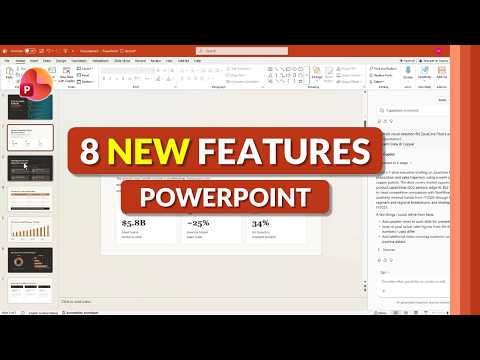
PowerPoint 2026: 8 New Features
Principal Group Product Manager - Microsoft Education
Microsoft expert: PowerPoint gets Copilot, AI image edits, smarter placeholders, drawing, web trim, Animation Pane
Key insights
- Copilot-powered editing: A recent PowerPoint tutorial shows Copilot can draft, rewrite, and edit slides from a prompt or document to save time and improve wording.
Some advanced Copilot features require a paid Copilot subscription and may vary between desktop and web. - AI image editing: PowerPoint now edits images inside the app—remove backgrounds, adjust content, or alter objects without leaving the program.
Advanced image edits often use Copilot, reducing the need for separate image tools. - Improved slide placeholders & shapes: New placeholders make layout and content flow easier, helping you place text and media consistently.
Auto-enhanced shapes and faster shape drawing speed up design work on desktop builds. - Better drawing tools: Updated pens and drawing features let you sketch, convert ink to shapes, and lock elements for precise control.
These tools improve annotations and creative layouts, especially on touch or pen devices. - Accessibility & web media tools: AI-powered alt text generates clearer image descriptions to improve accessibility and compliance.
PowerPoint for the web now includes video trimming so you can edit clips directly in the browser. - Animation Pane on the web: The Animation Pane arrived in PowerPoint for the web, giving online users full control over timings and effects.
This change narrows the gap with desktop features and speeds up cross-platform workflows.
Summary of the Video
In a recent tutorial, Mike Tholfsen walks viewers through eight notable updates to PowerPoint for 2026, showing how new tools change slide creation and editing. The video highlights a mix of features that appear across desktop and web builds, and it flags several items that require a Copilot subscription. As a result, the update promises faster workflows and smarter suggestions while also introducing new questions about cost, control, and compatibility. This article summarizes those features, explains where they appear, and discusses the tradeoffs and challenges they bring.
Copilot-Powered Editing and AI Image Tools
Tholfsen demonstrates how integrated Copilot editing can generate or rewrite slide content, suggest layouts, and even produce AI images directly inside PowerPoint. Consequently, users can turn a rough idea or document into a usable slide deck far more quickly than before, which is especially useful for tight deadlines and non-designers. However, several of these capabilities require a paid Copilot subscription, and organizations must weigh the productivity gains against the subscription cost and potential vendor lock-in.
Moreover, the video shows AI-powered image editing that handles background removal and in-slide edits without switching apps, saving time and reducing workflow friction. Yet, while automation improves speed, it can also obscure how final visuals were created, and automated image edits sometimes need manual refinement to match brand or accessibility standards. Therefore, teams should balance reliance on AI with editorial checks to maintain quality and brand consistency.
Improved Placeholders, Drawing Pens, and Shape Tools
Tholfsen highlights updates to slide placeholders that make content insertion and layout application smoother on desktop builds of PowerPoint. In addition, the new drawing pens and enhanced shape tools give creators more precise control when sketching or annotating slides, which benefits educators and presenters who prefer freehand input. These improvements aim to reduce time spent on formatting while keeping the creative process flexible and tactile.
On the other hand, more powerful drawing and shape tools can introduce complexity for users who prefer a minimal interface, and administrators may face training requests as teams adopt the new options. Thus, organizations must decide whether to encourage widespread use of these tools or to limit them to power users to avoid steep learning curves. Training and updated quick-reference guides can help smooth that transition without sacrificing capability.
Accessibility Enhancements and Web-First Features
The video also covers AI-powered improvements to Alt text generation that aim to produce clearer, more accurate descriptions for images on desktop. This is an important step for accessibility because better automated alt text can speed compliance and make content more useful for assistive technologies. Nevertheless, automated descriptions are not perfect, and human review remains essential to ensure context and nuance are represented correctly.
Meanwhile, Tholfsen points out two major additions to PowerPoint for the web: the ability to trim video clips and the arrival of the Animation Pane in the browser. These web-first features reduce the need to switch to desktop, which helps collaborators working across devices. Despite these gains, web versions still lag in performance compared with desktop in some scenarios, and users relying on complex animations or large media may find desktop remains necessary for final edits.
Tradeoffs, Adoption Challenges, and Practical Advice
Overall, the updates bring clear productivity benefits, yet they also present tradeoffs between speed and control, accessibility and accuracy, and convenience and cost. For example, Copilot speeds content creation but can encourage overreliance on AI-generated text that may require fact-checking and editing. Therefore, teams should combine AI assistance with human oversight to preserve accuracy and voice.
Additionally, administrators must plan for compatibility and governance: different features appear on desktop versus web, and some are gated behind subscriptions. Consequently, IT teams should map which users truly need premium features and consider phased rollouts, training, and policy updates. Finally, organizations should test these features on real projects to understand performance, storage, and accessibility implications before a full deployment.
Conclusion
Mike Tholfsen’s video gives a practical walkthrough of eight meaningful updates to PowerPoint for 2026, spanning AI-driven editing, enhanced drawing and shape tools, accessibility improvements, and stronger web capabilities. These changes can speed creation, improve visuals, and reduce app-switching, but they also require careful adoption planning, subscription decisions, and continued human review. As teams evaluate these tools, a balanced approach that combines AI efficiency with editorial control will deliver the best results.
Keywords
PowerPoint 2026 features, new PowerPoint features 2026, PowerPoint AI features 2026, PowerPoint updates 2026, PowerPoint collaboration tools 2026, PowerPoint presenter coach 2026, PowerPoint design features 2026, PowerPoint animation features 2026