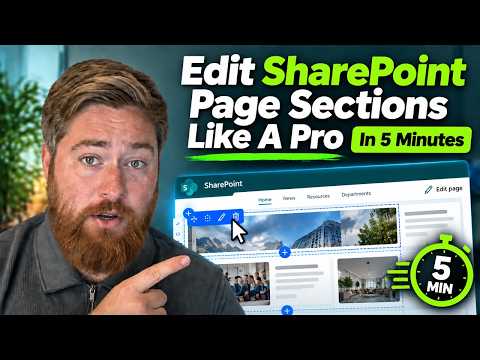
SharePoint pages: customize sections and Quick Links
SharePoint page editors can arrange sections, add web parts and tailor Quick Links before publishing their updates.
Key insights
- Select Edit on the page to enter edit mode; the button changes to Publish changes.
- Sections run across the page and provide zones for placing web parts.
- Standard layouts include one, two or three columns, one-third left or right, full width and vertical sections.
- Quick Links can use compact, filmstrip, grid, button, list or tile layouts.
- Flexible sections allow web parts to be positioned more freely but can be harder to align and adapt for mobile.
SharePoint modern pages let editors change a page’s structure by arranging sections and placing web parts in their zones. This is useful for site owners and page editors refreshing an intranet homepage or organizing links and news. Dougie Wood [MVP] demonstrates the editing process and page layout choices in a YouTube video.
What it does
A SharePoint page is assembled from sections and web parts. Sections divide the page into horizontal areas, and their zones provide places to add content. Web parts are the page components themselves, such as text, images, news and Quick Links.
This distinction helps when planning a layout: choose the section arrangement for where content belongs, then add the web parts that supply the content. You can start with a blank layout or adjust an existing page. In the demonstration, the editor removes existing web parts to build a new arrangement from scratch.
Section choices include one, two or three columns, one-third left or one-third right, full width, vertical and flexible sections. A full-width section accepts only certain web parts, while flexible sections allow more free-form placement. The vertical section provides a separate secondary content area alongside the page’s main content.
Who it is for and what you need
This editing approach is for people responsible for maintaining SharePoint pages, including intranet page editors and site owners. The starting point is a page you can edit and a layout goal, such as a homepage with a news area and a collection of useful links.
The demonstration uses the page’s Edit control and the options available in the editor. It does not rely on custom code: the layout is created by choosing sections and adding web parts through the page interface. The examples focus on arranging a homepage, not on changing site-wide branding or navigation.
Before editing, decide which information needs prominence and how it should be grouped. A simple wireframe can help you choose whether content belongs in a wide section, a set of columns, or a separate vertical area. That planning also makes it easier to select the right web part for each zone.
How it works
- Open the SharePoint page and select Edit in the upper-right corner. In edit mode, additional editing options appear, and the button changes to Publish changes.
- Move to the point on the page where you want a section and use the section control to add one. Choose the arrangement that fits the content: for example, one column for a news area or three columns for separate link buttons.
- In a section zone, select the plus button to add a web part. Pick a component such as Text, News, Images or Quick Links. You can add more than one web part to build out the page.
- For a Quick Links web part, add a link and adjust its displayed title. You can choose whether a link opens in a new tab and select an icon, including an uploaded icon or one from Microsoft’s stock image library.
- Use the Quick Links design options to choose a presentation such as compact, filmstrip, grid, buttons, list or tiles. Depending on the layout, additional choices include icon placement and whether links use an outline or fill.
- Review the page and select Publish changes when the edits are ready to go live.
Quick Links can be titled or left without a heading. Their presentation changes how the same links occupy the page, so try the available views against the amount of content and the space available in the section. Keeping icon styles consistent can also make the link area easier to scan.
Limitations and alternatives
Flexible sections offer more freedom to place web parts, but that freedom comes with a practical tradeoff: alignment can become harder, and the layout may be more difficult to adapt for mobile. For an initial design, standard section arrangements are a more straightforward starting point.
Full-width sections are not a universal container; they only support certain web parts. If a component cannot be added there, choose a different section arrangement rather than assuming every web part works at full width. The vertical section is another option when you want secondary content beside the main page area.
Check the page in its editing state before publishing: confirm the section structure, web part placement, link titles, icons and Quick Links layout. Publishing is the step that makes the changes go live, so use it after reviewing the page rather than treating edits as already published.
Sources
Frequently asked questions
How do I edit a SharePoint page layout?
Open the page and select Edit in the upper-right corner. Add or adjust sections, place web parts in their zones, then select Publish changes when you are ready.
What section layouts can I use on a SharePoint page?
The demonstrated choices include one, two or three columns, one-third left or right, full width, vertical and flexible sections.
How can I change the appearance of Quick Links?
Add the Quick Links web part, then choose a layout such as compact, filmstrip, grid, buttons, list or tiles. You can also adjust link titles, icons and some display options.
Are flexible sections a good choice for a SharePoint homepage?
They allow more flexible web part placement, but can be harder to align and adapt for mobile. Standard section layouts are a simpler starting point.