- All of Microsoft
Excel Tips: Use Charts, Pictures & Checkboxes Like a Pro
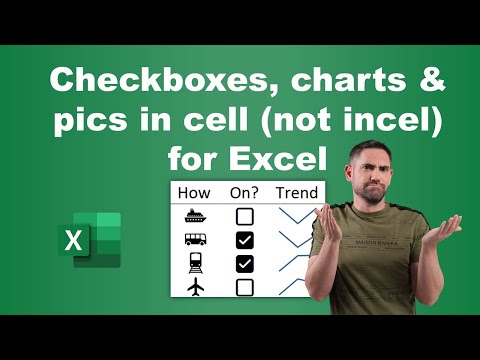
Excel in-cell charts, images, checkboxes, sparklines, data bars; setup guide for enhanced data visualization.
Key insights
- In-cell charts and sparkline trendlines let users add small, visual summaries inside single Excel cells. This helps show data trends and comparisons directly in tables, saving space and making sheets easier to read.
- The new feature for pictures within cells allows images to be placed right inside a cell, not just floating above. These images move and resize with their cell, which is helpful for catalogs or lists where visuals are needed next to data.
- Checkboxes can now be added straight into cells from the Insert tab. Users no longer need the Developer tab, making it much simpler for everyone to use checkboxes in forms or checklists.
- The new checkboxes feature is interactive—users can click or use the spacebar to toggle them. Checkboxes also link easily to formulas and charts, so checking an item can update progress bars or filter data automatically.
- This update makes checkboxes act more like true cell elements—they align, move, and resize with their cell. This improves dashboards and reports by keeping everything tidy when sorting or changing the sheet.
- Together, in-cell charts, pictures in cells, and checkboxes help users create richer spreadsheets that are interactive, visually clear, and easy for anyone to manage without special technical skills.
Excel’s Enhanced In-Cell Features: A Closer Look at David Benaim’s Latest YouTube Video
Introduction: A New Era for Excel Visuals
Microsoft Excel has long been a staple for data analysis and reporting, but recent updates are transforming the way users interact with their spreadsheets. In a recent YouTube video, Excel expert David Benaim explores the platform’s latest advancements, focusing on the integration of in-cell charts, embedded pictures, and interactive checkboxes. These new features are designed to make data more visually engaging and easier to manipulate, directly within the familiar Excel grid.
With the introduction of these tools, users can now create more interactive and visually appealing spreadsheets without relying on complex workarounds or developer tools. As a result, Excel is becoming increasingly accessible to a wider audience, from business analysts to educators and beyond.
Sparkline Trendlines and In-Cell Bar Charts
One of the standout topics in Benaim’s video is the improved functionality of sparkline trendlines and bar charts that can be placed directly inside cells. These features allow users to summarize trends and patterns at a glance, right alongside their data. Instead of dedicating extra space to large chart objects, concise visualizations can now be embedded within individual cells.
This change not only saves valuable worksheet space but also enhances readability. By placing visual summaries next to the relevant data, users are better equipped to identify trends and outliers quickly. However, while these in-cell charts are ideal for providing context, they may not replace traditional charts when detailed analysis is required. Users must balance the desire for compactness with the need for comprehensive visualization.
Embedding Pictures Directly Into Cells
Another major improvement highlighted by Benaim is the ability to insert images directly into cells. Previously, images could only float over the worksheet, often leading to misalignment and confusion when sorting or filtering data. Now, pictures become part of the cell itself, resizing and moving seamlessly with their associated row or column.
This advancement is especially beneficial for users managing catalogs, inventories, or any dataset where visual identification is important. While embedding images adds clarity, it can also increase file size and impact performance if not managed carefully. Thus, users should weigh the benefits of enhanced visuals against potential slowdowns in larger workbooks.
Interactive Checkboxes: Simplified and Powerful
Benaim also demonstrates the newly introduced checkboxes that can be placed directly in cells. Unlike the older method, which required accessing the Developer tab and managing form controls, the new checkboxes are easily inserted from the standard Insert tab. This makes them accessible to all users, regardless of technical expertise.
These checkboxes are not only easier to add but also fully interactive. They can be toggled with a click or a press of the spacebar, making them ideal for checklists, task management, and dashboards. Moreover, they integrate smoothly with formulas and charts, enabling dynamic calculations and visual updates based on user input. Still, incorporating too many interactive elements can complicate data management, so users should implement them thoughtfully to maintain clarity.
Tradeoffs and Challenges of the New Features
While these enhancements offer significant advantages, they also introduce new challenges. For instance, embedding images and interactive controls can make workbooks more visually complex and potentially harder to maintain. Users must ensure that increased interactivity does not compromise the spreadsheet’s usability or performance.
Additionally, balancing the use of in-cell visuals with traditional data presentation methods is crucial. Overuse of visual elements may overwhelm users or obscure important details. Therefore, careful planning and thoughtful design are essential when leveraging these new capabilities to their fullest.
Conclusion: A Step Forward for Excel Users
David Benaim’s video provides a comprehensive overview of how Excel’s evolving features are reshaping the spreadsheet experience. The integration of in-cell charts, pictures, and checkboxes empowers users to create more interactive, visually appealing, and functional workbooks with less effort. However, as with any new technology, it is important to consider both the opportunities and the challenges these tools present.
Ultimately, these updates represent a significant step forward in making Excel more user-friendly and versatile, benefiting everyone from casual users to advanced analysts.

Keywords
Excel cell charts Excel pictures Excel checkboxes Excel data visualization Excel dashboard tools Excel interactive elements Excel spreadsheet tips Excel chart formatting