Pro User
- All of Microsoft
Timespan
explore our new search
Lists
Mar 14, 2025 4:05 AM
Microsoft Lists Forms: What Every User Needs to Know Before to Start
by HubSite 365 about Office Skills with Amy
Microsoft Forms Microsoft Lists Microsoft 365 Microsoft Office Microsoft Loop Microsoft Teams Excel Word PowerPoint Outlook OneNote
Key insights
- Microsoft Lists Forms is a tool for creating customizable and dynamic forms within Microsoft Lists and SharePoint, enhancing data collection without revealing full list details.
- The platform supports various field types including text, choice, date, location, image, lookup, and attachments to gather diverse data effectively.
- Conditional Branching allows questions to appear or disappear based on previous answers, making forms more interactive and user-friendly.
- Integration and Accessibility: Forms can be shared internally or externally via SharePoint or Microsoft Teams, promoting collaboration and easy data gathering.
- Recent updates include enhanced features like new field types, improved notifications for responses, form scheduling options, and the ability to add organizational logos for branding purposes.
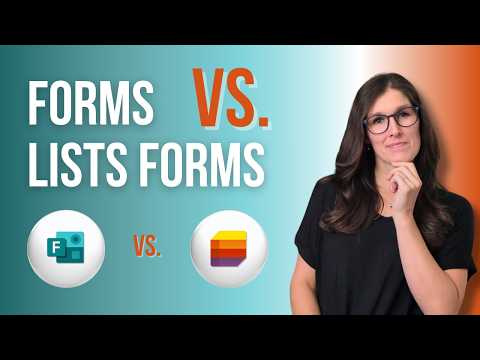
- The video compares Microsoft Forms with Microsoft Lists Forms using the BAC 1-2-3 Framework to help users choose the best tool for their needs.
Introduction to Microsoft Lists Forms
Microsoft Lists Forms is a versatile tool designed to assist users in creating dynamic and customizable forms directly within Microsoft Lists and SharePoint. This technology facilitates the collection of specific data from various individuals and groups without revealing the full list details. The recent updates and enhancements to Microsoft Lists Forms have made it a more efficient and user-friendly platform for managing data and workflows.Basics of Microsoft Lists Forms
At its core, Microsoft Lists Forms enables users to create forms that can be integrated with SharePoint lists. These forms are used to gather information from users and support various field types such as text, choice, date, and more. Depending on the user's needs, the forms can be shared internally or externally. Key Features:- Form Creation: Users can create forms directly from the Lists home, SharePoint, or the Lists app in Microsoft Teams.
- Field Types: Supports multiple field types including text, choice, date, and new additions like location, image, lookup, and attachments.
- Conditional Branching: Allows showing or hiding questions based on previous answers, making the forms more dynamic and user-friendly.
- Notifications: Users can set up notifications to alert them when someone submits a response.
- Scheduling: Forms can be scheduled to be available only during specific start and end dates.
- Branding: Users can add their organization's logo to enhance brand identity.
Advantages of Using Microsoft Lists Forms
Flexibility and Customization
Microsoft Lists Forms offers a high degree of customization, allowing users to tailor their forms to specific needs. The conditional branching feature ensures that users are only presented with relevant questions, improving the overall user experience.Enhanced Data Collection
With support for various field types, including images and locations, Microsoft Lists Forms can collect richer and more diverse data. This makes it easier to gather detailed information from users.Integration and Accessibility
Forms can be easily shared with internal users or external parties, making it simple to collect data from various sources. The integration with SharePoint and Microsoft Teams further enhances accessibility and collaboration.What's New About This Approach?
Recent updates to Microsoft Lists Forms include several significant enhancements:- Conditional Branching: This feature allows for more dynamic forms by showing or hiding questions based on previous answers.
- New Field Types: Additional field types such as location, image, and lookup fields have been added to support more diverse data collection.
- Enhanced Notifications: Users can now set up notifications to receive alerts when someone submits a response.
- Form Scheduling: Forms can be scheduled to be available only during specific times, providing better control over when data is collected.
- Logo Support: Users can add their organization's logo to the forms, reinforcing brand identity.
Conclusion
Microsoft Lists Forms is a versatile tool that offers a range of benefits for users looking to create dynamic and customizable forms. With its enhanced features and seamless integration with Microsoft platforms, it provides an efficient way to collect and manage data. Whether you're looking to streamline workflows or improve data collection, Microsoft Lists Forms is a valuable resource to consider. As for the phrase "DON'T Use Microsoft Lists FORMS Until You WATCH This," it appears to be a promotional or attention-grabbing title rather than a specific warning or recommendation against using Microsoft Lists Forms. It likely refers to a video or tutorial that highlights the benefits or best practices for using these forms effectively.

Keywords
Microsoft Lists, Forms, Watch Before Using, Microsoft Tips, Productivity Tools, List Management, Office 365 Features, Workflow Optimization