Outlook (New): Fix Missing Reminders
Configure Outlook notifications to reduce distractions and boost productivity with Microsoft Three Sixty Five and Office
Key insights
- Notification layers: Outlook uses two levels for alerts — Global notification settings control whether alerts show or play, and Item-level reminder settings set when a specific event or task triggers a reminder.
Keep both layers aligned so events actually alert you when expected. - Where to configure: In the new Outlook for Windows, open Settings > General > Notifications and expand Calendar.
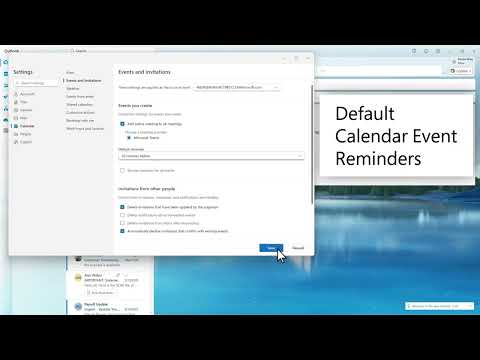
Turn calendar notifications on, pick a popup or banner style, enable sound if needed, and save changes. - Default reminder times: Change the default lead time for new events under Settings > Calendar > Events and invitations and set the Default reminder.
For existing items, open the event and verify the Reminder is not set to “Don’t remind me.” - Automatically dismiss: The Automatically dismiss reminders for past events option clears old alerts when you return from away time.
Turn it off if you want to review missed reminders manually. - Troubleshooting: If reminders don’t appear, confirm the event has a reminder and create a short test event to isolate the issue.
Also check Windows notifications, Focus Assist or Do not disturb, and whether the reminder appears in Outlook on the web. - Productivity tips: Use the dedicated reminder window to snooze, dismiss, or join meetings quickly.
Adjust notification style and sound to match your work rhythm and reduce unnecessary interruptions.
The YouTube video from M365 Professionals explains practical steps to stop missing reminders in the new Outlook by adjusting notification settings. It walks viewers through the core controls that link calendar events, meetings, and tasks to visible or audible alerts, and it emphasizes how to tailor those settings to reduce noise. Consequently, the guidance aims to help users stay focused while still catching important items.
How the Notification System Is Organized
The presenter first clarifies that Outlook separates reminders into two layers: Global notification settings and Item-level reminder settings. Global settings determine whether Outlook can display or play alerts at all, while item-level settings control when an individual event or task triggers a reminder. Therefore, both layers must align for a reminder to appear as expected.
For example, a meeting set to “Don’t remind me” will not prompt you even if global notifications are enabled, and conversely an event with a reminder configured will remain silent if global alerts are turned off. This design reduces accidental alerts but also introduces a tradeoff: more granular control can prevent surprises, yet it makes troubleshooting harder when reminders disappear. Thus, understanding both layers is essential for reliable behavior.
Step-by-Step Configuration
The video then demonstrates how to enable calendar alerts in the new Outlook by navigating to Settings > General > Notifications. Users can turn calendar notifications on, select a style such as a popup or banner, and choose whether to enable a sound for alerts. Moreover, Outlook offers a dedicated reminders window that lets users snooze, dismiss, or join meetings directly from the alert.
While these steps are straightforward, the presenter stresses careful selection of styles to balance visibility and distraction. A popup with sound is attention-grabbing but may interrupt deep work, whereas a banner or silent alert is less disruptive but easier to miss. Therefore, the video suggests aligning notification style with the user’s work patterns rather than using the default blindly.
Default Reminder Times and Item Settings
Next, the presenter covers how to set default lead times for new events by going to Settings > Calendar > Events and invitations and adjusting the Default reminder option. This setting applies to future items you create, but existing events retain their own Reminder values unless you update them. In turn, recurring meetings may require you to choose whether to change just one occurrence or the entire series.
The tradeoff here involves consistency versus flexibility: a global default saves time and creates uniform behavior, but item-level adjustments let you tailor reminders for special cases. Consequently, teams might adopt a standard default to reduce confusion while training individuals on how to override it for critical meetings. This dual approach helps balance predictable behavior with personal needs.
Automatically Dismiss Past Reminders: Benefits and Risks
An important feature explained in the video is Automatically dismiss reminders for past events, which clears reminders that occurred during periods of absence. When enabled, this option reduces clutter by removing obsolete alerts, and it can make the reminders window easier to manage after long meetings or time away. However, it can also cause you to lose track of what you missed if you prefer to review items manually.
Therefore, the presenter recommends weighing the convenience of automatic cleanup against the risk of missing follow-ups that need action. Turning the feature off preserves historical reminders for review, but it increases the chance of a crowded reminder list that competes for attention. Organizations should decide based on workflow: quiet inboxes for some, complete reviewability for others.
Troubleshooting and Practical Tips
Finally, the video offers troubleshooting steps when reminders do not appear, advising users to confirm that the event has a reminder assigned and to create a short test event to verify behavior. Viewers are also asked to check Outlook on the web, ensure Windows notifications are enabled, and review system-level features such as Focus Assist or Do not disturb that can mute alerts. Because Teams status can also suppress notifications, the walkthrough highlights that multiple systems can interact and block reminders.
As a best practice, the presenter suggests testing new settings with a few short events and documenting any changes that affect a team’s shared calendar behavior. In addition, he notes that keeping software up to date helps, since fixes and improvements to notification handling are released over time. Overall, the video balances practical setup advice with realistic warnings about tradeoffs and troubleshooting, helping users configure Outlook notifications in a way that fits their daily work.

Keywords
New Outlook reminders, Configure Outlook notifications, Fix missing reminders Outlook, Outlook reminder settings, Enable reminders new Outlook, Outlook calendar notifications, New Outlook notification settings, Restore reminder alerts Outlook