- All of Microsoft
Microsoft 365: Use Free Copilot Chat
Evangelist at Barhead Solutions | Microsoft Business Applications MVP | Content Creator
Free Copilot Chat in Microsoft productivity: access tips, prompt tips, Copilot memory, AI agents for Word and Excel
Key insights
- Access
Copilot Chat is available inside Microsoft 365 when you sign in with your work account.
Open the Copilot pane in Word, Excel, PowerPoint, Outlook or OneNote to start a chat without a paid Copilot license. - Prompt Framework
Use a simple 4-step prompt: provide Context, state the Task, list Constraints, and give an Example.
Clear prompts with examples produce faster, more accurate answers and reduce follow-up edits. - In-App Integration
Copilot works side-by-side with your documents: summarize text in Word, build formulas and charts in Excel, create slides in PowerPoint, and draft or summarize emails in Outlook.
You can upload files (PDFs, Office docs) and ask Copilot to analyze or compare them directly in the chat. - Memory & Privacy
Copilot can save session context and use memory for personalized responses, improving continuity across chats.
Use temporary chat modes or turn off memory for sensitive topics, and follow your organization’s IT controls for data protection. - AI Agents
Use built-in agents (like Prompt Coach) or build custom agents to automate repeat tasks and workflows.
Advanced agents may run on a pay-as-you-go basis and the system will recommend agents that fit your query. - Limits & Security
The free Copilot Chat covers many daily tasks but paid Copilot adds advanced features and higher usage limits.
Rely on enterprise-grade security and apply best practices: give clear prompts, test on non-sensitive data, and use suggested prompts or templates to save time.
Overview of the Video
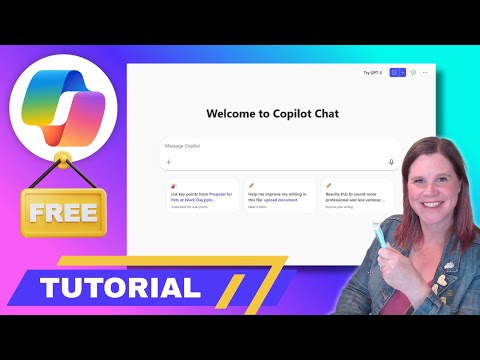
In a clear, step-by-step YouTube tutorial, Lisa Crosbie [MVP] shows how to use the free version of Copilot Chat that comes with a Microsoft 365 work account. The video aims to help non-technical professionals get practical value from built-in AI features, and it explains what the free tier can and cannot do. Furthermore, Crosbie frames the guidance around everyday tasks so viewers can begin using the assistant inside the apps they already rely on.
Access and Getting Started
First, Crosbie explains how to access Copilot Chat from any supported Microsoft 365 app by opening the chat pane and signing in with a work account. She emphasizes that the free version is rolling out broadly and that some advanced capabilities remain tied to paid or metered options. Additionally, the video walks users through launching the tool inside apps such as Word, Excel, Teams, and Outlook, making it easy to begin without switching tools.
Writing Effective Prompts
Next, the tutorial presents a practical four-step prompt framework that aims to improve results when interacting with AI. Crosbie recommends clear goals, relevant context, example outputs, and constraints to reduce ambiguity and get actionable answers more quickly. She stresses that prompt writing is a skill: better prompts yield better outcomes, and users should iterate with short experiments to refine what works for their tasks.
How Prompts Shape Output
Moreover, the video shows examples of prompts for common duties like summarizing emails, drafting content, and analyzing spreadsheet data, and it explains why small changes in wording produce different results. Consequently, Crosbie urges viewers to specify format and tone when needed, because the assistant follows the cues you give. She also points out that follow-up prompts work well when the chat retains document context, allowing a conversational workflow rather than isolated queries.
Agents and Copilot Memory
Crosbie highlights the evolving features such as built-in AI agents and Copilot memory, which personalize responses over time based on allowed context. She demonstrates how to use prebuilt Microsoft agents for repeat tasks and how to build custom agents for specific workflows, noting that pay-as-you-go agents may carry additional costs. As a result, teams can automate routine work, but they must balance convenience with cost and governance choices.
Integration Across Microsoft 365 Apps
The video offers a tour of how the chat integrates with core apps: in Excel it can analyze sheets, in Word it can rewrite and format text, and in PowerPoint it assists with slide creation and design suggestions. Crosbie also demonstrates features in Outlook and OneNote, including quick prompt actions and the ability to pull context from open documents or calendars. This close integration reduces app switching and helps users keep work in context, which saves time and reduces friction.
Tradeoffs and Practical Challenges
Importantly, the video does not ignore tradeoffs: free access expands reach but it lacks some advanced analysis, enterprise integrations, and unlimited agent use that paid Copilot licenses provide. Additionally, organizations must weigh data protection and compliance requirements against the productivity benefits, because session persistence and memory enhance usefulness while introducing governance considerations. Users will also face accuracy limits; AI can help summarize and suggest, but human review remains essential to catch errors and to validate sensitive content.
Cost, Control, and Security Considerations
For teams, Crosbie highlights the balance between centralized IT control and individual productivity: administrators can enforce policies and control access, yet overly strict limits can reduce adoption and practical value. Pay-as-you-go agents offer flexible scaling but introduce metered costs that require monitoring and budgeting; therefore, leaders should pilot usage and track patterns before large rollouts. Finally, she reiterates that enterprise-grade security features are in place, but organizations must still configure settings and educate users about safe prompt practices.
Final Tips and Takeaways
In conclusion, Lisa Crosbie [MVP] offers a hands-on roadmap for getting real work value from the free Copilot Chat in Microsoft 365, recommending careful prompt crafting, gradual agent adoption, and clear governance. While the free tier opens AI to a broader audience, teams should test the tool, set guardrails, and continue human oversight to manage accuracy and compliance. Ultimately, the video provides practical starting steps so professionals can incrementally integrate AI into daily workflows without overcommitting to paid features.

Keywords
free copilot chat microsoft 365, how to use copilot chat, microsoft 365 copilot tips, copilot chat productivity hacks, copilot chat features free, enable copilot in microsoft 365, copilot chat setup guide, copilot best practices microsoft 365