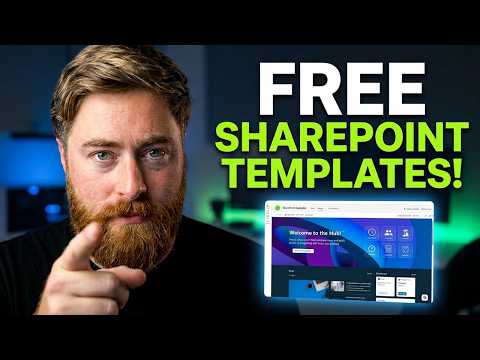
SharePoint Online: install free intranet templates
Use a ready-made SharePoint page for an intranet homepage or department site, then adapt its links, images and content.
Key insights
- The examples include intranet homepages, Learning & Development, HR, financial services and healthcare layouts.
- Templates can combine quick links, news, events, contacts, FAQs and other SharePoint page elements.
- Choose a template, enter the URL of an existing SharePoint site and approve the installer if prompted.
- After deployment, find the new page in the site's Site Pages and edit its text, imagery and links.
SharePoint templates provide ready-made page layouts for intranet homepages and department sites, giving teams a structured starting point to customize. They are relevant to SharePoint site owners, intranet teams and departments that need to present internal news, resources and contacts. Dougie Wood [MVP] demonstrates template examples and an installation process in a YouTube video.
What it does
The template examples cover both broad company intranets and focused departmental or industry pages. A homepage might bring together quick-action buttons, news from multiple SharePoint areas, events, conversations and links to commonly used resources. These elements give employees a central place to find information and navigate to services.
Some designs include dashboard-style cards for actions such as finding people, viewing assigned tasks or opening recent documents. Other common elements include an events section, quick links, featured news and contact information. The specific layout and content vary by template, and the examples are presented as adaptable designs rather than fixed-purpose pages.
Department layouts show how a site can serve a defined audience. A Learning & Development page can link to courses, training calendars, leadership resources and FAQs. An HR page can surface benefits, payroll, time-off information, HR contacts and departmental news. In the examples, news from department sites can also contribute to the main intranet news feed.
Industry-focused examples include financial services and healthcare. Their layouts use prominent imagery and links to relevant resources, such as policies, member services or clinical resources. The practical idea is to start with a structure that resembles the information employees need, then change its content and destinations to fit the organization.
Who it is for and what you need
These layouts are useful for people creating or updating a SharePoint intranet page, including site owners and teams responsible for internal communications or departmental resources. The installation process starts with an existing SharePoint site: the installer asks for the URL of the site where the page should be deployed.
The templates are listed as free on the template website shown in the demonstration. If the installer is being used for the first time, it may request approval to access SharePoint. The demonstration describes approving that request as part of the installation flow. Review the requested access and your organization's approval requirements before proceeding.
Think about the page's audience and purpose before choosing a layout. An organization-wide homepage has different navigation needs from an HR or training page. Choose a starting design based on the content employees need to reach, not just its appearance; the examples show that a template can be repurposed by changing its text and images.
How it works
The installation shown uses a template provider's website and deploys a page to a site that already exists. It is not presented as creating a complete SharePoint site from scratch. The basic sequence is to select a design, provide the destination site, approve access if prompted, and then locate the deployed page in Site Pages.
- Open the template website and browse the available free SharePoint designs.
- Select View Template to inspect what the template includes.
- Choose Install Free and enter the URL of the existing SharePoint site that will receive the page.
- Accept the terms shown in the installer. If this is the first use, approve its request to access SharePoint.
- Check that the selected template is correct, then choose Install and agree to deploy it.
- Open the resulting link to the site's Site Pages, find the new page and review it.
Once deployed, the page is a starting point to adapt. The examples show content such as imagery, labels and destinations being changed to suit the organization's needs. Quick links can point to SharePoint pages, files or folders, and some designs also allow links to external destinations.
Consider the page's information flow as well as its visual layout. Departmental news can feed an intranet homepage, while links, events, contacts and FAQs can help employees navigate to information. For FAQs, the demonstration notes that SharePoint content may also be surfaced when users ask Microsoft Copilot questions; keep answers clear and relevant to the department's subject.
Limitations and alternatives
The installation process shown applies a page to an existing SharePoint site; it does not replace decisions about the site's purpose, content or navigation. A deployed design still needs review and customization so that links point to the right resources and the text, imagery and terminology fit the organization.
Access approval is a practical checkpoint, particularly when using the installer for the first time. Follow your organization's process for reviewing that request. The installation flow also includes terms acceptance, so read and assess the terms before agreeing to deploy.
Templates are not limited to the use suggested by their labels. A departmental design can serve as a homepage starting point, for example, if its layout fits the intended audience. Alternatively, teams can use SharePoint's page elements to build or adjust a layout around their own content; the examples highlight native web parts such as Events and Quick Links.
Before sharing a page, test the links and check that the news, events, contacts and resources make sense for the intended readers. A template can organize information, but the organization still needs to supply and maintain the content. Treat the template as a reusable layout rather than finished, organization-specific communications.
Sources
Frequently asked questions
What do the SharePoint intranet templates include?
The examples combine page elements such as quick links, news, events, conversations, contacts and FAQs. The exact components depend on the selected layout.
Do I need a SharePoint site before installing a template?
Yes. The installation flow asks for the URL of an existing SharePoint site where the page will be deployed.
Where can I find a page after installing a SharePoint template?
Open the link to the site's Site Pages and locate the newly deployed page there.
Can I use a department template for an intranet homepage?
Yes. The layouts can be repurposed by changing the text, imagery and links to fit the page's intended use.