- All of Microsoft
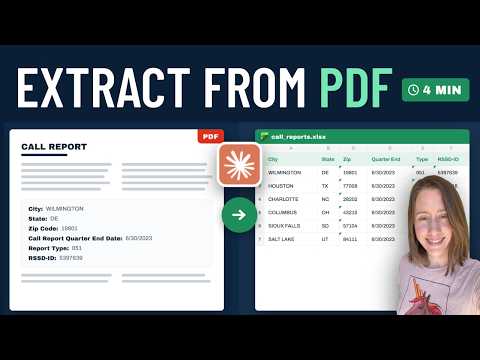
Excel: AI PDF-to-Excel in Minutes
Power Platform Developer
AI PDF to Excel automation with Claude Code and Microsoft tools like Excel, Power BI, Azure Form Recognizer and Copilot
Key insights
- Claude Code demo: Christine Payton shows how an LLM auto-writes a Python script to extract data from a folder of PDFs and save it directly to Excel.
She handles nested tables, runs the script, and completes the whole process in under four minutes. - Prompt-driven automation: The workflow asks the model to create a Python script, install needed libraries, extract fields and table values, and write one Excel row per PDF.
This removes manual copy-paste and requires no prior coding experience. - Scanned vs text PDFs: For text PDFs the model extracts text directly.
For scanned images, use OCR first so the script can read text before exporting to Excel. - Sensitive data handling: Keep confidential data out of the LLM prompt and process sensitive files locally when possible.
Limit what you send to the cloud and remove or anonymize private fields before extraction. - Microsoft options: Choose from Copilot in Edge for quick ad-hoc pulls, Power Automate + AI Builder for repeatable workflows, or Azure AI Document Intelligence for robust, large-scale extraction.
Excel’s Get Data > From PDF is a built-in non-AI option for simple table imports. - Benefits and trade-offs: AI approaches speed up extraction and produce structured rows and columns automatically.
Use Copilot for fast one-offs, Power Automate for repeat jobs, and Azure Document Intelligence for complex or high-volume tasks.
Overview of the video
Christine Payton demonstrates a fast, practical method to move data from PDFs into Excel using Claude Code, and the result is strikingly simple to follow. In the short demo she shows how the AI writes a Python script, installs required libraries, and runs the script to extract values into a spreadsheet automatically. As a result, users can avoid manual copy-paste and do not need prior coding experience, and the whole process is presented in under four minutes.
Moreover, the video highlights that the same approach applies to any well-structured PDF, which makes it suitable for invoices, forms, and consistent report templates. Christine also walks viewers through a trickier extraction from a nested table and shares a tip to keep sensitive data out of the large language model. Therefore, the clip serves both beginners and people who need quick automation for recurring document processing tasks.
How the extraction works in practice
First, the workflow asks Claude Code to generate a Python script that extracts text from each PDF and maps field names to Excel columns, then writes one row per file. Next, the AI handles dependencies by installing libraries like PDF parsers and Excel writers, and it runs the script so users can see the output immediately. Because the AI constructs and executes the code, users can get a working solution without touching the command line themselves.
Additionally, Christine demonstrates extracting values from nested tables by giving precise instructions in the prompt and showing how the script locates nearby labels to find the right values. She also covers scanned PDFs, explaining that optical character recognition (OCR) must be applied first or that you can use tools built for image-based documents. Consequently, viewers learn both a quick path and a fallback for less-ideal file types.
Finally, the video includes a short privacy tip: avoid sending confidential raw data to cloud-based LLMs when possible, and instead redact or keep sensitive elements local. Christine suggests practical steps, such as anonymizing values before extraction or running the code on a trusted local machine, which helps balance convenience and data protection. Thus, the tutorial acknowledges real-world constraints while showing an efficient method.
Microsoft alternatives and the tradeoffs involved
For readers in the Microsoft ecosystem, the blog post compares this approach with three major options: Copilot in the browser, Power Automate with AI Builder, and Azure AI Document Intelligence. Each choice comes with tradeoffs: browser Copilot can extract small amounts of data quickly for ad-hoc tasks, but it does not scale into automated workflows; conversely, Power Automate plus AI Builder supports repeatable flows and integrates with Excel, yet it requires setup and possibly licensing.
Meanwhile, Azure AI Document Intelligence offers stronger controls and robust options for custom models, which is ideal for enterprises with complex documents and compliance needs, but it typically requires more technical investment. Also, the built-in Excel “Get Data > From PDF” option provides a simple import for tables but lacks AI-driven field extraction and model training capabilities. Therefore, organizations must weigh speed, cost, scalability, and privacy when choosing a tool.
Challenges and practical tips
Working with PDFs poses several challenges, especially when documents vary in layout or contain images and nested tables, and the video addresses these directly. For scanned documents, you should run a reliable OCR step before extraction or use services that include built-in OCR, because text-based parsers will fail on images. When tables are nested, it helps to define extraction rules that reference nearby labels rather than relying solely on fixed column positions.
Moreover, quality control remains essential: always validate extracted rows against source PDFs and build a human-in-the-loop step for critical fields. Christine’s tip to avoid exposing sensitive content to the LLM also suggests tradeoffs between convenience and compliance, so teams may choose local execution or staged anonymization when required. In short, automation speeds work up but requires validation and governance to be safe and reliable.
Key takeaways
In summary, Christine Payton’s video provides a compact guide to extracting PDF data into Claude Code, and it offers useful practical advice for real documents and privacy concerns. The approach shines for fast, one-off conversions and for users who prefer minimal setup, while Microsoft alternatives like Power Automate and Azure AI Document Intelligence are better suited to ongoing enterprise workflows and stricter compliance needs. Consequently, teams should choose a method that balances speed, cost, data protection, and the expected volume of documents.
Ultimately, the tutorial emphasizes that good extraction is both technical and procedural: automate what you can, validate results, and protect sensitive information to avoid costly errors. As a result, the video serves as a practical starting point for anyone who wants to move from manual retyping to repeatable, AI-assisted document processing.

Keywords
extract PDFs to Excel, PDF to Excel AI, convert PDF to Excel, OCR PDF to Excel, automate PDF extraction, extract PDF tables to Excel, bulk PDF to Excel conversion, AI data extraction from PDFs