- All of Microsoft
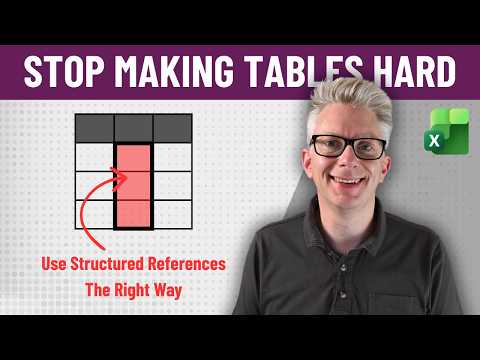
Excel: Fix Structured References
Excel Off The Grid will show you how to work smarter, not harder with Microsoft Excel.
Master Microsoft Excel tables and structured references with expert tips on names vs positions, Excel VBA and automation
Key insights
-
Structured references replace cryptic A1-style ranges with readable names like TableName[Column].
They make formulas easier to read and understand at a glance. -
Convert to table first (Ctrl+T) and then give your table a clear Table name.
A proper name keeps formulas stable when rows or columns change. -
Use different syntax inside vs outside the table: inside use row-level refs like [@Column], outside use fully qualified names like TableName[Column].
That prevents scope errors and keeps formulas correct. -
Learn special specifiers: #Headers, #Data, and #Totals.
These let you target header cells, the data body, or the totals row precisely. -
Benefits: Dynamic updates, automatic formula propagation, and better Readability.
Tables expand as you add rows and formulas adjust without manual edits. -
Common mistakes to avoid: forgetting to qualify references outside tables, using duplicate or overly long names, and relying on old Excel versions that may not preserve table names.
Shift your mindset from positions to names and check Excel options if names don’t stick.
Introduction
The YouTube video by Excel Off The Grid argues that table structured references in Excel are not inherently hard, but are often used incorrectly. The presenter suggests a simple mindset change — thinking in terms of names rather than positions — can make the feature far more approachable. Consequently, the video aims to replace frustration with practical habits that scale as data grows.
- 0:00
Introduction - 1:02
Names vs Positions - 1:48
Understanding Data - 3:51
Things Get Complicated - 5:46
Next Steps - 6:02
Tables Aren't For You - 6:28
Wrap-up
Names Versus Positions — A Mindset Shift
The video opens by contrasting two mental models: referencing cells by their position (for example A1:B10) versus referencing data by its name (for example Table1[Sales]). The presenter explains that when users treat tables like simple grids they miss the design intent, which is to use tables as named, data-driven objects. Therefore, moving from coordinates to semantic names increases clarity and reduces errors when rows and columns change.
How Structured References Work in Practice
In practical terms, structured references let you refer to whole columns, rows, headers, or the current row by name, and these references automatically expand or contract as the table changes. For instance, a formula such as =SUM(DeptSales[Sales Amount]) remains correct when you add new rows, whereas a traditional range might require manual updating. Moreover, calculated columns propagate formulas consistently, which helps maintain consistent logic across large datasets.
Common Mistakes and Why They Matter
The video highlights common errors that lead many users to avoid structured references, including failing to fully qualify references outside a table and expecting table behavior to match ordinary cell ranges. These missteps often cause broken formulas after inserting rows or when copying ranges, which in turn creates mistrust of the feature. Further, compatibility quirks in older Excel versions and the temptation to use ambiguous or duplicate table names can introduce subtle bugs that are hard to audit.
Tradeoffs and Practical Challenges
While structured references improve readability and resilience, they are not a silver bullet and carry tradeoffs that the video examines clearly. For example, named references can obscure low-level cell behavior for users who rely on position-based thinking, and complex nested table formulas can become hard to trace if naming conventions are inconsistent. In addition, integrating structured references with legacy spreadsheets or external tools requires attention, because not all systems preserve the table metadata reliably.
Recommendations and Next Steps
To adopt structured references effectively, the presenter recommends a few practical steps: convert ranges to tables deliberately, choose concise and unique table names, and learn the special specifiers such as [@Column] or [#Totals] that target parts of a table. He also advises testing formulas by adding and removing rows so you can see how references respond, which helps uncover incorrect assumptions early. Consequently, building consistent naming rules across a workbook helps teams maintain clarity and reduce errors.
When Tables Aren’t the Right Tool
Importantly, the video acknowledges that tables are not always the best choice, especially for small one-off calculations or when legacy systems require static ranges. In such cases, structured references add overhead without meaningful benefit, and maintaining simple A1-style formulas may be preferable. Therefore, the decision to use tables should balance maintainability, collaboration needs, and compatibility constraints.
Conclusion
Overall, the Excel Off The Grid video reframes structured references as a design pattern rather than a mysterious syntax, and it provides clear examples to support a gradual transition to name-based thinking. While tradeoffs exist and challenges remain for integration and legacy support, the practical guidance offered helps users reduce errors and improve the readability of their models. As a result, viewers who apply these ideas should find tables more predictable and easier to maintain over time.

Keywords
Excel table structured references, structured references Excel tutorial, how to use structured references in Excel, Excel table formulas tips, structured reference common mistakes, fix structured references Excel, Excel table referencing best practices, structured references vs cell references Excel