SharePoint forms: choose the right tool for the job
Solutions Architect, YouTuber, Team Lead
SharePoint teams can match basic data entry, internal branching, public responses, and complex logic to different form tools.
Key insights
- The default SharePoint list form supports column ordering and conditional show-and-hide rules.
- Microsoft Lists Forms adds branching and required fields for internal use.
- Microsoft Forms can collect external responses, with Power Automate sending the data to SharePoint.
- The demonstrated Forms and Lists approaches do not let respondents edit submitted records later.
- Power Apps supports custom logic; Plumsail adds features such as filtered lookups and PDF export.
SharePoint form choices range from a built-in list form to Power Apps and third-party tools, and the right fit depends on the rules, access, and record editing a process needs. This comparison is for SharePoint site owners, makers, and teams choosing how to collect or update list data. Sean Astrakhan (Untethered 365) demonstrates five approaches using a vehicle-rental request as an example.
What's new
There is no single form option that fits every SharePoint process. The practical choice is between simpler setup and more control over the experience and data. A basic request form may need only fields connected to a list; another may need conditional fields, branching, calculations, public responses, or a way to edit records after submission.
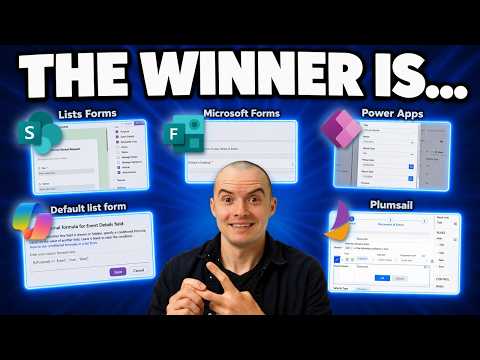
The five approaches compared are the default SharePoint list form, Microsoft Lists Forms, Microsoft Forms connected to SharePoint with Power Automate, Power Apps, and Plumsail Forms. They are not interchangeable: Microsoft Forms is used to collect responses and then pass them into SharePoint through a flow, while the other demonstrated list forms are tied more directly to list entry. For more SharePoint coverage, see Microsoft 365 topics.
Who it is for and what you need
Start with the people who will fill out the form and what they need to do after submitting it. For basic internal data entry, the default SharePoint form is the simplest starting point. Microsoft Lists Forms is aimed at internal forms where branching, visibility conditions, or required fields would help guide the user.
Choose Microsoft Forms with Power Automate when you need to collect responses externally and put them into a SharePoint list. Choose Power Apps when the process needs custom logic, such as filtered choices or conditional validation, and your team can build and maintain the app. Plumsail is a third-party option demonstrated for advanced form customization without building the same logic directly in Power Apps; it requires its desktop app and adds a separate product cost.
The comparison does not establish a complete licensing or rollout guide for these choices. For Power Apps, the demonstration highlights the learning curve and says that AI-assisted building may consume credits or require GitHub Copilot licensing in the described scenario. Check the relevant product and organization requirements before choosing a deployment approach.
How it works
Use this sequence to narrow down the tool based on what your form must do:
- Try the default list form for straightforward entry. From a SharePoint list, select New. Use Edit columns to reorder fields; for conditional visibility, open the column’s Edit column formula option and set the rule.
- Use Microsoft Lists Forms for a more guided internal form. From the list, select the three-dot menu, then Forms, and create a form. Add the fields, set branching or visibility conditions, and mark fields required where needed.
- Connect Microsoft Forms to SharePoint for external response collection. Create a form in Microsoft Forms, then create a Power Automate flow using the When a new response is submitted trigger to pass responses to SharePoint.
- Customize the list form with Power Apps when you need more control. In the list, select the three-dot menu, then Integrate, Power Apps, and Customize forms. Adjust fields and properties such as Visible or Required, publish the app, and publish it to SharePoint.
- Consider Plumsail Forms for advanced form design using its desktop app. Connect to the SharePoint site and list, add fields, and configure features such as conditional visibility, required values, filtered lookups, calculations, or PDF export.
In the vehicle-rental example, a visibility rule displays Event Details only when Purpose is Event. That kind of conditional field is available in more than one approach, but the setup and amount of control differ. Power Apps uses properties and expressions for custom behavior; Plumsail presents several options through its designer.
Plumsail’s example also connects a form tab to a separate list or library through a lookup field, allowing related documents to be uploaded from the form. Its Data Table stores sub-records in a list field as JSON, while the example’s signature is also stored as JSON. These are product-specific capabilities shown in the demonstration, not requirements for every SharePoint form.
Limitations and alternatives
The default form is suitable for simpler entry but does not meet every need for required fields, cost calculations, or filtered dropdowns. Microsoft Lists Forms adds branching and required-field settings, but the demonstration describes it as internal use only. Microsoft Forms plus Power Automate can collect responses from outside the organization, but the demonstrated setup sends data one way: respondents cannot return later to edit the submitted record.
Power Apps provides more room for custom rules, but that flexibility comes with a higher learning curve. It may be more than a basic process needs, and makers need to consider how the app will be built and maintained. Plumsail offers a different route for the advanced examples, but it is a third-party product with an additional cost and a desktop app requirement.
Before building, test the full record lifecycle: who can submit, who can edit, whether later updates are needed, and where related documents should live. Also verify how access and approvals will work. The Plumsail example configures approver access through SharePoint or Microsoft 365 groups and shows additional permission controls. For simpler needs, avoid adding complexity before a real form requirement calls for it.
Sources
Frequently asked questions
Can Microsoft Forms responses go into a SharePoint list?
Yes. The demonstrated approach uses Power Automate with the When a new response is submitted trigger to send Microsoft Forms data to SharePoint.
Can people edit a SharePoint item after submitting a Microsoft Form?
Not with the one-way Microsoft Forms and Power Automate setup described in the comparison. Power Apps is presented as an option when users need to edit records later.
Can Microsoft Lists Forms be used for public forms?
The demonstration describes Microsoft Lists Forms as internal-use-only. For external responses, it uses Microsoft Forms connected to SharePoint through Power Automate.
What can Plumsail Forms do with SharePoint lists?
The examples include conditional fields, required values, filtered lookups, calculated costs, PDF export, linked documents, Data Tables, signatures, and approval permissions.