- All of Microsoft
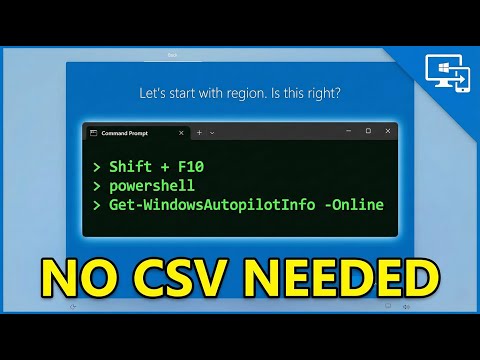
Windows Autopilot: Register Hyper-V VM
Microsoft expert: Windows Autopilot guide to capture hardware hash in OOBE and register Hyper-V VM to Intune with PS
Key insights
-
Windows Autopilot — A cloud-based provisioning service that treats devices like "pizza deliveries," letting IT pre-register hardware and apply deployment profiles so new machines configure themselves during OOBE.
-
Enterprise Mobility + Security E5 — The admin account must have this license assigned before uploading the hardware hash; without it, the upload script will fail and registration stops early.
-
Shift + F10 and Hardware Hash — Use Shift + F10 during the Windows OOBE to open an admin prompt, collect the device’s hardware hash (fingerprint) before installing the OS, and prepare it for cloud upload.
-
PowerShell commands — Run these from the Administrator Command Prompt (Shift+F10 then type powershell): Set-ExecutionPolicy RemoteSigned, Install-Script Get-WindowsAutopilotInfo, and Get-WindowsAutopilotInfo -Online to capture and upload the hardware hash to Intune.
-
Hyper-V test VM setup — Create a Generation 2 VM (with TPM support) to emulate hardware, use PowerShell to automate VM creation and repeat tests, and avoid reimaging physical devices for faster, cost‑effective validation.
-
Intune verification and deployment profiles — After upload, confirm the device appears in Intune, assign an Autopilot deployment profile, and reset the VM to validate enrollment, Microsoft Entra ID join, app installs, and compliance policies.
Video Rundown: What the Windows Channel Showed
The YouTube video from author Windows demonstrates how to register a Hyper-V test virtual machine with Windows Autopilot by capturing its hardware fingerprint and uploading it to Intune using PowerShell. The walkthrough relies on a simple out-of-box-experience bypass using Shift + F10, which opens an administrator command prompt before the operating system is fully configured. Consequently, the presenter runs a short set of PowerShell commands that set script execution policy, install the Autopilot helper script, and upload the hardware hash directly to the cloud. The video is concise and practical, and it includes timestamps for key steps so viewers can jump to specific moments in the process.
Step-by-Step Process Explained
First, the presenter emphasizes a critical precondition: the admin account used for the upload must have the Enterprise Mobility + Security E5 license or the upload will fail, and he makes this point early to prevent wasted effort. Then he shows enabling script execution with Set-ExecutionPolicy RemoteSigned, installing the helper tool with Install-Script Get-WindowsAutopilotInfo, and running Get-WindowsAutopilotInfo -Online to send the hardware hash to Intune. The demonstration includes Hyper-V setup for a Windows 11 test VM, specifically noting a Generation 2 virtual machine and TPM considerations, which are necessary to mirror modern hardware behavior. Finally, he verifies the device appears in the Intune portal and points to next steps such as assigning an Autopilot deployment profile.
Key Requirements and Practical Notes
The video makes clear that network connectivity to Microsoft cloud services is required during the capture and upload process, so lab or host network configuration must allow outbound connections. In addition, the Hyper-V host must meet virtualization requirements and provide a virtual switch so the VM can reach the internet; otherwise the upload command will fail. The presenter also stresses administrative privileges and proper licensing, because the helper script checks tenant permissions and licensing before allowing the upload, which is a common stumbling block. Therefore, preparing the tenant and host environment ahead of time reduces interruptions during the OOBE capture flow.
Tradeoffs: Virtual Machines Versus Physical Hardware
Using a Hyper-V test VM to validate Autopilot flows brings clear benefits, including cost savings and repeatability, because virtual machines can be reset and re-created quickly. However, a virtual environment may not perfectly reflect all hardware-specific behaviors, especially when testing features tied to firmware or physical TPM chips. Moreover, while automation using PowerShell speeds development and reduces manual steps, it raises security and governance questions about execution policies and script provenance that organizations must manage. Thus, teams should balance the convenience and speed of VM-based testing with selective validation on representative physical hardware for production rollouts.
Challenges and Mitigation Strategies
Several challenges are evident in the video and worth planning for: license-driven failures, VM configuration mismatches, and the potential for duplicate or stale hardware hashes in the tenant. To mitigate these, verify tenant licenses and permissions before testing, standardize VM templates that match real device profiles, and remove or reset test device entries in Intune between runs. Additionally, the Shift + F10 trick is powerful but must be used carefully in controlled lab environments to avoid accidental exposure of administrative privileges during unattended setups. Lastly, teams should log each capture and track which profiles and policies were applied so troubleshooting is faster when behavior diverges from expectations.
Practical Recommendations for IT Teams
For IT teams looking to adopt the approach shown by Windows, start by documenting prerequisites and running a single validated trial to build a repeatable checklist, because a short checklist reduces the chance of encountering the common pitfalls shown in the video. Then automate VM creation, network assignment, and the hash-capture commands in a controlled script, while ensuring scripts run under least-privilege accounts and that tenant auditing is enabled. Finally, complement VM testing with occasional physical-device validation to confirm firmware and hardware-specific scenarios, since virtualized tests are an excellent first pass but not a complete substitute for real-world devices.

Keywords
Windows Autopilot Hyper-V PowerShell, Register Autopilot VM, Hyper-V test VM Autopilot, Register Hyper-V VM with PowerShell, Windows Autopilot lab setup, Autopilot provisioning Hyper-V, Enroll Hyper-V VM in Autopilot, PowerShell script for Autopilot registration