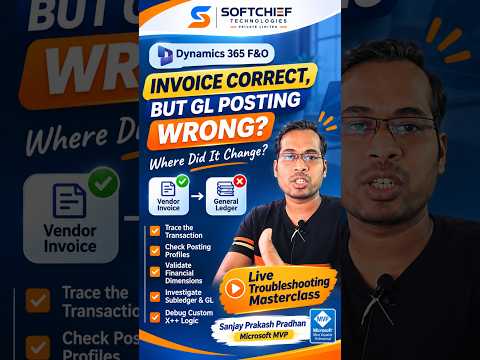
Dynamics 365 Finance: trace invoices to the GL
Learn how to take advantage of your business data with Microsoft Dynamics 365 & Power Platform & Cross Technologies. My name is Sanjaya Prakash Pradhan and I am a Microsoft Certified Trainer (MCT) and
Finance teams and consultants can trace a vendor invoice through distributions and vouchers to find where its General Ledger posting diverged.
Key insights
- A correct vendor, invoice total, or line description does not prove the General Ledger accounts are correct.
- Review accounting distributions to see how an invoice is set to affect the ledger.
- Check vendor posting profiles, financial dimension derivation, and fixed dimensions.
- Trace the transaction from its source document through the subledger journal to the GL voucher.
- Investigate batch processing, posting failures, and custom X++ extensions when setup checks do not explain the result.
Dynamics 365 Finance can show the expected vendor invoice details while posting an unexpected result to the General Ledger (GL), so trace the accounting path instead of relying on the invoice screen alone. This investigation is useful for accounts payable teams, finance leads, and functional or technical consultants diagnosing a vendor invoice. Softchief Learn’s demonstration introduces a transaction-lifecycle approach and highlights distributions, posting profiles, dimensions, journals, and custom logic as places to investigate.
What it does
Invoice details and ledger entries answer different questions. The invoice helps users review the vendor, amounts, and line information; the GL records the accounts and financial dimensions affected by posting. A mismatch between what the invoice appears to say and what the ledger shows can therefore point to accounting setup or a later step in the posting chain, rather than an obvious error in the displayed total.
Accounting distributions offer a practical checkpoint between the invoice and the voucher. They show how the transaction is allocated for accounting, including the accounts and dimensions involved. A distribution may reveal an unexpected account, an inherited dimension, or a split across multiple accounts even when the invoice total looks right.
The key diagnostic principle is to establish where the value changed. Follow the transaction from its source document through the accounting distribution and subledger journal to the GL voucher. That sequence helps narrow the investigation to source data, posting setup, dimension derivation, posting or transfer, or custom code.
Who it is for and what you need
This approach is aimed at people who investigate Dynamics 365 Finance transactions: accounts payable staff who review invoices, finance users who reconcile postings, and consultants responsible for functional configuration or technical troubleshooting. It is useful when the invoice appears plausible but the account, dimension, or voucher result does not match expectations.
Start with the affected invoice and its related source transaction. Identify the exact GL result that seems wrong, such as an account or dimension, and compare it with the accounting distribution and voucher. The demonstration’s troubleshooting areas include vendor posting profiles, financial dimension derivation and fixed dimensions, subledger journals, General Ledger transfers, batch processing, posting failures, and custom X++ logic, including extensions and Chain of Command (CoC).
Those checks span both functional and technical work. Review configuration and transaction evidence first; investigate customizations when the standard transaction path and setup do not account for the result. The article’s focus is a diagnostic method, not a tenant-wide change or an enablement procedure.
How it works
Use a transaction-by-transaction trace so each handoff can be checked against the result that follows it. Keep the invoice, source document, distribution, and voucher details together during the review. The following sequence reflects the areas highlighted in the demonstration without assuming a specific menu path, because navigation can depend on the organization’s configuration.
- Confirm the source transaction. Identify the originating business document and compare its relevant accounting inputs with the invoice. Check whether the vendor, posting profile, and expected financial dimensions align with the transaction.
- Inspect accounting distributions. Compare the accounts and dimensions in the distribution with the intended accounting treatment. Look for an unexpected account, dimension, or allocation that could explain the GL result.
- Follow the subledger posting. Review the subledger journal associated with the invoice and determine whether the accounting values match the distribution. If they differ, focus on the posting step and any related failure or processing issue.
- Compare the General Ledger voucher. Trace the subledger result into the GL voucher. This comparison helps distinguish an issue in the original accounting values from one arising during transfer to the General Ledger.
- Check processing and custom logic. If the preceding evidence does not explain the difference, investigate batch processing and posting failures. Consider whether custom X++ extensions or Chain of Command logic could change the transaction’s behavior.
At each step, record the last point where the accounting value matches expectations and the first point where it does not. That boundary gives the investigation a concrete focus: source transaction, distribution, subledger posting, transfer, or customization. It also makes it easier for a functional consultant and developer to work from the same evidence.
Limitations and alternatives
A correct invoice total alone cannot establish that the GL accounts and dimensions are correct. The investigation must include the accounting distribution and posted voucher. Likewise, checking a vendor posting profile or dimensions in isolation may not explain a problem that arose during journal posting, transfer, batch processing, or through custom logic.
The troubleshooting outline identifies areas to inspect but does not provide a universal repair or a menu-by-menu procedure. Use the specific transaction’s accounting evidence to decide which configuration or processing step deserves attention; do not assume that every mismatch has the same cause. If standard setup checks do not reveal the cause, include technical review of extensions and CoC in the investigation.
Softchief Learn presents the workflow as a way to trace where a value changed, rather than as a single screen that diagnoses every accounting discrepancy. The useful alternative to checking only invoice lines is a full lifecycle trace that compares source data, distributions, journals, and the GL voucher.
Sources
Frequently asked questions
Why can a Dynamics 365 Finance invoice look correct while the GL is wrong?
The invoice display and accounting distribution are separate parts of the posting process. The distribution, posting setup, dimensions, or later journal and transfer steps can lead to an unexpected GL result even when invoice details look right.
What should I check when a vendor invoice posts to the wrong account?
Review the accounting distributions and vendor posting profile, then trace the subledger journal into the General Ledger voucher. Also consider financial dimensions, batch processing, posting failures, and custom X++ logic.
How do I trace a vendor invoice from Dynamics 365 Finance to the GL?
Follow the transaction from its source document to accounting distributions, the subledger journal, and the GL voucher. Compare the accounting values at each stage to identify where they first diverge.