- All of Microsoft
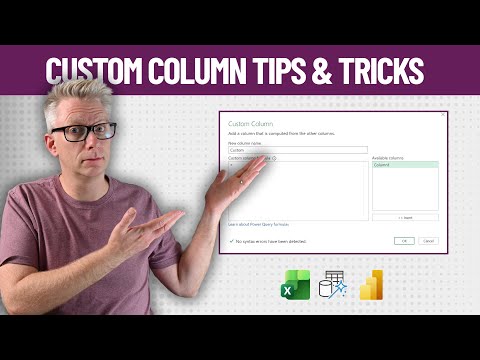
Power Query: 5 Custom Column Hacks
Excel Off The Grid will show you how to work smarter, not harder with Microsoft Excel.
Microsoft expert reveals Custom Column tricks in Power Query to simplify Excel formulas, boost productivity, master VBA
Key insights
- Power Query custom columns let you add calculated fields inside the Query Editor so values compute once at refresh, not repeatedly in reports.
Use them to prepare data before loading to a model and reduce downstream DAX work for better performance. - To create or edit a column open the Power Query Editor and choose Add Column > Custom Column, insert fields from the available columns list, then click OK.
Edit by opening the query’s Applied Steps and clicking the gear icon or use the Advanced Editor for multi-step logic. - Use let...in variables to break complex formulas into readable parts.
Declare intermediate values (for example SalesValue = [Unit Price] * [Quantity]) and return a simple expression that references those variables. - Unpivot first to handle wide tables (like P&L layouts) and then apply a custom column to classify or adjust values.
Unpivoting reduces many repetitive steps into a few transformations and simplifies bulk changes such as negating expense columns. - Use Dynamic columns techniques (for example “choose columns” or unpivot only selected columns) to adapt when column sets change.
This keeps queries resilient and cuts manual updates when source layouts vary. - Follow best practices for readability and maintainability: name steps clearly, split complex logic into multiple custom columns, and prefer upstream Power Query transforms over heavy DAX for large datasets.
These habits lower errors and improve refresh performance.
Overview of the video
The YouTube video by Excel Off The Grid walks viewers through five practical tricks for using the Custom Column dialog in Power Query. In clear, step‑by‑step demonstrations, the author shows how small changes to formula structure and workflow can yield big gains in readability and performance. For newsroom readers, the video serves as a compact tutorial focused on real‑world transformations rather than theoretical concepts. Consequently, the content targets Excel and Power BI practitioners who want faster, more maintainable queries.
Key techniques demonstrated
First, the video emphasizes using variables inside the M language with the let...in pattern to break complex logic into named parts. This approach reduces nested conditions and makes formulas easier to debug, which is especially helpful when multiple calculations feed a single output. Additionally, the presenter shows how to use the Available Columns pane to insert fields and avoid typographical errors, a small habit that prevents many common mistakes.
Second, the tutorial covers unpivoting and bulk transformations to handle wide tables efficiently. For example, converting many period columns into a normalized row structure lets you apply one transformation instead of repeating steps across dozens of columns. Finally, the video highlights conditional logic patterns and shows how to test intermediate results, which reduces trial‑and‑error when building final formulas.
How these tricks improve everyday workflows
When used together, these techniques make query authoring faster and more robust, and they can reduce maintenance overhead for shared reports. By moving work upstream into Power Query, you avoid repetitive calculations in visuals and DAX measures, which in turn speeds up report interactions. Moreover, clearer Custom Column formulas make it easier for teammates to review and extend transformation logic without redoing steps.
In addition, the video demonstrates how small structural changes can cut refresh times for large datasets. For example, unpivoting then applying a single transformation is often quicker than looping through many columns. Thus, the recommended patterns directly support both developer productivity and end‑user performance.
Tradeoffs and practical challenges
However, the video also points indirectly to tradeoffs that designers must consider. Pushing logic into Power Query fixes values at refresh time, which improves performance but reduces runtime flexibility compared with DAX measures that recalc on demand. Consequently, teams must decide whether a static transformation or a dynamic measure better fits their reporting needs.
Another challenge is complexity versus transparency. While variables and compact formulas improve readability for experienced users, they can still be opaque to beginners who lack familiarity with M language syntax. Likewise, unpivoting adds steps that change table shape, which may complicate downstream relationships in a data model if not documented well. Therefore, teams need clear naming and versioning practices to manage query complexity over time.
Takeaways for practitioners
Overall, the video by Excel Off The Grid offers pragmatic, easy‑to‑apply tactics that benefit both solo analysts and report teams. Importantly, the presenter balances quick wins—such as inserting columns from the Available Columns pane—with more structural strategies like unpivoting, so viewers can choose approaches that match their comfort level. As a result, adopting even a subset of the five tricks can cut errors and speed delivery.
In conclusion, the video provides useful heuristics for when to use Custom Column formulas versus other techniques, and it encourages testing intermediate values to avoid surprises. For editorial readers, these lessons translate into clearer, faster, and more maintainable data pipelines in Power BI projects, while also highlighting the need to weigh performance and flexibility when designing solutions.

Keywords
power query custom column tricks, power query custom columns, create custom columns power query, custom column formulas power query, excel power query tips, power query M language tips, advanced power query custom columns, power query transformations custom column