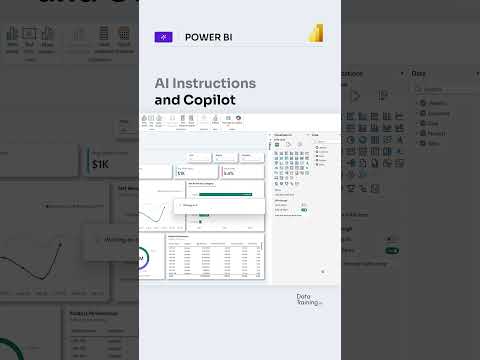
Power BI Copilot: add business terms as AI instructions
Semantic-model authors can add business definitions and rules so Copilot interprets questions using their organization’s terminology.
Key insights
- AI instructions attach business terminology and analytical guidance to a Power BI semantic model.
- The Prep data for AI experience includes an Add AI instructions tab.
- Instructions can map internal terms to model fields, measures, and definitions.
- Test Copilot with representative questions and refine instructions when answers miss the mark.
- AI instructions do not replace fixing incorrect measures, relationships, or data definitions.
Power BI AI instructions let semantic-model authors give Copilot business definitions, terminology, and analytical guidance, helping it interpret natural-language questions in the organization’s context. They matter to teams that use familiar internal terms that do not match the names of fields or measures in a model. How to Power BI’s YouTube Short is the source of the demonstration, while the available background notes describe how the feature fits into model preparation.
What it does
AI instructions provide context that Copilot may not be able to infer from a model’s schema alone. An author could, for example, define “active customer” as a customer with at least one transaction in the last 90 days, or specify that “net sales” refers to a particular measure. That gives Copilot guidance for interpreting questions and selecting relevant model elements.
The instructions are stored with the semantic model, rather than configured separately for each report. The research notes place them within Power BI’s broader Prep data for AI experience, alongside AI data schemas, verified answers, and descriptions. These tools have different purposes: instructions express business meaning, while schemas narrow the model content Copilot considers and verified answers address known question types.
Who it is for and what you need
This is for semantic-model authors who want Copilot interactions to reflect organizational language and rules. The background notes say authors can configure Prep data for AI in Power BI Desktop and the Power BI service, and that users can consume the preparation features wherever Copilot is available.
The material does not specify required licenses, prerequisites, regional availability, or a rollout stage. It also does not verify the experience for every tenant. For more on the product area, see Power BI coverage.
How it works
The notes describe a model-authoring workflow. Add instructions that explain terminology, definitions, and analytical expectations precisely; for example, state which measure to use for a named business concept or how a fiscal year is defined. Then check Copilot’s responses against the results you expect.
- Open the semantic model in Power BI Desktop or the Power BI service.
- Select Prep data for AI, then open Add AI instructions.
- Enter specific business terms, mappings, rules, or guidance and save the changes.
- Test representative questions and refine the instructions if the answers are inaccurate or incomplete.
Limitations and open questions
Instructions can add context, but they do not repair a poorly designed model. Incorrect relationships, measures, aggregations, or data definitions still need to be corrected in the semantic model itself. The material also does not provide a confirmed license requirement or rollout details.
No official Microsoft source URL was included in the supplied sources, so availability and licensing claims cannot be independently cited here. The demonstration transcript is also absent; the workflow above comes from the accompanying research notes, not a step-by-step transcript.
Sources
Frequently asked questions
Where do I add AI instructions in Power BI?
Open the semantic model in Power BI Desktop or the service, select Prep data for AI, and use the Add AI instructions tab.
What should Power BI Copilot AI instructions contain?
Use clear business definitions, terminology mappings, and analytical rules, such as which measure corresponds to a term used by employees.
Do AI instructions fix incorrect Power BI measures?
No. The supplied material says incorrect measures, relationships, aggregations, and data definitions must be fixed in the semantic model.
What license is required for Power BI AI instructions?
The available material does not state a license requirement.