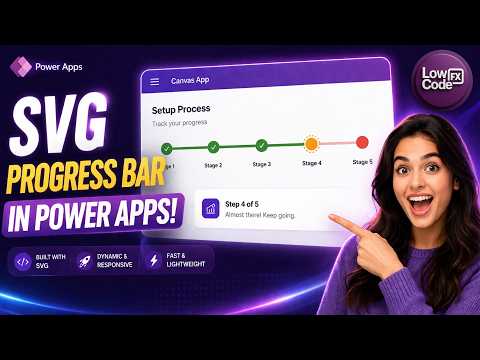
The YouTube video by LowCode FX demonstrates how to build a dynamic Progress bar in canvas apps using inline SVG generated by Power Fx, and it arrives at a useful moment now that Microsoft offers a native Progress Bar modern control. In the video, the author walks through a technique where SVG markup is produced as a data URI and assigned to an Image control so the app can render a custom, resolution-independent indicator that updates as values change. Consequently, the tutorial shows both creative freedom and practical steps, while also noting that Microsoft’s built-in control simplifies many common scenarios. For editors and readers, the piece clarifies when to use custom SVG formulas and when to adopt the native control, setting the stage for tradeoffs and implementation choices.
What the video demonstrates
Initially, LowCode FX outlines a step-by-step pattern: compute a completion percentage, build SVG markup with text concatenation, wrap it as a data URI, and assign it to an Image control so the app renders the graphic dynamically. Then the video shows how the same approach can produce rectangular, rounded, or circular progress visuals by changing shapes, widths, and transformations inside the SVG string, and it uses functions like Min and Max to keep values between valid bounds. Furthermore, the author explains practical details such as where to store the percent variable, how to size the bar for different screens, and how to pair the graphic with numeric labels so users see both visual and textual status. Altogether, the demonstration emphasizes flexibility and the ability to tailor visuals to brand or dashboard needs.
How SVG-based progress bars work
Technically, the technique relies on Power Fx producing an XML-style SVG string whose numeric parameters derive from app variables, then converting that string into a URL-friendly data URI so an Image control can render the result inline. Because SVG is vector-based, the graphic scales cleanly across phone, tablet, and desktop form factors, and the same markup can include gradients, rounded corners, and layered icons without image assets. Moreover, dynamic expressions allow the filled portion to calculate width or arc length from the percent complete, which keeps the UI responsive to real-time updates while avoiding separate image sets. Finally, the approach supports non-standard visualizations—such as segmented or circular gauges—making it suitable when design uniqueness matters more than out-of-the-box simplicity.
Microsoft’s native Progress bar control: benefits and limits
By contrast, Microsoft’s modern Progress Bar control provides an easier path for common scenarios because it exposes properties such as Value, Max, Indeterminate, AccessibleLabel, and Tooltip, letting makers wire simple progress tracking in a few bindings without manual SVG generation. Consequently, the native control improves accessibility and consistency, reduces formula complexity, and benefits from platform performance tuning and support, which makes it a strong default choice for most determinate and indeterminate progress needs. Nevertheless, the control has limits when unique shapes, branded decorations, or advanced animations are required, because it deliberately favors standard UI behavior and predictable rendering across devices. Therefore, teams should weigh quicker implementation and accessibility gains against visual constraints and choose based on priorities.
Tradeoffs and implementation challenges
Choosing between custom SVG and the native control involves tradeoffs around maintainability, performance, and supportability because inline SVG formulas can become long, hard to debug, and costly to update if many screens reuse the same pattern. In addition, long data URIs or heavily nested formulas can hit size limits or slow load times on large apps, and unsupported hacks may complicate future migrations, while native controls receive platform updates and documentation that ease long-term maintenance. Accessibility requires explicit attention when using SVG: developers must provide textual labels and screen-reader descriptions, and testing across devices remains essential to verify scaling and touch behavior. Consequently, teams must balance visual demands, developer skill, and expected lifespan of the app when selecting an approach.
Practical guidance and final thoughts
In practice, use the native Progress Bar control for straightforward tasks where accessibility, simplicity, and consistent behavior matter, but opt for custom SVG when branding or nonstandard visualizations are critical and the team can accept higher maintenance overhead. Also, the video suggests concrete safeguards—cap percent values with Min and Max, document the formula, and test on multiple screen sizes to avoid surprises—while emphasizing that EncodeUrl and careful string construction keep SVG markup robust. Ultimately, the LowCode FX tutorial provides a clear recipe and shows how to balance aesthetics with practicality, enabling makers to choose the best approach for each scenario while remaining mindful of performance, accessibility, and future maintenance.