- All of Microsoft
Copilot Studio: Inline Agent Workflows
Currently I am sharing my knowledge with the Power Platform, with PowerApps and Power Automate. With over 8 years of experience, I have been learning SharePoint and SharePoint Online
Microsoft expert on Copilot Studio Inline Agents embedding AI in workflows for automation, reasoning and Power Platform
Key insights
- Inline Agent in Copilot Studio: The video shows an AI step embedded directly inside a workflow step, so the workflow pauses, the agent reasons or generates content, and the workflow resumes with that output.
It highlights that this design keeps automation deterministic but lets AI handle judgment and ambiguous tasks. - Agent node and setup: You add an Agent node from the workflow canvas, then choose an existing agent or create a new agent for this workflow and give instructions, tools, and knowledge sources.
The presenter walks through the simple steps to configure the agent and use its structured output in later steps. - Dynamic prompts, tool use, and knowledge grounding: Inline agents can reference earlier workflow data in prompts, call connectors or MCP servers to act, and ground answers in sources like SharePoint or public sites.
The demo also notes an option to request human clarification when needed. - Workflow-scoped model and reuse choices: Inline agents live with the workflow and keep configuration local, which speeds setup and improves readability.
If you need the same behavior across flows, the video recommends promoting that logic to a published agent for reuse. - Practical benefits: Inline agents cut setup time, make flow logic easier to follow, and let fixed steps handle routine work while AI tackles reasoning, classification, or content generation.
The approach balances reliability and flexibility for complex business automation. - Demo and context from the video: The clip includes a short demo, a custom inline agent example, and a walkthrough of structured output and triggers.
The presenter frames the feature as part of an AI-first shift toward agentic automation in Copilot Studio and references a May 2026 update about agent nodes.
Introduction
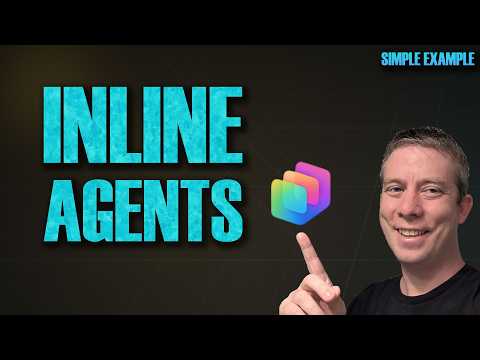
Andrew Hess of MySPQuestions recently published a YouTube video that walks through Microsoft’s new Inline Agents feature inside Copilot Studio. In the clip he outlines the concept, shows short demos, and highlights practical examples such as a researcher mode and a custom inline agent, with clear chapter markers for quick navigation. Consequently, the video serves both as an introduction for beginners and a practical guide for teams exploring AI-driven automation.
Moreover, Hess emphasizes how inline agents let a workflow call on AI reasoning exactly where it matters, rather than routing to a separately defined agent. For reference, his timestamps include segments on prompts replaced, researcher functionality, and a short demo that illustrates structured output. Thus, the video frames the capability as a step toward more integrated, AI-first workflows.
What the Video Demonstrates
Hess begins by explaining that an Inline Agent lives inside a workflow step and returns structured results to the next step, which keeps the overall automation deterministic while introducing AI-driven judgment. He shows how you can either embed a newly created agent directly in the node or call an existing published agent, stressing the convenience of creating agents without leaving the workflow canvas. As a result, viewers get a hands-on sense of how design and execution stay aligned in a single visual flow.
Next, the video highlights specific features such as dynamic content in prompts, connectors and tool access, and grounding to knowledge sources like SharePoint. Hess also demonstrates a short live demo where the agent uses workflow data, then returns a shaped output for downstream steps. Therefore, the presentation balances conceptual explanation with tangible examples to make the benefits clear.
How Inline Agents Work in Practice
Hess walks through a typical setup by opening a workflow, adding an agent node, and choosing either to reuse an existing agent or create a new one scoped to the workflow. Then he supplies instructions, configures any tools or knowledge sources, and uses the agent’s structured output in later steps, which keeps the flow coherent and traceable. Consequently, this process reduces context switching for designers while enabling AI reasoning in situ.
Importantly, Microsoft documents that inline agents remain scoped to their workflow unless you promote them to a published agent for reuse across flows, and Hess reiterates this point when showing how to promote or duplicate behavior. This means teams must weigh whether to centralize agent logic for reuse or keep it local for simplicity and clarity. As a result, planning for reuse and maintenance becomes part of workflow design.
Benefits and Tradeoffs
Hess clearly outlines practical gains such as faster setup, improved readability, and tighter context sharing because the AI step sits next to the deterministic logic it augments. He notes that designers can pass workflow variables directly into the agent’s prompts, which often yields more accurate and relevant outputs. Therefore, inline agents help reduce friction when automating processes that require judgement, classification, or content generation.
On the other hand, he also discusses tradeoffs: while inline agents speed development, they can lead to duplication if the same logic is needed in many flows, and moving an inline agent to a published agent requires additional steps. Moreover, embedding AI logic in many workflows may complicate governance, version control, and auditing unless teams adopt clear policies. Thus, organizations must balance convenience against maintainability and oversight.
Challenges and Best Practices
Hess addresses practical challenges such as ensuring data access, grounding outputs to trusted sources, and configuring tool permissions so agents can act safely and effectively. He recommends grounding agents in known knowledge bases and adding human clarification points when the task requires sign-off or extra context, which helps reduce risky automation. Consequently, these practices make the agents more predictable and auditable in business settings.
He also stresses monitoring and testing as essential: because inline agents combine deterministic steps with non-deterministic AI reasoning, teams should build test cases and logging to observe agent behavior and catch drift. Additionally, Hess suggests promoting frequently reused inline agents to published agents to centralize updates and reduce duplication. Therefore, good governance and lifecycle planning remain vital as usage grows.
Implications and Next Steps
Finally, Hess frames inline agents as part of a broader move toward agentic automation in Copilot Studio, where workflows can call on AI for classification, content generation, and decision support without breaking the flow. He implies that organizations ready to experiment should start with small, well-scoped use cases and emphasize grounding and human review to mitigate risk. As a result, teams can learn iteratively and then scale successful patterns into repeatable published agents.
In summary, the video by Andrew Hess offers a practical and balanced look at Microsoft’s inline agent model, showing both immediate productivity gains and the governance questions that follow. Therefore, viewers who want to modernize workflows with AI will find useful guidance, but they should also plan for reuse, monitoring, and responsible deployment as the next steps.
Related resources
Keywords
Inline Agents Copilot Studio, Copilot Studio workflows, Microsoft Copilot inline agents, Build custom Copilot agents, Copilot workflow automation, Copilot Studio tutorial, Enterprise Copilot integration, Copilot agents best practices