- All of Microsoft
Power Pages: Logo, Favicon & Styling
Software Development Redmond, Washington
Expert Power Pages branding for secure low code portals: style logos, connect Dataverse with Copilot and Power Platform
Key insights
- Power Pages overview: This episode shows how Microsoft Power Pages delivers an enterprise-grade, low-code platform for secure external websites that connect to the Dataverse.
It highlights Copilot and the Design Studio as tools that speed site creation for makers and developers. - Edit site header and unified workflow: Branding controls now appear directly in the header so you can update logo, title, and colors without switching workspaces.
Changes preview immediately and sync with the Styling workspace for consistent site-wide application. - Logo and accessibility: Upload or pick a logo from the media library, set the alternative text, and choose whether the logo displays in the header.
Alternative text helps screen readers and improves accessibility for users who cannot see the image. - Favicon best practices: Use a simplified, high-contrast mark that stays recognizable at small sizes and avoid detailed text.
Test the favicon in both light and dark browser modes to ensure visibility and brand consistency. - Themes, color palette, and fonts: Start from preset themes and customize colors, fonts (including Google Fonts), buttons, and margins in the Styling workspace.
Enter color values with a picker, hex, or RGB; reset a theme to restore original mappings if needed. - Security and integrations: Power Pages supports role-based security, multiple identity providers for authentication, and integration with Power Automate, Microsoft 365, and Azure services.
These features enable secure self-service portals and scalable digital experiences for customers, partners, and employees.
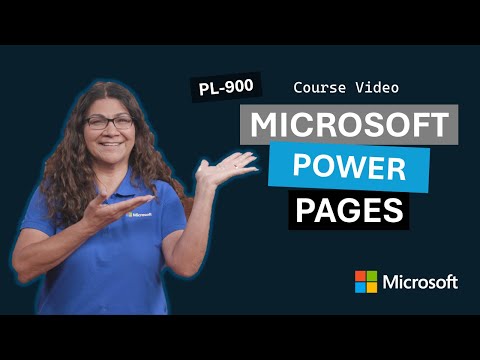
The newsroom reviewed a YouTube video published by Microsoft titled "Power Pages Site Branding: Logo, Favicon and Styling — Episode 3 of 6," which demonstrates how organizations can build and style external-facing, low-code websites. In the video, makers see an end-to-end walkthrough that highlights site branding, design tools, and integration with Microsoft services. Moreover, the session emphasizes enterprise-ready features such as security, role-based access, and connections to back-end data. As a result, viewers gain practical guidance on how to align visual identity and functionality in a scalable web portal.
Video overview and context
The video situates Power Pages as an enterprise SaaS platform that connects to the broader Power Platform and Dataverse to support customer, partner, and employee portals. It showcases both low-code and pro-code options, and it highlights how makers and developers can use the platform for real-world scenarios. Additionally, the presenter demonstrates how the product integrates with services such as Power Automate, Microsoft 365 and Azure, which helps teams automate workflows and extend capabilities. Consequently, the episode positions design and branding as part of a larger, secure digital experience.
Key branding components explained
The video walks through the essential elements of site branding, including the site title, logo, favicon, color palette, fonts, header, and advanced styling options. Makers learn how to upload or choose a logo from the media library, set alternative text for accessibility, and control whether the logo is visible in the header. The presenter also emphasizes the favicon as a distinct asset, advising that it remain simple, high-contrast, and tested for legibility in both light and dark browser modes. Therefore, the guidance balances visual fidelity with practical constraints of small-format icons.
Design studio and Copilot in practice
Most notably, the video highlights the new Edit site header experience inside the Design Studio, where key settings are editable without switching workspaces. This change streamlines the maker workflow because updates to the header immediately reflect in the Styling workspace and in the live preview, improving iteration speed. In addition, the presenter demonstrates how Copilot can accelerate site creation through suggested layouts and configuration steps, which helps less technical users move faster while reducing repetitive tasks. As a result, the combination of direct visual editing and AI assistance aims to shorten the design loop for teams.
Styling, themes and typographic choices
The Styling workspace receives detailed attention, with a focus on preset themes, color palettes, and typography choices that apply globally across the site. Makers can select from a set of preset themes, customize colors via a picker, hex codes or RGB values, and choose from a catalogue of fonts that includes common system options plus many web fonts. The video also explains that changing individual design elements can break a theme’s original mapping, so makers should use the reset option to restore defaults when needed. Consequently, organizations must weigh the benefits of quick theme adjustments against the cost of maintaining consistent mappings for brand compliance.
Tradeoffs and practical challenges
The video addresses tradeoffs that teams commonly face, such as choosing between the speed of low-code design and the precision of pro-code customization. While Copilot and the integrated Design Studio speed up initial builds, heavy customization may require custom CSS or developer involvement, which increases maintenance effort. Moreover, tenant rollouts and environment differences can affect features like favicon configuration, so makers should validate settings in the target environment and plan for staggered releases. Therefore, teams must balance immediate productivity gains with the longer-term needs of governance, accessibility, and cross-browser consistency.
Accessibility, security and governance considerations
The presenter underscores accessibility practices such as providing alternative text for logos and choosing high-contrast color choices to aid readability and compliance. Security and role-based permissions are also described as foundational, because external-facing portals often require authentication across multiple identity providers and granular role rules. Additionally, the video suggests integrating with Power Automate and Azure services to automate security workflows and to centralize logging and monitoring. In short, branding choices should align with security and governance strategies to ensure the site serves users reliably and responsibly.
In closing, the Microsoft episode offers a practical, demo-driven look at how Power Pages supports site branding through centralized tools, AI-assisted workflows, and a Styling workspace that enforces global design settings. Yet, the video also makes clear that teams must navigate tradeoffs between rapid low-code delivery and the demands of customization, accessibility, and tenant-specific behavior. For makers and designers, the takeaways point toward a balanced approach: use the new header and styling features for quick, consistent branding, while reserving pro-code efforts for scenarios that require fine-grained control. Ultimately, the episode provides a useful roadmap for organizations aiming to deliver cohesive, secure, and accessible web portals.
Keywords
Power Pages site branding, Power Pages logo, Power Pages favicon, Power Pages styling, Power Pages theme customization, Power Pages site design, Power Pages custom CSS, Power Pages header and footer branding