- All of Microsoft
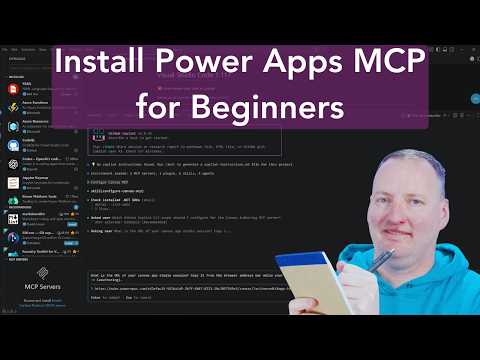
Power Apps MCP: Install & Configure
SharePoint & PowerApps MVP - SharePoint, O365, Flow, Power Apps consulting & Training
Microsoft guide to Power Platform Power Apps Canvas setup with VS Code, NodeJS, .NET, PowerShell, Git and GitHub Copilot
Key insights
- Power Apps MCP overview: MCP runs as a local proxy that lets AI agents and developer tools talk to Power Apps and Dataverse securely.
It needs a Microsoft account, a Power Platform environment, and common developer tools installed as prerequisites. - Install Visual Studio Code: download and install VS Code, add Power Platform and GitHub Copilot extensions, and restart the editor to apply settings.
Use the Command Palette to enable relevant extensions and confirm VS Code can access your shell and Git. - Install runtimes: install the LTS Node.js build and set npm global path if needed; install Git for Windows and configure user.name and user.email.
Verify both are on PATH and run simple checks like node --version and git --version. - Install .NET SDK 10 and PowerShell 7: install the .NET 10 SDK and confirm dotnet --version; install PowerShell 7 and allow script execution for local tools if required.
Restart terminals after install so new PATH settings take effect. - Install the Power Platform CLI and GitHub Copilot CLI, then set up the MCP server: install the CLI as a global .NET tool, install and authenticate the Copilot CLI, and start the MCP local server or plugin.
Configure authentication (use maker-provided credentials for autonomous agents) and test a simple CLI command that lists environments. - Create your first canvas app: use the Power Platform CLI to scaffold a Canvas App, open and edit it in Power Apps Studio and VS Code, use Git to commit changes, and use Copilot to assist code and UI edits.
Test CRUD operations against Dataverse, validate MSAL authentication, then publish the app to your Power Platform environment.
Overview: A practical guide from Shane Young [MVP]
In a recent YouTube video, Shane Young [MVP] walks viewers through installing and configuring tools needed to work with Power Apps MCP and to start building canvas apps with AI assistance. The video targets beginners and covers both the prerequisite developer tools and the specific MCP components that connect local workflows to the Power Platform. As a result, the tutorial aims to reduce friction for makers who want to combine local editing, CLI workflows, and AI copilots for app creation.
What the video covers and required tools
Shane organizes the content as a clear sequence that begins with environment setup and ends with creating a sample app. In particular, he emphasizes installing a set of common Developer Tools and the MCP components that enable AI tooling to interact with Power Apps. Furthermore, he demonstrates how these tools work together and how to verify the environment before creating your first canvas app.
Specifically, the video lists the following essentials:
- Visual Studio Code
- NodeJS
- Git for Windows
- Dot Net SDK 10
- PowerShell 7
- GitHub Copilot CLI
- Power Apps Canvas Apps MCP
Step-by-step setup highlights
First, Shane shows how to install Visual Studio Code and configure it for Power Apps development, noting that VS Code provides a familiar editing surface and extensions that simplify the workflow. Next, he guides viewers through installing NodeJS and Git for Windows, which are needed for CLI tooling, package management, and version control. He also walks through installing the Dot Net SDK 10 and PowerShell 7, which support local MCP servers and the .NET-based Power Platform CLI.
After the core tools, Shane installs the GitHub Copilot CLI and demonstrates how it can assist with code generation and repetitive tasks in VS Code. Finally, he installs the Power Apps Canvas Apps MCP components and verifies the installation by creating a small sample app to show end-to-end connectivity. Throughout, he pauses to show the exact commands and where to check installation success, which makes the process easier for newcomers.
How MCP integrates with AI tools
Shane explains that Power Apps MCP acts as a bridge between local tools and the Power Platform, enabling AI copilots and CLI agents to access app functions and Dataverse data. Consequently, this setup allows automated assistants to generate code snippets, create records, and even scaffold parts of canvas apps under human supervision. Moreover, the integration supports both local testing and secure authentication patterns, which matters for teams that need to maintain governance while adopting AI features.
However, Shane also highlights that AI integration brings tradeoffs: while copilots can speed development, they require clear guardrails to avoid introducing errors or security risks. Therefore, makers should balance the productivity gains against the need for review processes, logging, and correct authentication settings. In practice, this means configuring maker-provided credentials and enabling appropriate auditing to keep control over what automated agents can do.
Tradeoffs and realistic challenges
The video does not shy away from the practical challenges that beginners face, such as version mismatches, PATH configuration, and permission issues on corporate machines. For example, installing the correct Dot Net SDK and ensuring the CLI tools are available on PATH can be frustrating, and Shane suggests common troubleshooting steps to reduce downtime. Additionally, there is the tradeoff between running services locally for faster iteration and relying on cloud-hosted flows that offer simpler management but slower local feedback loops.
Another challenge is licensing and governance: while MCP enables powerful automation, organizations must weigh the cost of Copilot and Power Platform licenses against the expected productivity gains. Furthermore, teams that allow autonomous agents to act need to implement monitoring and rollback strategies to mitigate mistakes. Consequently, decision makers should consider pilot projects to evaluate benefits before rolling the approach out broadly.
Practical tips and next steps
Shane ends with actionable advice: verify each installation step, use a clean test environment when possible, and adopt source control early to track changes made by AI tools. He also recommends running simple sample apps first, then gradually allowing copilots to suggest more complex changes as confidence grows. Thus, a staged adoption plan reduces risk and improves learning for both individuals and teams.
In summary, the video provides a compact, practical walkthrough for getting started with the toolchain needed to edit Power Apps locally and to use AI copilots effectively. Therefore, beginners who follow Shane’s steps can expect a manageable learning curve, and teams that consider the tradeoffs carefully will find the approach a useful addition to their Power Platform toolkit.

Keywords
Install Power Apps MCP, Configure Power Apps MCP, Power Apps MCP setup guide, Power Apps MCP installation tutorial, Power Apps MCP configuration steps, Power Apps MCP admin setup, Power Apps MCP deployment best practices, Power Apps MCP certification prep