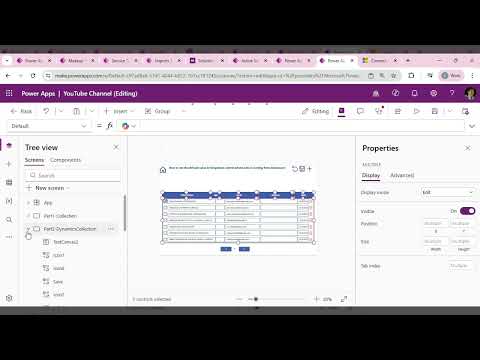
Power Apps: Horizontal Gallery Scrolling
Microsoft expert tips to enable horizontal scroll in Power Apps Canvas Gallery using horizontal container overflow
Key insights
-
Set a horizontal gallery layout: change the gallery Layout to Horizontal so items flow left-to-right.
Use TemplateSize to control each item’s width so the gallery scrolls when items exceed the visible area. -
Wrap a vertical gallery in a scrollable container to get horizontal scrolling for wide rows.
Add a Horizontal container (and an inner Content container if needed) and set the container’s Horizontal overflow to Scroll. -
Make the inner content wider than the container so overflow triggers scrolling.
The outer container must be narrower than the combined width of columns; otherwise no horizontal scroll appears. -
Control spacing and total width with template settings: use TemplateSize and TemplatePadding to set item width and gaps.
Example dynamic width formula: (Self.TemplateSize + Self.TemplatePadding) * Self.AllItemsCount + Self.TemplatePadding. -
Choose visible controls for users: set ShowScrollbar to true to show a scrollbar on hover or enable ShowNavigation to show arrow buttons.
If the outer container handles scrolling, turn off the gallery’s own scrollbar to avoid duplicate scrollbars. -
Quick setup steps: insert a Gallery, set Layout to Horizontal (or place a vertical gallery inside a scrollable container), set Items, adjust TemplateSize and TemplatePadding, then set container overflow to Scroll.
Verify property names like Horizontal overflow or OverflowX in your studio version, as labels can vary.
Overview of the video
The YouTube video by Chetan Khanapure explains how to enable horizontal scrolling in a Power Apps Canvas Gallery. He walks viewers through both the direct horizontal gallery configuration and a workaround for vertically oriented galleries that need horizontal scrolling. In addition, the video highlights specific properties such as Layout, TemplateSize, and the container Horizontal overflow setting. Overall, the presentation focuses on practical steps and demonstrates the behavior in the Power Apps Studio environment.
Configuring a horizontal gallery
First, Khanapure shows the simplest path: set the gallery’s Layout to Horizontal, adjust TemplateSize to control item width, and enable ShowScrollbar when a visible scrollbar helps users. He also mentions the ShowNavigation option as an alternative that provides navigation arrows instead of direct scrolling. The video demonstrates how the gallery automatically scrolls left and right when items exceed the visible width, and it explains the impact of TemplatePadding on spacing between items. This approach is straightforward and works well for standard horizontal lists and image carousels.
Making a vertical gallery scroll horizontally
Next, the video covers a common requirement: keep a vertical listing of records but allow horizontal scrolling within each record or across columns. Khanapure recommends wrapping the gallery inside an outer Horizontal container and setting the container’s Horizontal overflow to Scroll while making the inner content wider than the container. He explains that the gallery itself remains a vertical list, but the outer container provides the horizontal scrollbar so users can pan across many columns. This method reproduces a table-like horizontal scroll without forcing the entire gallery to switch orientation.
Dynamic width and sizing considerations
The video also shows a common pattern for calculating gallery width dynamically so the scroll area matches the number of items, using a formula that multiplies TemplateWidth and padding by the item count. Khanapure demonstrates a sample expression that sums the template width and padding for all items and adds final padding to produce the overall content width. He warns that you must ensure the outer container is narrower than this computed width to create overflow and enable scrolling. Consequently, dynamic sizing helps when item counts vary, but developers must handle updates and screen resizing.
Tradeoffs and practical challenges
Khanapure discusses tradeoffs between using a dedicated horizontal gallery and wrapping a vertical gallery inside a scrollable container. For example, a horizontal gallery is easier to configure for simple left-to-right lists, but it limits how you present record rows and can complicate interactions that expect vertical flow. Conversely, the container approach preserves the vertical record layout and adds horizontal scrolling, but it introduces more layout complexity and requires careful width management. Therefore, developers must weigh simplicity against layout control and pick the option that best fits the app’s data and interaction needs.
Performance, accessibility, and device behavior
The video briefly addresses performance implications and device differences, noting that many items laid out horizontally may affect rendering and responsiveness on lower-end devices. Khanapure advises testing on touch screens because touch-based horizontal scrolling can conflict with vertical swipe gestures, and nested scroll containers sometimes capture touch events unexpectedly. He also calls attention to accessibility and suggests that teams provide keyboard navigation or visible navigation controls when a scrollbar alone is not sufficient for all users. Thus, the practical challenge is balancing a smooth visual layout with reliable interaction and acceptable performance.
Recommendations and takeaways
In closing, Khanapure recommends choosing the horizontal gallery for straightforward horizontal lists and using a Horizontal container with overflow set to Scroll when you need column-like horizontal scrolling inside vertical lists. He encourages developers to compute dynamic widths when item counts change and to test layout behavior across screen sizes and input types. Furthermore, he reminds viewers to check current Power Apps Studio property names because labels and options sometimes change between versions. Ultimately, the video provides a clear, practical guide and highlights the small but important tradeoffs developers must consider when enabling horizontal scrolling in Canvas apps.

Keywords
PowerApps horizontal scrolling, Power Apps gallery horizontal scroll, Canvas app horizontal scrolling, enable horizontal scrolling PowerApps, PowerApps Gallery control horizontal, horizontal scroll in Canvas Gallery, PowerApps responsive gallery horizontal, enable horizontal scroll in PowerApps gallery