- All of Microsoft
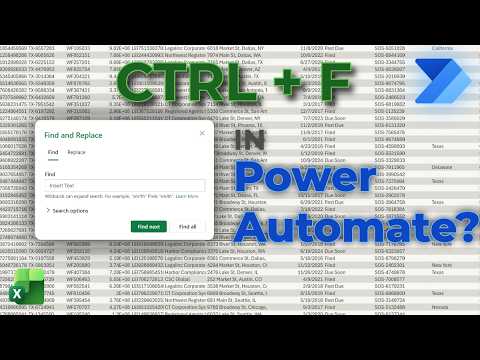
Power Automate: Replicate Excel Ctrl+F
Power Platforms Consultant | Content Creator
Replicate Ctrl F in Excel to search with Power Automate for Power Platform Microsoft SharePoint Power Apps
Key insights
-
Replicates Excel’s CTRL + F inside a cloud flow using Power Automate without Office Scripts.
Use a user input for the search term and run the flow against an Excel table to find matches. -
Core actions: start with List rows present in a table, then apply a Filter array to find matching rows.
Optionally use Apply to each to process results and collect file, sheet, row, or column details. -
Search behavior: support exact and partial text matches by using contains-style expressions in the Filter array.
Test for case needs and trim inputs to avoid false misses. -
Data handling and performance tips: always store data in an Excel table, limit returned columns, and filter early to reduce flow payload.
For large sets, paginate or process files one folder at a time to avoid timeouts. -
Results and post-processing: move matching rows outside the loop to simplify output, then flatten nested array and remove duplicates before exporting.
Export to a new table, log matches, or use the output to validate or prevent duplicate creates. -
Practical uses and audience: ideal for low-code builders and Power Platform consultants to search for a value, check if a record exists, and perform partial text searches across Excel Online, SharePoint, or Teams files.
Test flows with sample headers and terms to confirm behavior before applying to production data.
Introduction
In a recent tutorial video published by Isabel Liu, she shows how to reproduce the CTRL + F search experience inside Excel using Power Automate, and notably without relying on Office Scripts. The clip walks viewers step by step, covering both the initial setup and refinements such as flattening results and removing duplicates. As a practical how-to, the video targets low-code builders and automation consultants who often need a reliable way to locate values across tables and files.
Moreover, Liu timestamps each section of the demo so viewers can jump directly to tests, updates, and final verification stages. This structure makes the tutorial useful both as a learning tool and as a quick reference while building flows. Consequently, readers can adopt patterns shown in minutes rather than watching the entire recording repeatedly.
How the Video Demonstrates the Flow
First, the video demonstrates the basic idea by showing a search term dialog and then listing rows from a table using the List rows present in a table action. Next, the host uses a Filter array operation to narrow results and imitate the familiar CTRL + F behavior inside a cloud flow. This combination keeps the solution within standard Power Automate actions and avoids brittle UI automation techniques.
Throughout the demo, Liu runs tests at several points: verifying table headers, applying filters, testing partial text matches, and finally consolidating results outside of internal loops. She also explains why moving result handling out of an Apply to each loop can simplify downstream steps and improve performance. In addition, the video covers steps to flatten nested arrays and remove duplicates so output is clear and useful for reporting.
Key Components and Step-by-Step Flow
The tutorial relies on a few repeatable actions: get the search term via an input dialog, call List rows present in a table, then apply a Filter array to find matching records. After filtering, the flow can log the file, sheet, column, and row where matches occur, or write results to a new Excel file. For multi-file scenarios the video shows iterating through folder contents before reading each worksheet.
In practical terms, the presenter emphasizes using data table loops and conditional checks, such as comparing current items against the search term or using functions for partial text matches. She also demonstrates copying matching data and exporting consolidated results, which suits use cases like validating entries or preventing duplicate row creation. By the final test, viewers see a clear list of matches and learn how to refine output for downstream processes like notifications or updates.
Tradeoffs and Technical Challenges
While this approach avoids UI automation's fragility, it introduces tradeoffs between simplicity and precision. For example, reading entire ranges with List rows present in a table can be fast for small tables but may strain memory and run time on very large datasets. Conversely, more granular reads reduce load but add complexity and extra API calls, so designers must balance speed against maintainability.
Additionally, handling partial matches and case sensitivity requires careful use of expressions and sometimes extra steps to normalize text. Moving result processing outside of inner loops reduces overhead, yet it demands thoughtful array handling to avoid nested structures. Finally, flattening nested arrays and removing duplicates improves usability but can complicate logic when multiple files or sheets contain related rows.
Practical Takeaways for Builders
For teams integrating Excel with the Power Platform, this pattern offers a reliable alternative to keyboard or UI-driven search methods. It works well when flows must search tables, validate records, or find matching rows before creating new entries, and it fits nicely into broader automation solutions that link Excel, SharePoint, and Teams. In short, the technique provides a reusable building block for common data validation and search tasks.
To implement the pattern successfully, start by testing on a representative dataset, then measure run time and memory usage before scaling to large folders. Moreover, document where you apply filters and how you flatten results so future maintainers can adjust matching rules or add new fields. Ultimately, Isabel Liu’s video gives a clear, repeatable method and highlights the tradeoffs that automation builders must weigh when they replace manual searches with automated flows.
Keywords
power automate find in excel, replicate ctrl f in excel power automate, automate excel search, power automate excel search tutorial, simulate ctrl+f excel with power automate, power automate desktop excel find, excel find and replace power automate, search cells in excel using power automate