Quick summary of the video
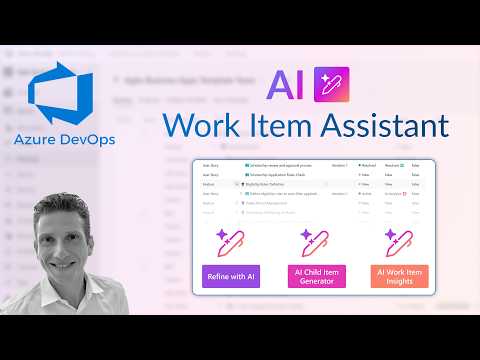
In a recent YouTube video, Dani Kahil demonstrates the Azure DevOps AI Work Item Assistant, walking viewers through its main features and configuration steps. The video highlights how the extension speeds up the creation and refinement of work items inside Azure Boards, and it shows practical steps for day-to-day use. Viewers see demonstrations of the AI Work Item Generator, the AI Work Item Editor, the AI Child Item Generator, and the AI Work Item Insights tools in action.
What the assistant does and why it matters
The video frames the extension as a productivity tool that reduces manual effort when drafting tasks, bugs, and features. By using generative AI, the assistant proposes descriptions, acceptance criteria, and repro steps that teams can accept or refine, which helps maintain consistency across work items. Consequently, teams can spend less time on administrative writing and more time on planning and execution.
How it works in practice
Kahil shows how to configure the extension through organization or project settings, and then demonstrates each feature step by step. For example, the AI Work Item Generator can create a full work item draft from minimal input, while the AI Work Item Editor helps refine existing descriptions so they better match team standards. Additionally, the AI Child Item Generator quickly breaks larger items into smaller tasks, and the AI Work Item Insights option surfaces trends and gaps in backlog quality.
Configuration, security, and integration tradeoffs
The video emphasizes that administrators must balance ease of use against governance when enabling the extension across an organization. On one hand, broad access speeds adoption and standardizes item quality, but on the other hand, it increases the need for permission controls and oversight to ensure consistency and compliance. Moreover, Dani highlights the option of using an MCP Server to keep AI processing inside a secure perimeter, which improves data privacy but introduces additional setup and operational overhead.
Benefits versus potential pitfalls
While the assistant can accelerate backlog grooming and improve clarity, the video cautions that AI suggestions still require human review to avoid inaccuracies or context loss. For instance, generative models may omit edge cases or assume requirements that do not apply, so teams must verify acceptance criteria and repro steps before committing them to a sprint. Furthermore, the organization must weigh costs, such as model usage fees and training time, against the time saved drafting routine items.
Adoption challenges and practical advice
Kahil offers pragmatic recommendations for adoption, urging teams to start with pilot projects and clear guidelines so that AI output aligns with internal processes. He also notes that setting expectations matters: product owners and QA leads should agree on review workflows to catch model errors early and maintain traceability. As a result, gradual rollouts paired with feedback loops help tune the assistant to the team's language and standards.
Balancing automation and human judgment
The video underscores an important tradeoff: automation speeds work but cannot replace domain expertise. Therefore, teams should treat the extension as a drafting assistant rather than a decision maker, and keep human reviewers responsible for final acceptance and prioritization. Over time, the assistant can learn common patterns and reduce repetitive work, yet teams must still invest in governance and training to keep its outputs useful and safe.
Bottom line for teams and managers
Dani Kahil’s walkthrough demonstrates that the AI Work Item Assistant offers tangible time savings and tighter backlog quality when integrated thoughtfully. However, the benefits come with tradeoffs in setup complexity, data governance, and ongoing oversight, which organizations must address before wide deployment. In short, the tool can boost productivity, but it requires measured adoption and continuous human involvement to deliver reliable results.
